

Software/Package Management
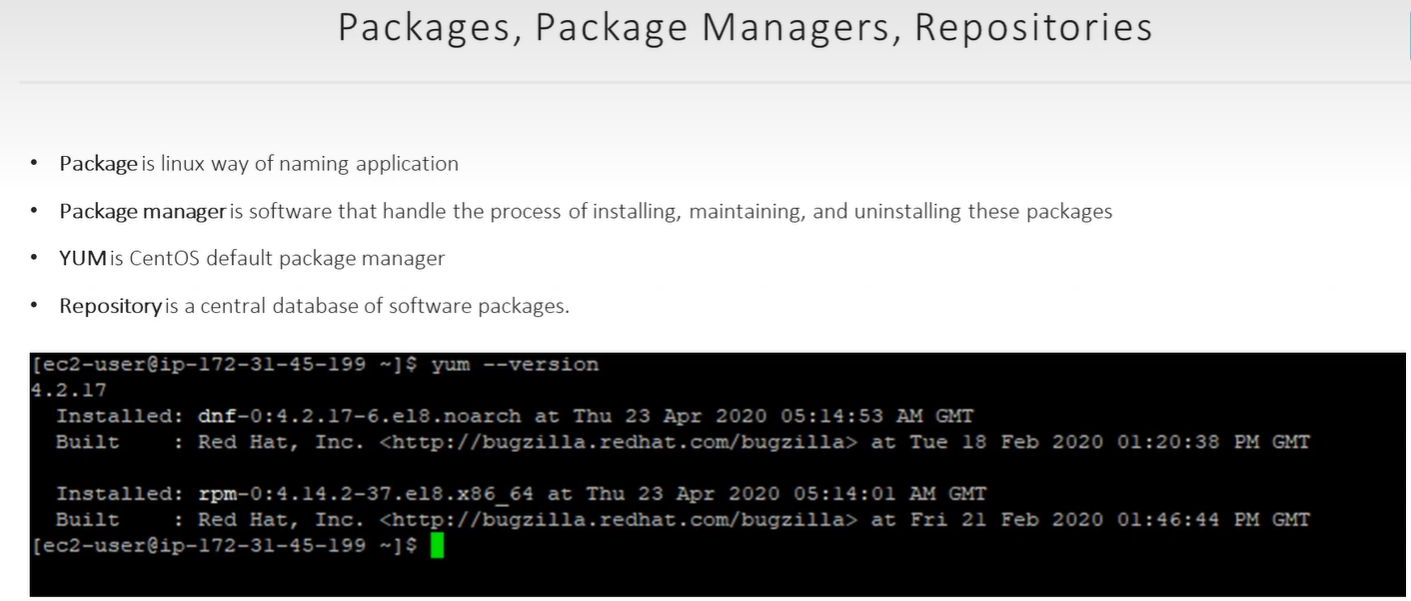
Software Packages & Managers
Section titled “Software Packages & Managers”A Software Package is a compressed archive containing the application and its instructions. A Package Manager is the tool that automates installing, configuring, and removing these archives.
The Two Main “Families”
Section titled “The Two Main “Families””Linux distributions generally fall into two camps based on their package format:
| Family | Package Extension | Low-level Tool | High-level Tool (Automated) |
|---|---|---|---|
| Debian Based (Ubuntu, Mint) | .deb | dpkg | apt / apt-get |
| Red Hat Based (Fedora, CentOS) | .rpm | rpm | yum / dnf |
APT (Advanced Packaging Tool)
Section titled “APT (Advanced Packaging Tool)”Used in Debian-based systems. It handles “dependencies”—if App A needs App B to run, apt finds and installs both automatically.
Essential apt-get Commands
Section titled “Essential apt-get Commands”update: Refreshes the list of available software from the internet. Run this first.upgrade: Installs the newest versions of all your currently installed packages.install [pkg]: Downloads and installs a specific program (e.g.,apt-get install vim).remove: Uninstalls the program but keeps your settings files.purge: Deletes the program and all its configuration files.
Essential apt-cache (Searching)
Section titled “Essential apt-cache (Searching)”search [keyword]: Finds programs related to your keyword.show [pkg]: Displays details like the version, size, and description of a package.depends [pkg]: Lists every other piece of software required for this package to work.
Sources List (Where the software lives)
Section titled “Sources List (Where the software lives)”Your computer doesn’t just “know” where to find software. It looks at specific text files to find the URL of “Repositories” (App Stores for Linux).
- File Path:
/etc/apt/sources.listand files inside/etc/apt/sources.list.d/. - Daily Use: If you need to install specialized software like Docker or Kubernetes, you usually have to add their “source” URL to these files first so
aptknows where to look.
Daily Life Application
Section titled “Daily Life Application”- Setting up a new system:
sudo apt update && sudo apt upgradeensures everything is fresh. - Fixing errors: Use
sudo apt-get checkto find broken installations. - Cleaning space: Use
sudo apt-get purgefor apps you never want to see again, including their leftover settings.
yum list installed → to see all the installed packages
yum install package
yum remove package
yum check-update - lists new versions ALL Pakcages
yum check-update <package> → specific update
yum update <package> → if package is not cpeified updates all
yum search httpd → search installed pack in repo
info → used to get info about specific pack
YUM Config
Section titled “YUM Config”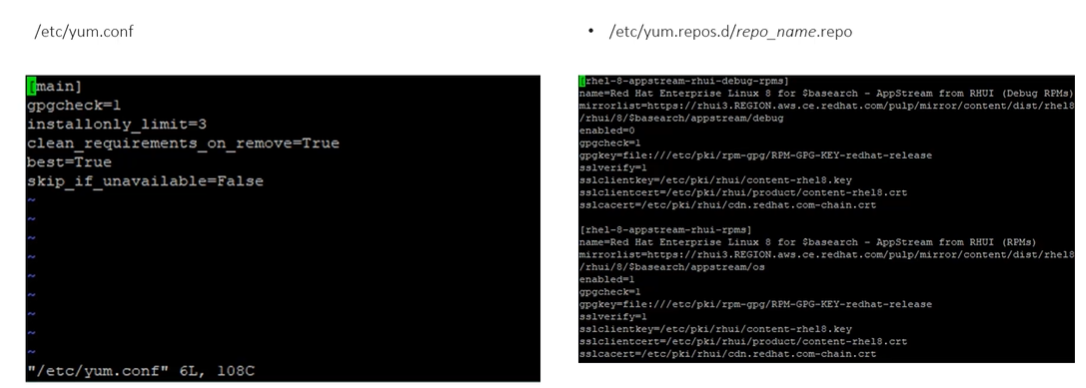
gpgcheck - 0/1 specifies key check for integrity of downloaded packages
installonly… → max no.of verions of same package installed in system
clean_req… →
best → only latest version of package if error install prev. version
skip_.. →
Alternatives Command (Managing Versions)
Section titled “Alternatives Command (Managing Versions)”The alternatives system (often used as update-alternatives on Debian/Ubuntu) allows you to have multiple versions of the same software (like Java 8, 11, and 17) installed at once and choose which one is the “active” default.
*alternatives [options] --install link name path priority [--slave link name path]... [--initscript service]**alternatives [options] --remove name path**alternatives [options] --set name path**alternatives [options] --auto name**alternatives [options] --display name**alternatives [options] --config name*- What it does: It uses symbolic links (shortcuts) to point a generic command (like
/usr/bin/java) to a specific versioned folder. - Key Command:
alternatives --config <name>(e.g.,alternatives --config java). - How it works: 1. It shows a numbered list of all installed versions.
- The current version is marked with a or
+. - You type the number of the version you want to use and hit Enter.
Java: JDK and OpenJDK
Section titled “Java: JDK and OpenJDK”Java is a programming platform that requires specific environments to run or build applications.
- JDK (Java Development Kit): The full toolkit for developers. It includes the JVM (Java Virtual Machine) to run code and tools to compile/build Java apps.
- OpenJDK: The free, open-source implementation of the Java platform (GPL licensed). Most Linux users use OpenJDK instead of the Oracle proprietary version.
- Installation: In modern Linux, you install it just like any other package:
sudo apt install openjdk-11-jdk(For Java 11).
Daily Life Application
Section titled “Daily Life Application”- Fixing Version Conflicts: If a project requires Java 8 but your system has Java 17, use
sudo update-alternatives --config javato swap back and forth in seconds. - Adding New Manual Installs: If you download a specific version of a tool (like a custom Python build), use
-installto register it into the alternatives system so you can manage it easily. - Development Setup: Always install the
openjdk-X-jdkpackage if you are writing code, or just thejre(Java Runtime Environment) if you only need to run a Java program.