Basic Commands
containers
docker ps & ps -a
docker rm <container_id/name>
images
docker images → list all images
docker rmi -f image_name/id → f forces to delete if continaer is running, but is is good practice to stop container before deleting image…
runnning
docker run <image/id>:<tag> → download if not found, then runs the image, default tag is latest
docker pull <image/id> → downloads image
why ubuntu is go to exit state? when we run docker run ubuntu
- it is bcoz by default there is no application running in ubuntu it is not the os! if it contains any processes running then it will run as long as that process runs!
- otherwise it goto EXIT state
- also see
docker run ubuntu sleep 5waits 5s then exits..
executing a shell command from image..
docker exec <container_name/id> cat /etc/hosts
attached / detached modes
- attached mode → runs stuff in foreground! →
docker run xyz - detached mode → runs in bg →
docker run -d xyz
bring detached to attached!..
docker attach <container id>
docker run -it <container_img/id> <shell>
-i → keeps STDIN open so we can type many commands..
-t allocates a pseudo-terminal (TTY).
This gives you:
- proper terminal formatting
- command prompt
- line editing
- colors
- arrow keys
- Ctrl+C handling
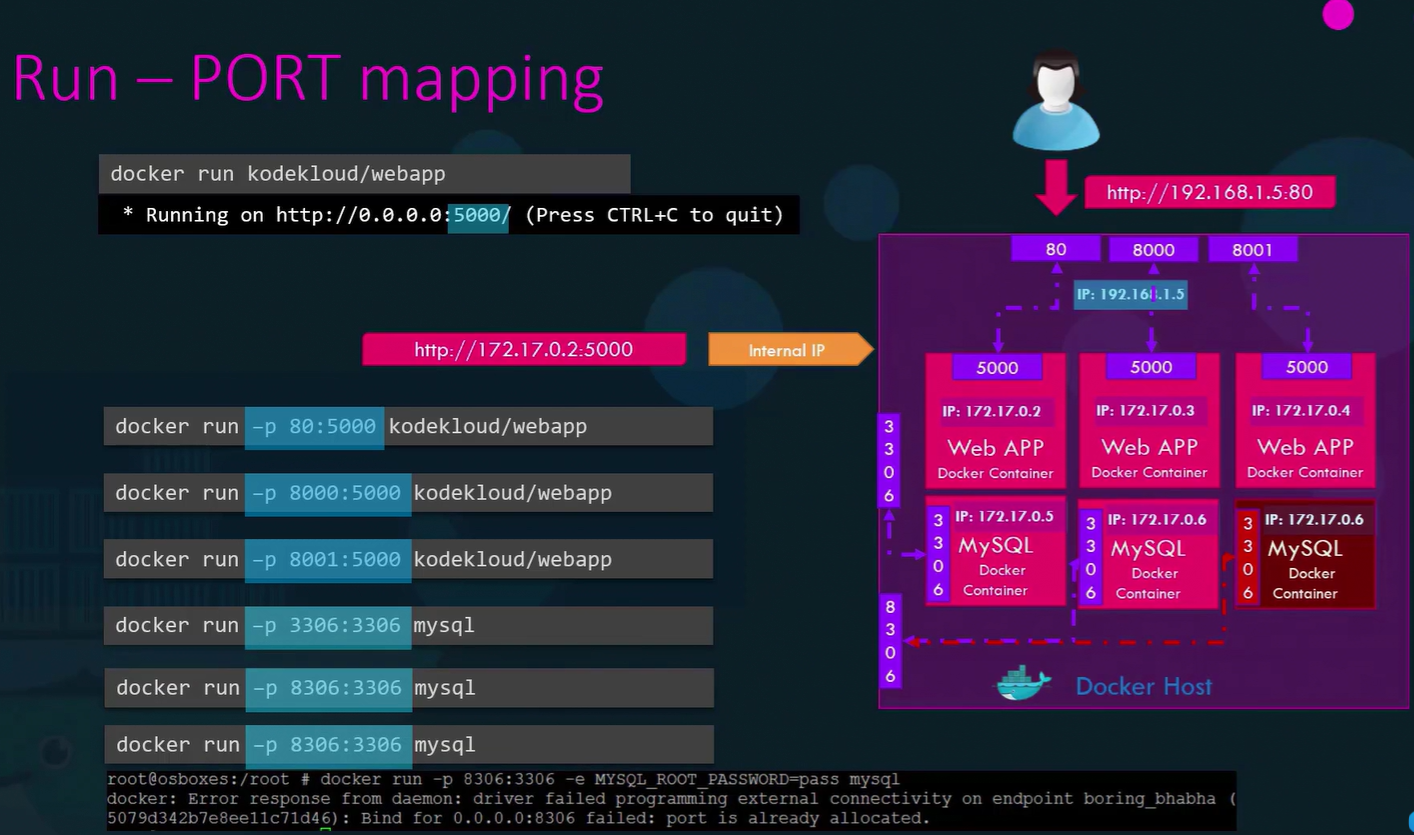
docker run -p host_port:contianer_port image → maps docker image port to host port
say we are running database continer and it will store data in some temporary location but after killing container it will lost.. to prevent this we need to mount the folder where container stores data to host folder for persistence..
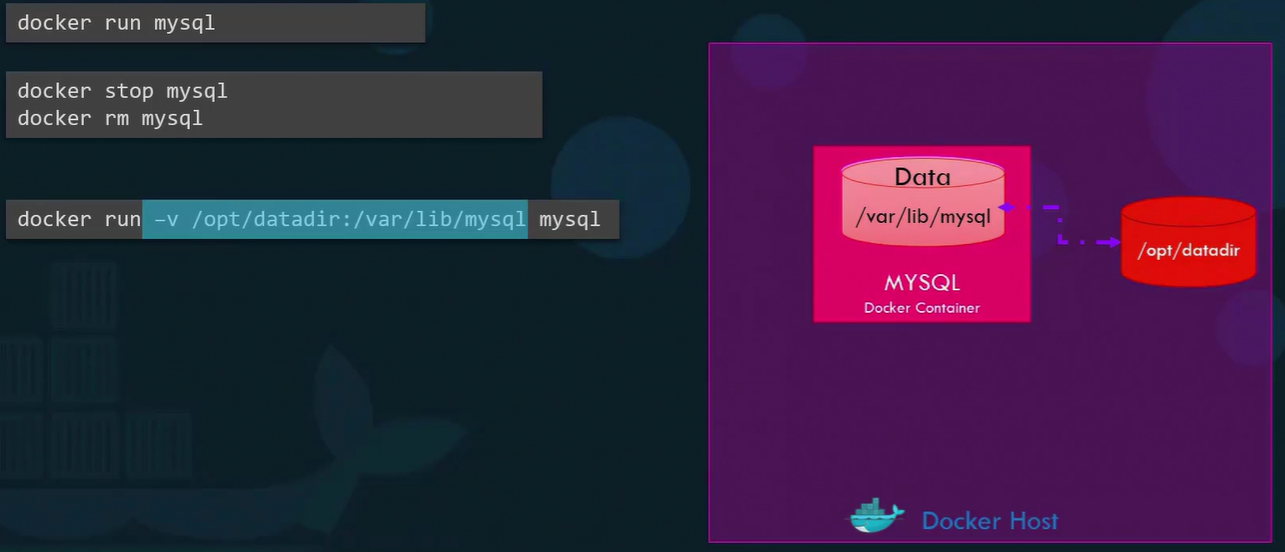
docker run -v /home/pavan_bandaru/mydata:/var/lib/mysql mysql:latest
docker inspect <container_name/id> → gives full details of a container..
docker logs <container_name/id> → gives the logs related to that container..
docker rename OLD_NAME NEW_NAME
Docker Commits
Section titled “Docker Commits”docker commit <container_id/name> new_name:tag
- Only filesystem changes are saved.
- No active processes, network connections, or running apps’ memory state are preserved.
docker run-it ubuntubash #start containerapt update && apt installvim #make changesexit #leave containerdocker commit <container_id> myubuntu:vimdocker images #new image appearsdocker run-it myubuntu:vimbash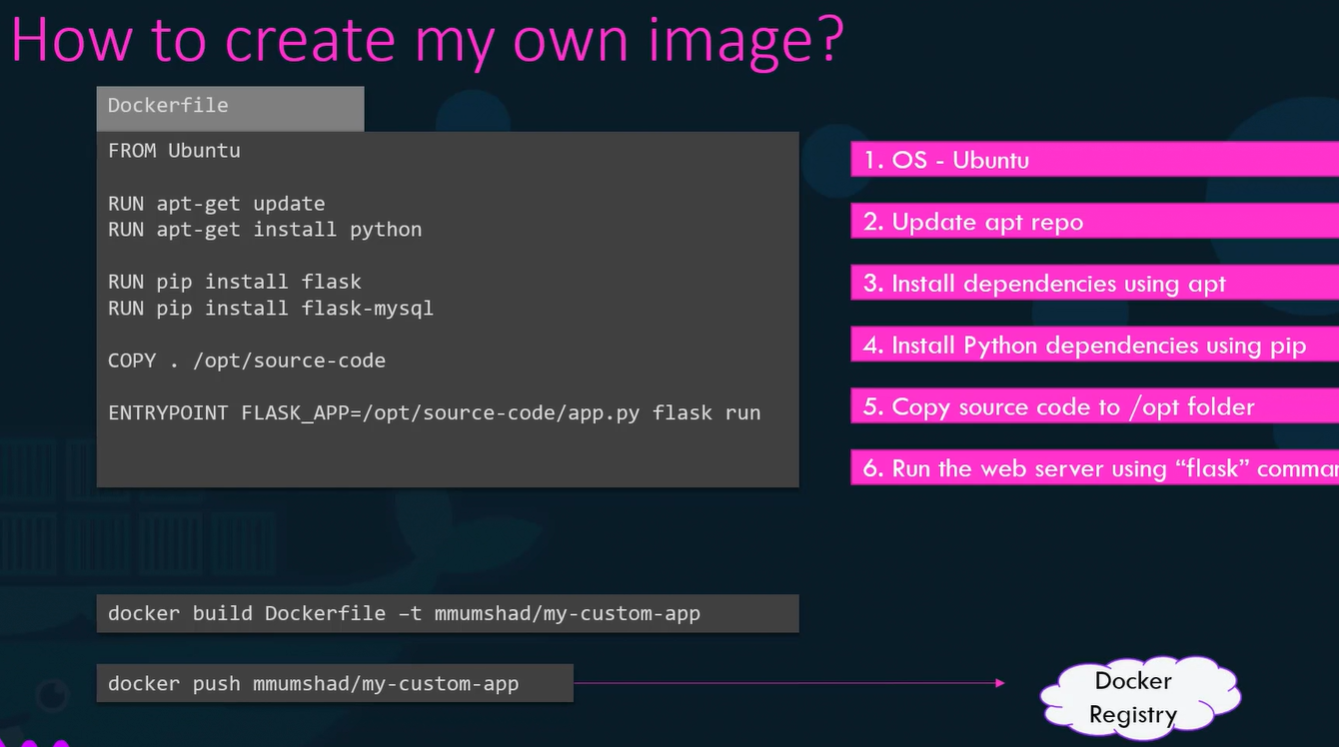
Dockerfile
- it’s a textfile specifying all the instructions to containerize the app..
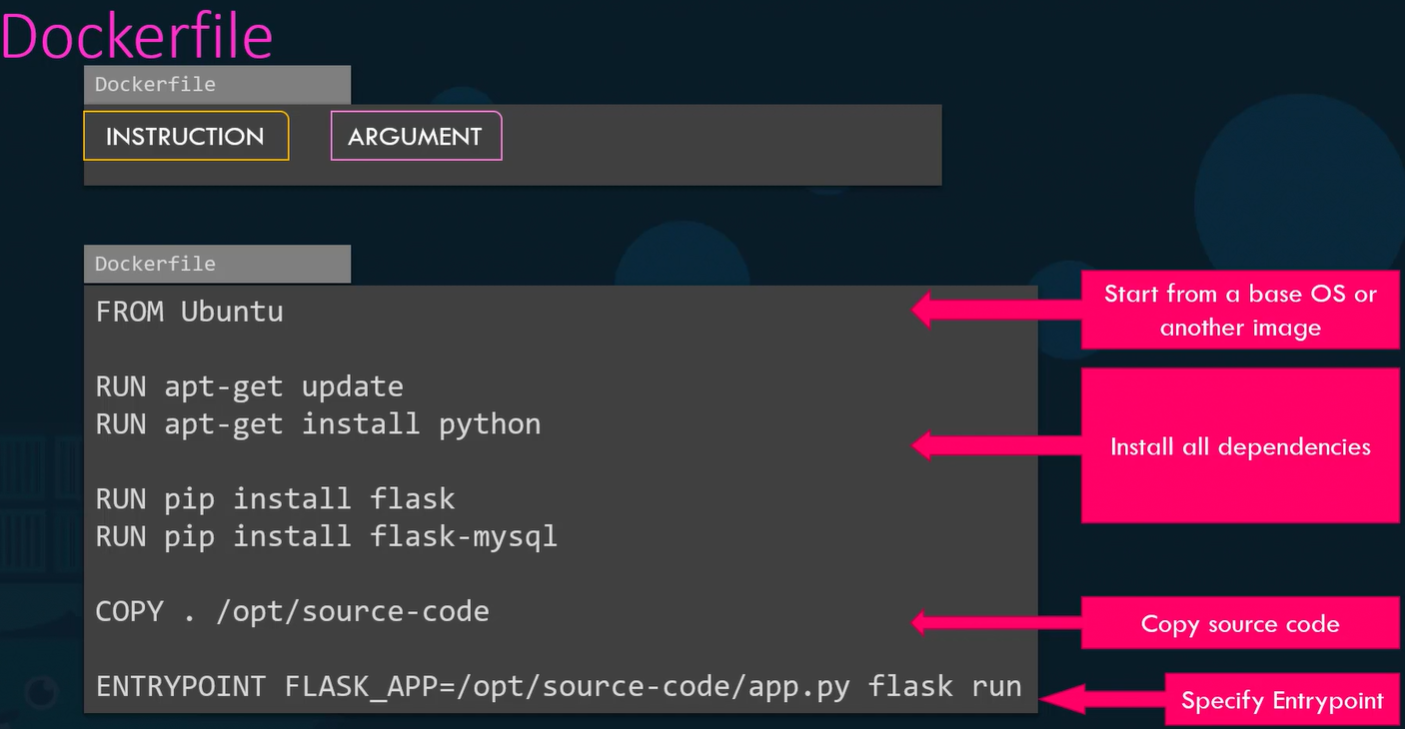
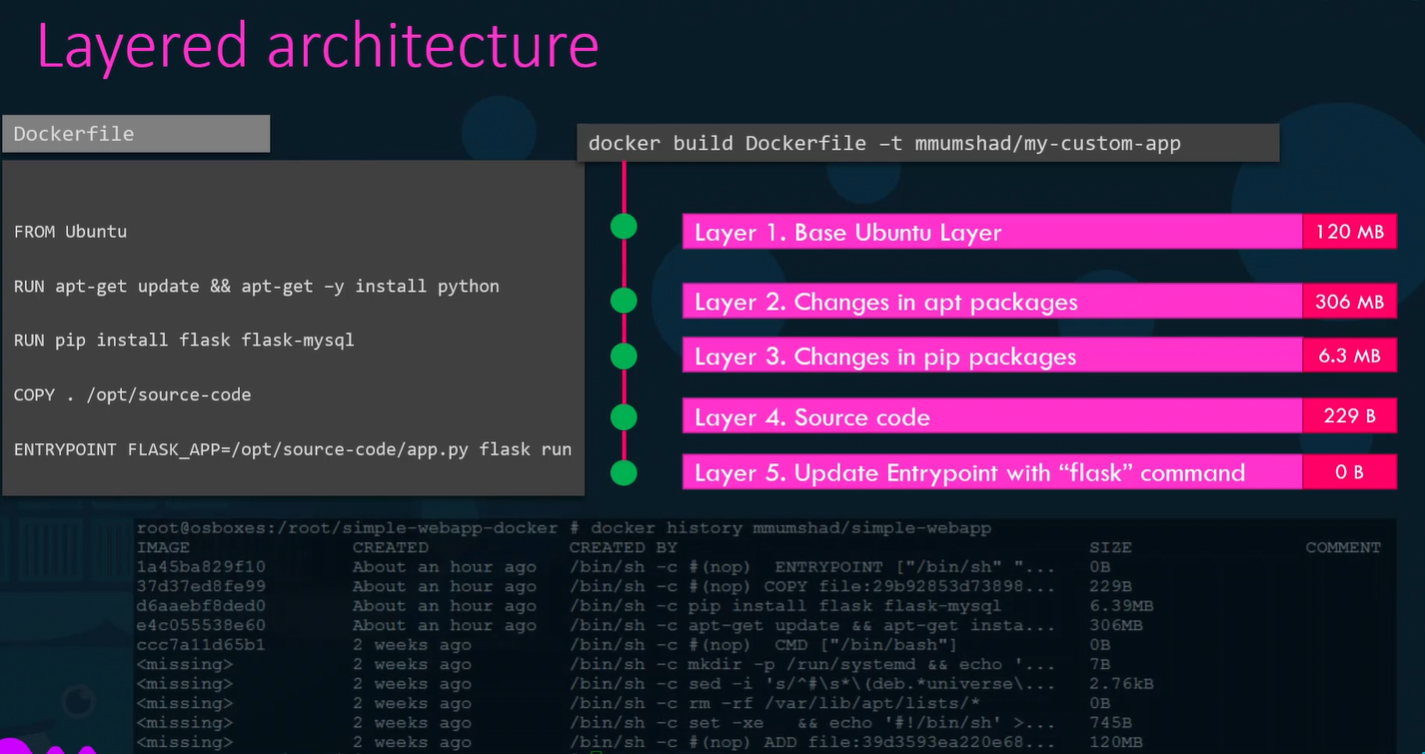
- each instrcution in the docker file creates a layer.. that link to previous layer..
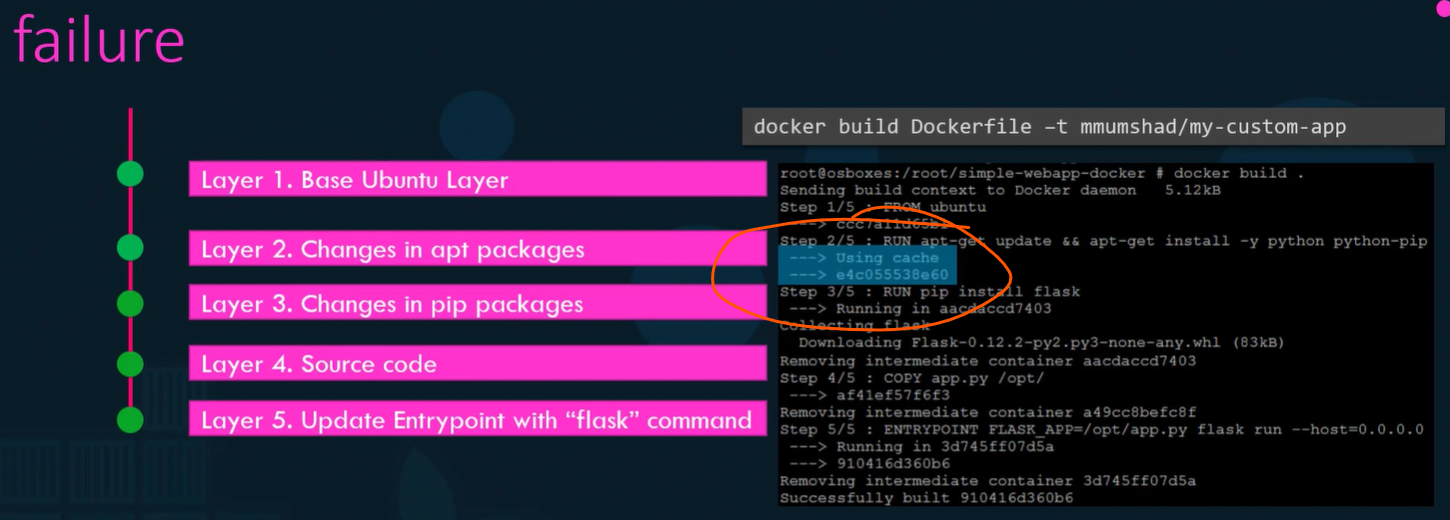
- each layer is cached! so while building the app, if any error occured at specific layer is uses previous layers to continue the process
docker build . -t <username>/<continaer-name>:<tag>
docker login
docker push <username>/<continaer-name>:<tag>
Environment variables..
Section titled “Environment variables..”assume you have python code like..
import oscolor = os.environ.get("ENV_COLOR", default=None)print("This is",color,"color!")when we dockerize this app how we pass ENV_COLOR ?
→ use -e
→ docker run -e ENV_COLOR=orange container_name/id
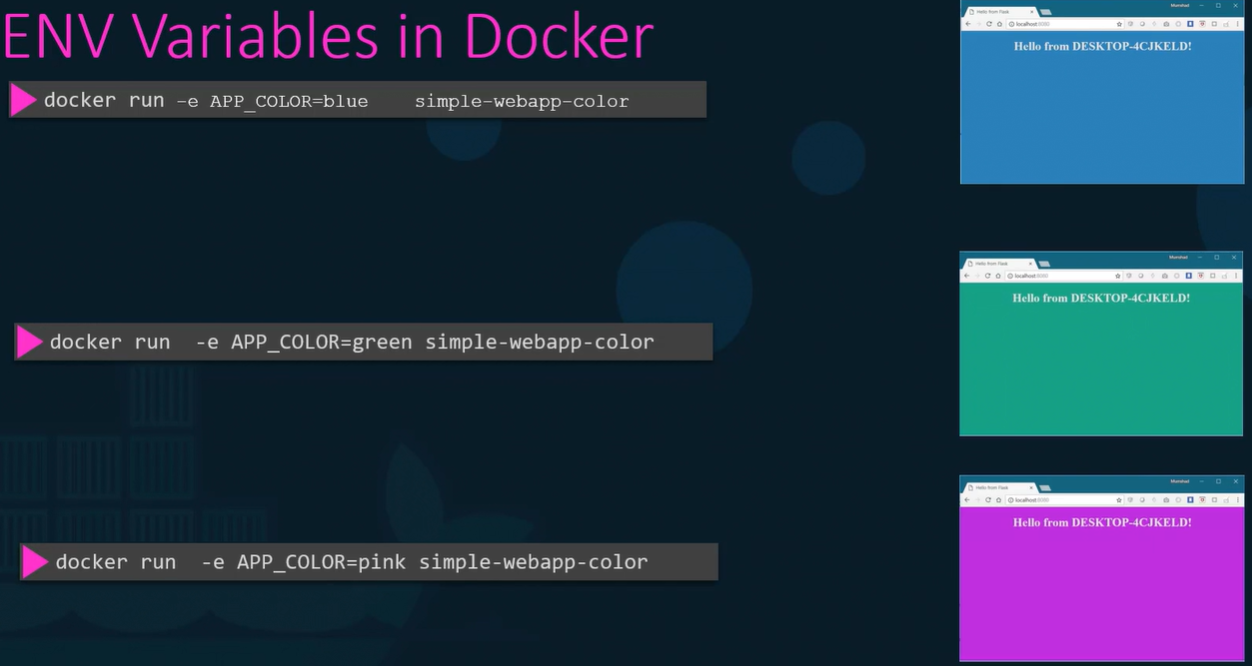
how to see all environment varibales set on a container while running?
→ docker inspect <id> then look for section Env
eg:
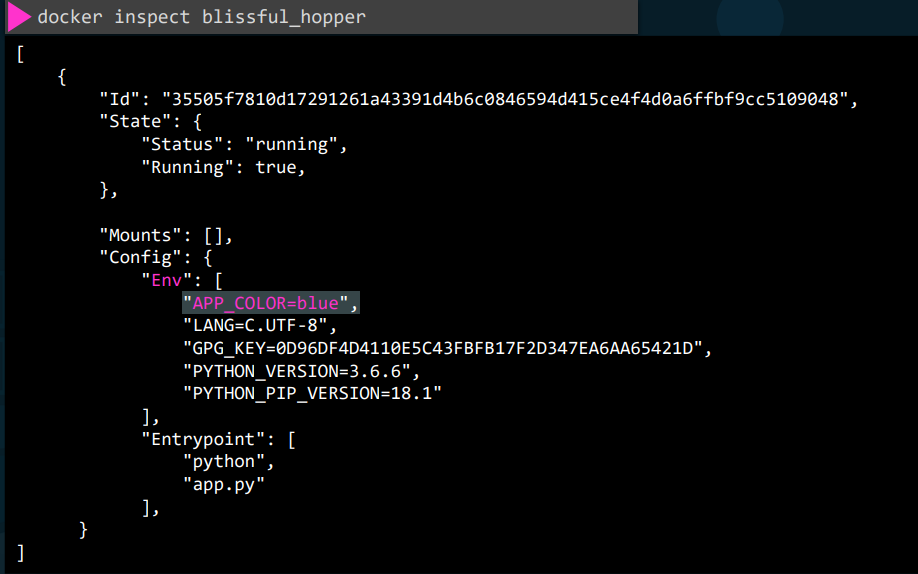
or use grep to file specific variables.. docker inspect my-app | grep "APP_COLOR"
eg: $ docker run --name "mysql-db" -e MYSQL_ROOT_PASSWORD=my-secret-pw mysql:tag
Entrypoint vs CMD
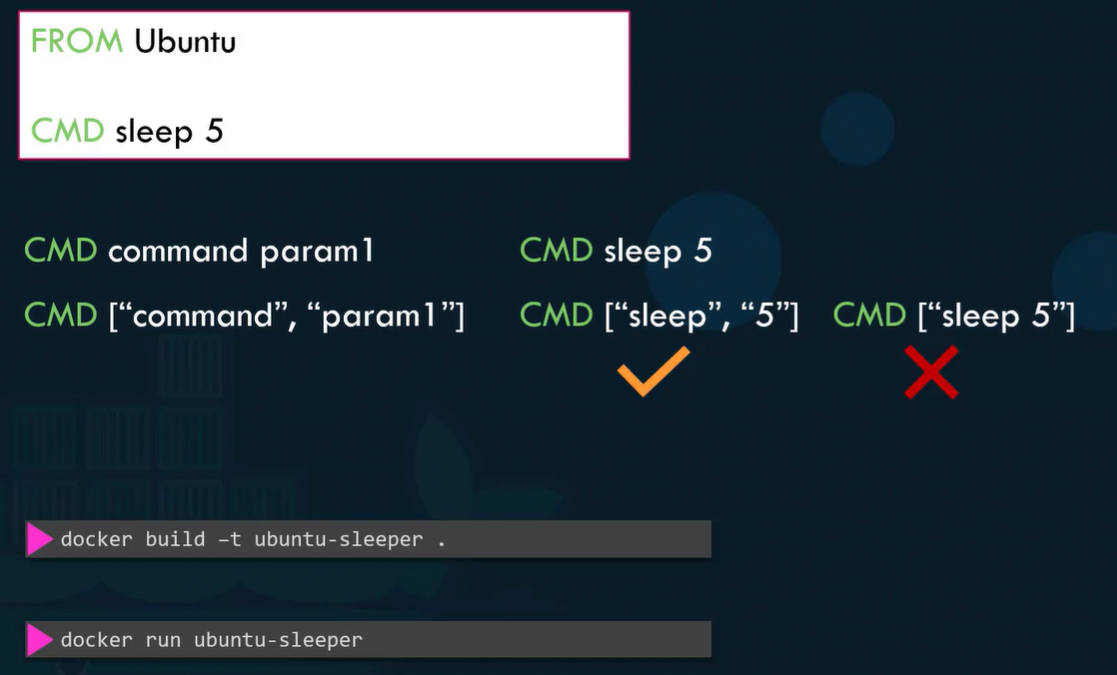
Section titled “Entrypoint vs CMD”→ the main difference is CMD accepts the array of objects where each string represent a part of actual command to run when container starts..
→ first arg must be executable like python , sleep , or any other command
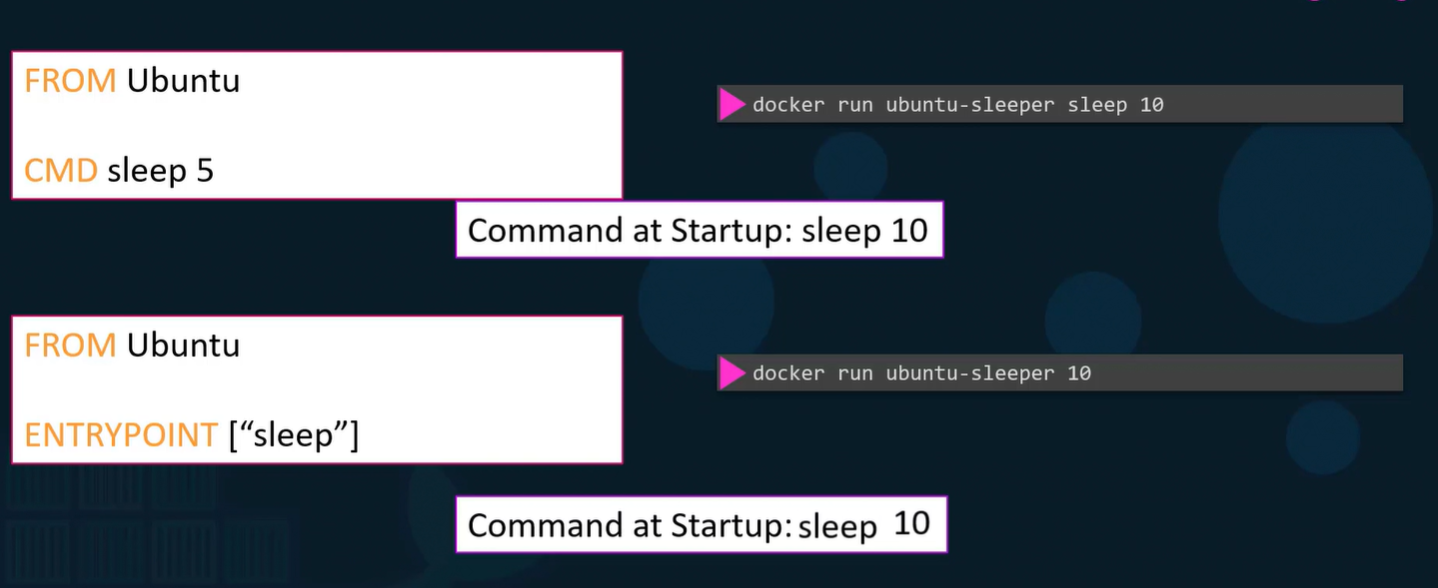
→ also when you give new command in while running the container say.. in Dockerfile is CMD ["sleep", "10"] , then while running you said.. docker run abc sleep 100 , this sleep 100 replaces the original or default command sleep 10
→ entry point is where you want to specify some command in advance and only accepts the args from user..
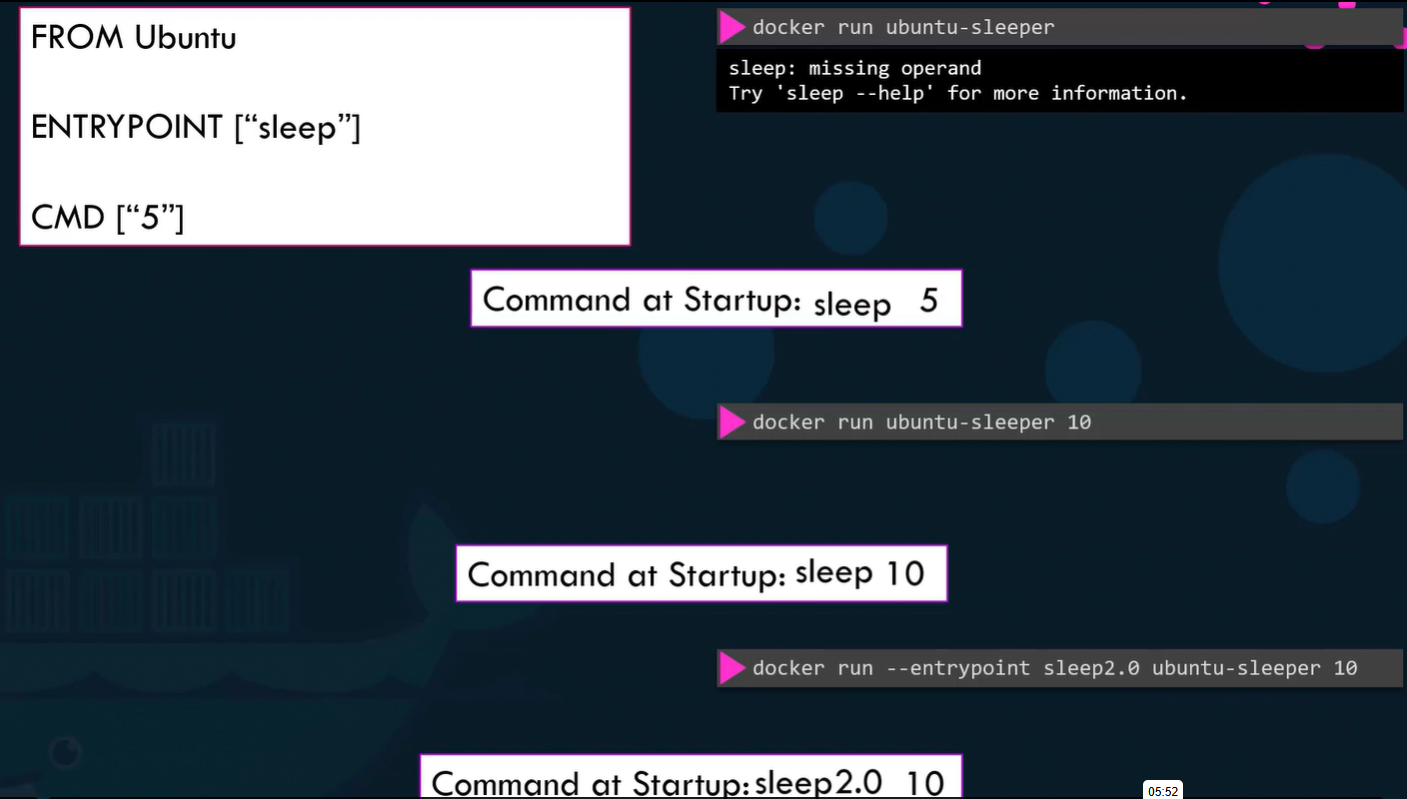
eg: in Dockerfile ENTRYPOINT ["sleep"] , then while running docker run abc 10 , that 10 is passed to sleep and becomes sleep 10
what if user miss args passing in entrypoint then use both CMD and ENTRYPOINT..
Docker Compose
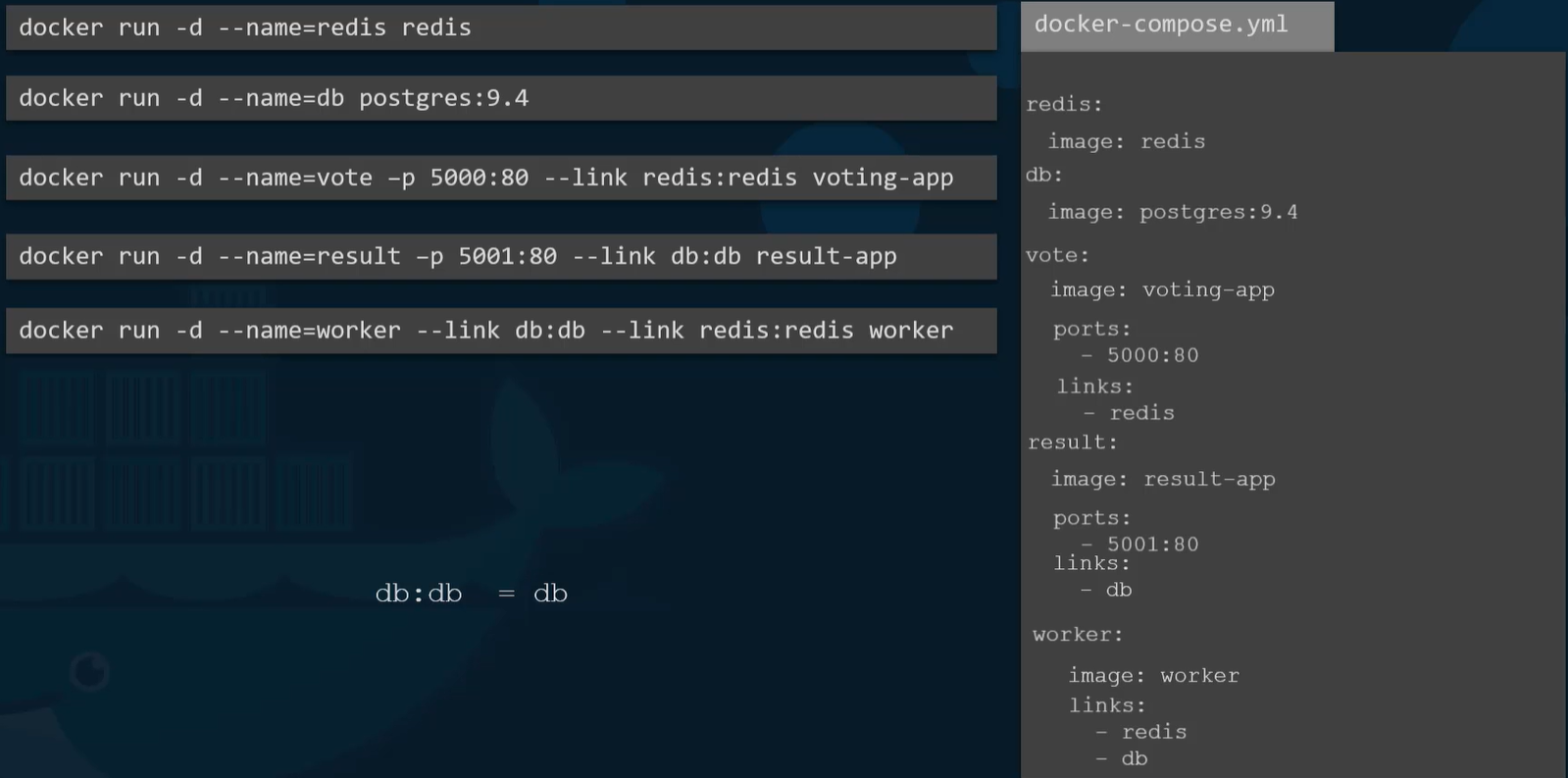
Section titled “Docker Compose”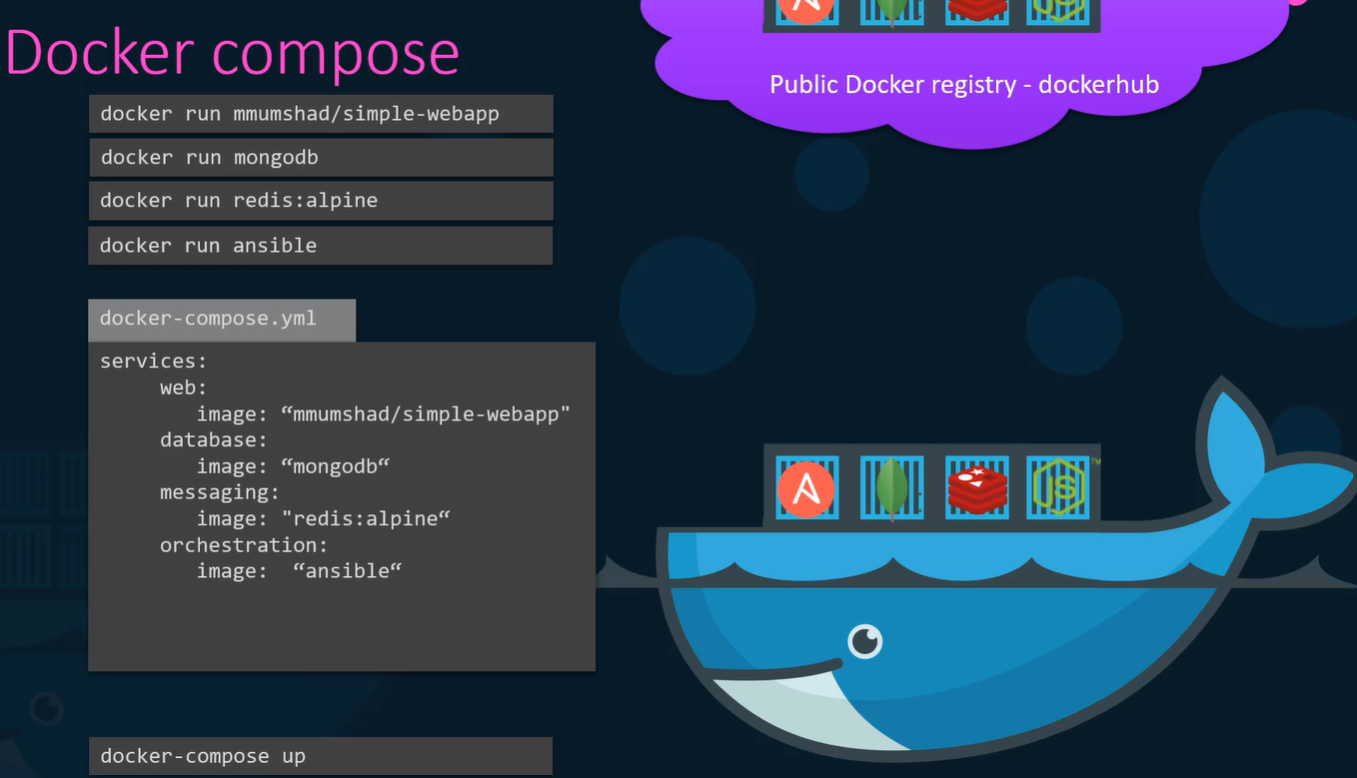
Example..
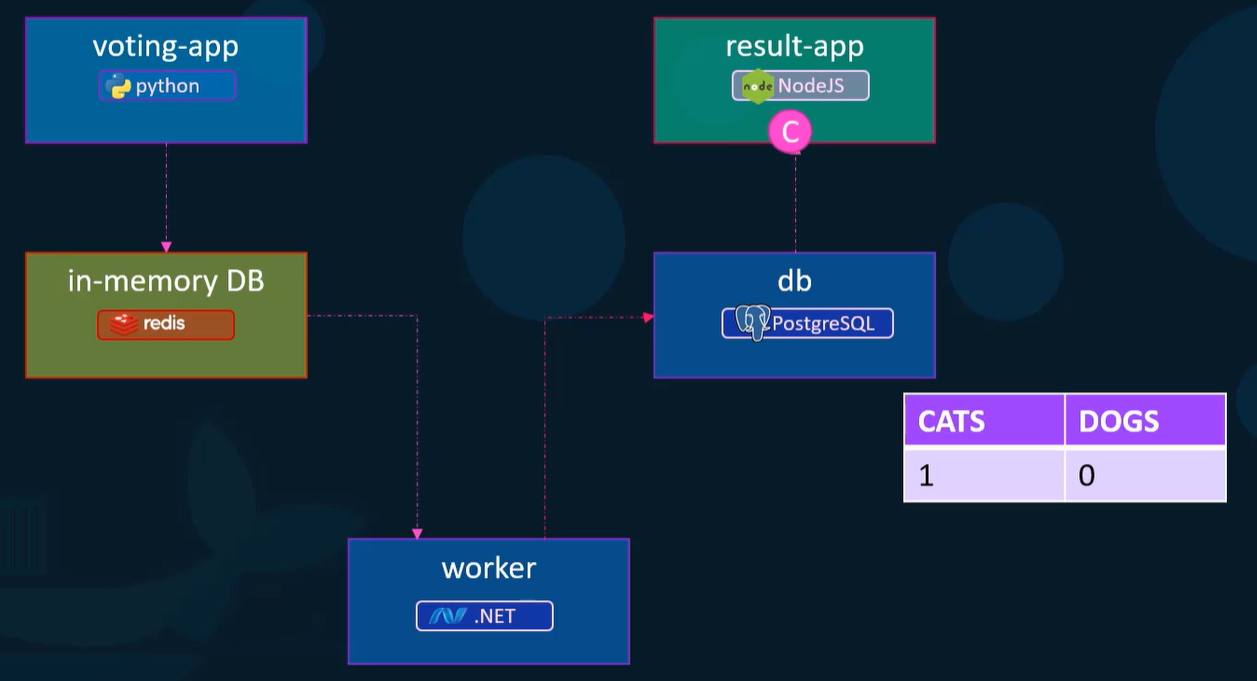
Basic..
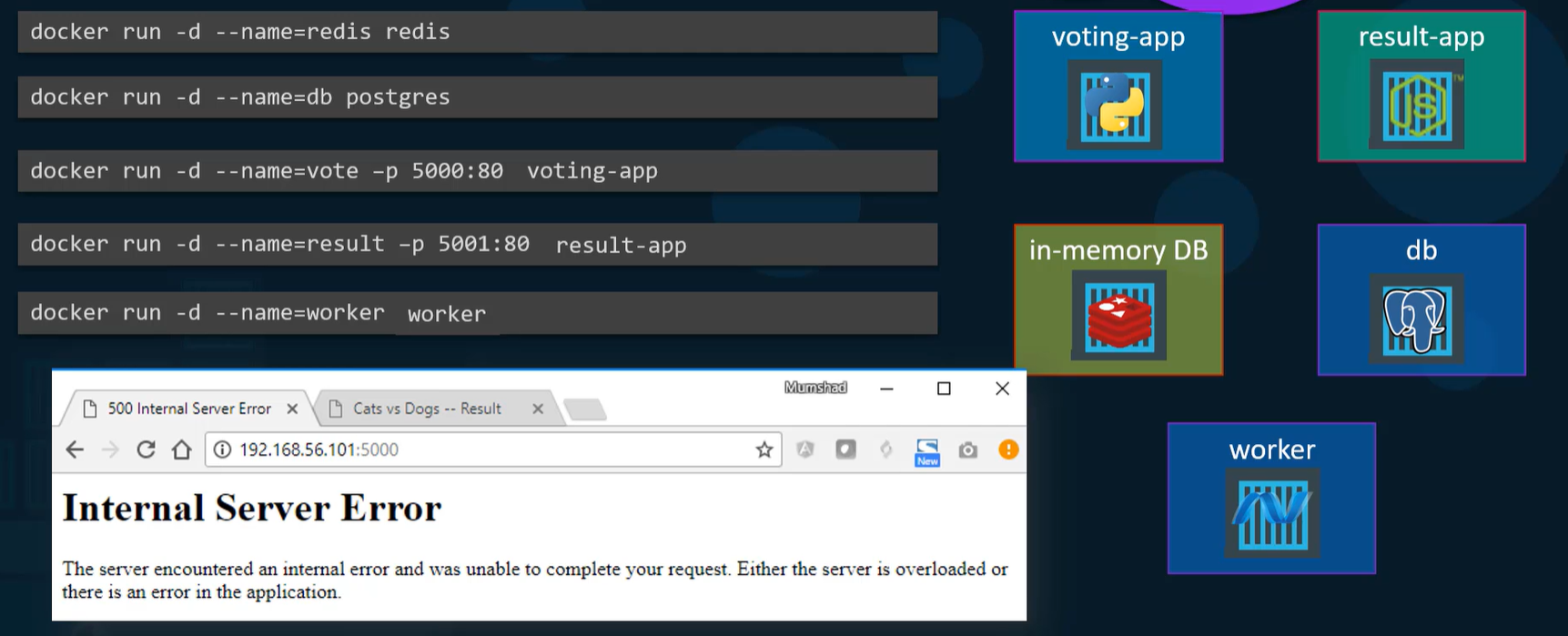
the above config fails bcoz, all these containers are not linked!
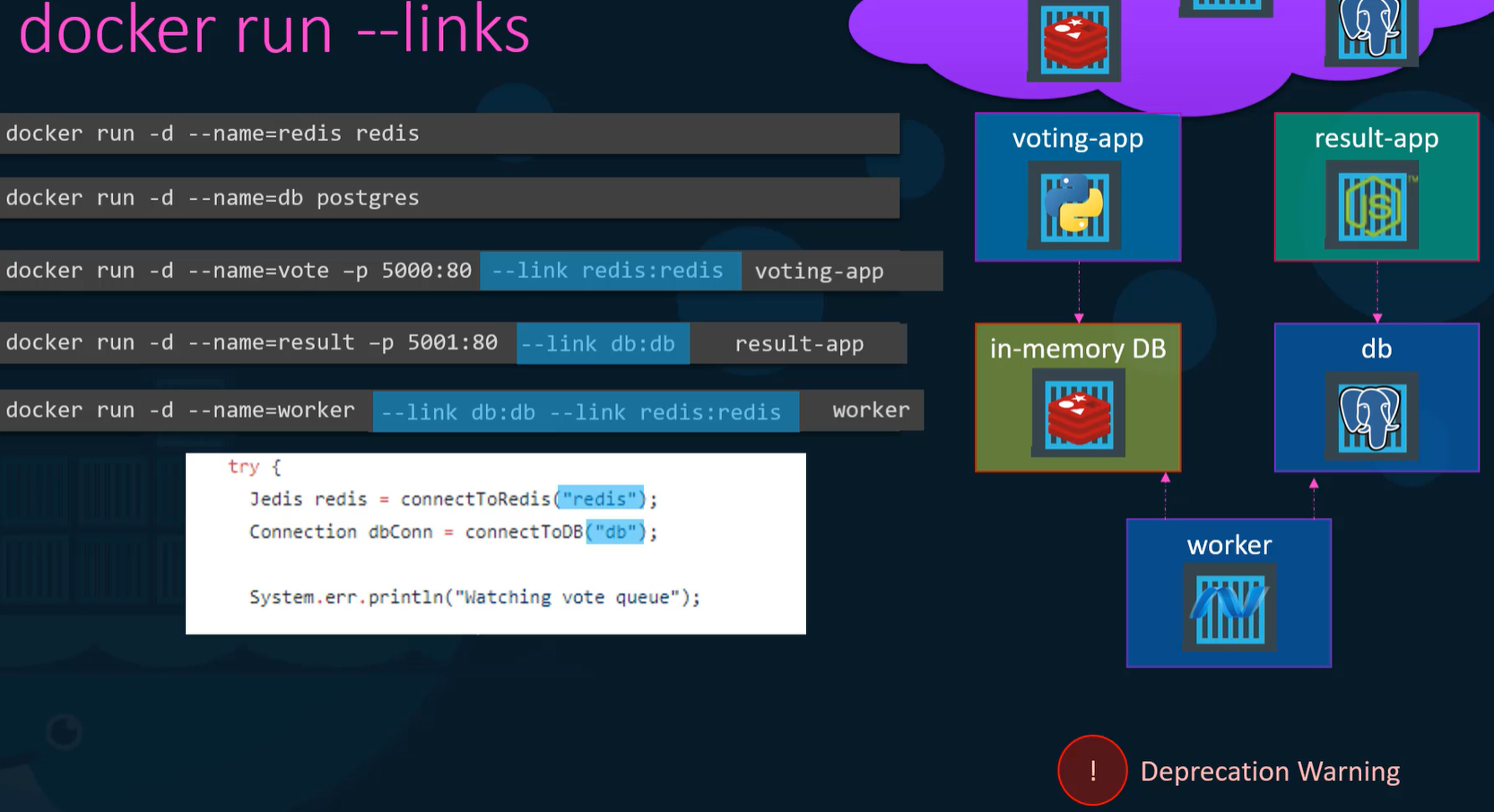
To solve this we have to use the --links
1. The “Default Bridge” Isolation
Section titled “1. The “Default Bridge” Isolation”When you run those containers in the first image, Docker places them all on the default network called bridge.
- The Problem: By default, containers on the standard bridge network can communicate via IP addresses, but they cannot see each other by name.
- The Failure: The
voting-appcode is trying to connect to a host namedredis. Because there is no DNS service on the default bridge, thevoting-appasks the internal resolver “Who is redis?”, and the answer is “I don’t know.” The app crashes with a “500 Internal Server Error” because it can’t find its database.
2. How -link Works (The 2nd Image)
Section titled “2. How -link Works (The 2nd Image)”The --link flag was the original (now legacy) way to punch a hole through that isolation. It does two specific things “under the hood”:
A. Namespacing the Names (Environment Variables)
Section titled “A. Namespacing the Names (Environment Variables)”Docker injects environment variables into the source container (voting-app) that contain the IP and port of the target container (redis).
B. The /etc/hosts Hack
Section titled “B. The /etc/hosts Hack”This is the most important part. When you run --link redis:redis, Docker physically goes into the voting-app container’s filesystem and modifies the /etc/hosts file.
- It adds a line like:
172.17.0.2 redis - Now, when the Java/Python code tries to
connectToRedis("redis"), the OS looks at the hosts file, finds the IP, and the connection succeeds.