

IAM CONCEPTS
1. IAM Policy Fundamentals
Section titled “1. IAM Policy Fundamentals”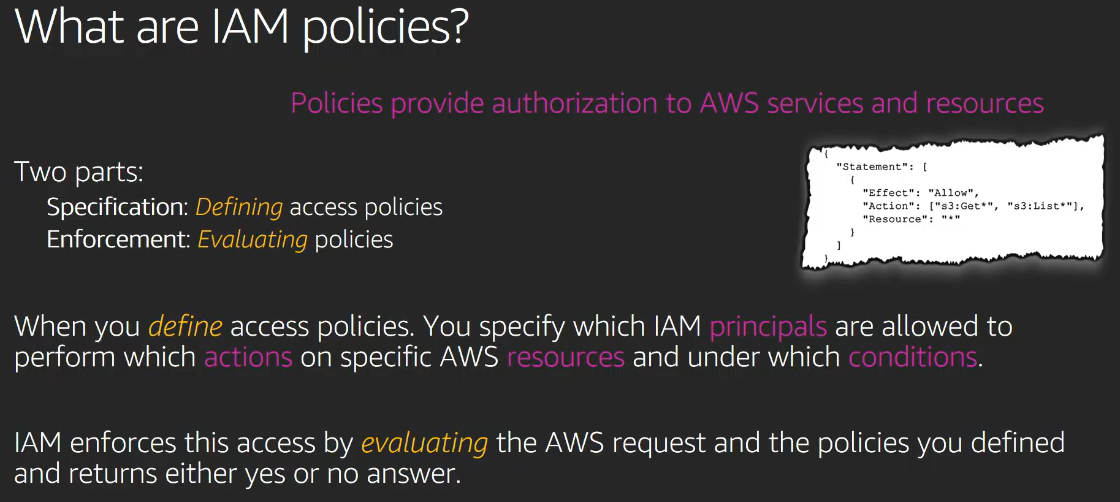
Every IAM policy is a JSON document. Every JSON policy has this skeleton:
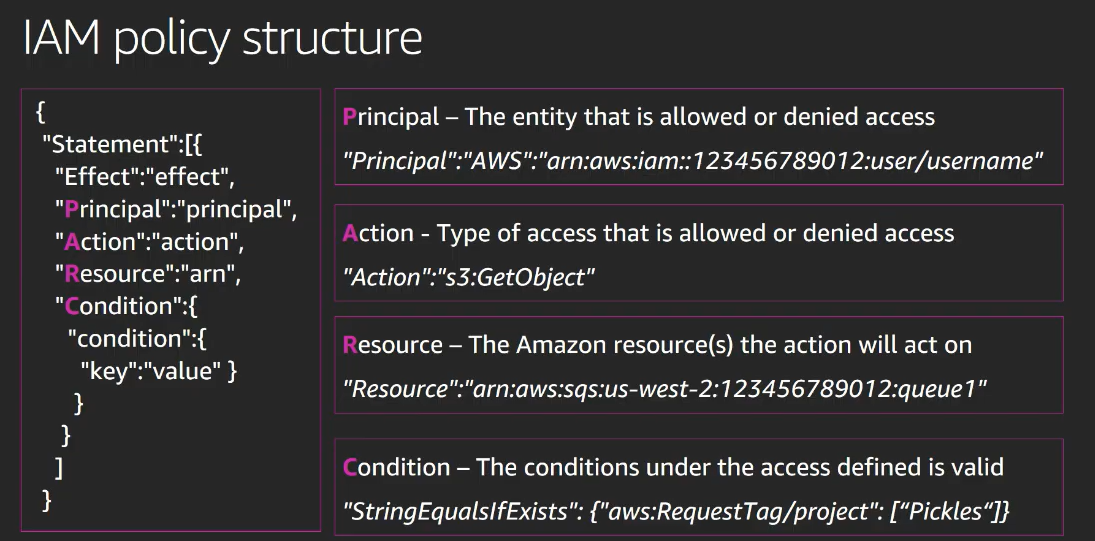
{ "Version": "2012-10-17", "Statement": [ { "Effect": "Allow or Deny", "Action": "what actions", "Resource": "on what specific resources", "Condition": "under what conditions (optional)" } ]}Version: Always "2012-10-17". This is not a date you change. It is the policy language version AWS uses. Always paste it as-is.
Statement: A list of permission rules. You can have multiple statements in one policy.
Effect: Either "Allow" or "Deny". Nothing else.
Action: The AWS API action being controlled. Format is always "service:ActionName". Examples:
"s3:ListBucket"- list objects in a bucket"s3:GetObject"- download an object"iam:ListRoles"- list all IAM roles"ec2:DescribeInstances"- describe EC2 instances"*"- every action on every service
Resource: Which specific AWS resource this applies to. Format is always an ARN. Examples:
"*"- all resources"arn:aws:s3:::my-bucket"- the bucket itself (for bucket-level actions like ListBucket)"arn:aws:s3:::my-bucket/*"- all objects inside the bucket (for object-level actions like GetObject)"arn:aws:iam::123456789012:role/*"- all roles in account
Important S3 note: S3 has two levels of resources and you must match the right one:
- Bucket-level actions (ListBucket, CreateBucket) → Resource is
arn:aws:s3:::bucket-name - Object-level actions (GetObject, PutObject, DeleteObject) → Resource is
arn:aws:s3:::bucket-name/*
2. Three Types of IAM Policies
Section titled “2. Three Types of IAM Policies”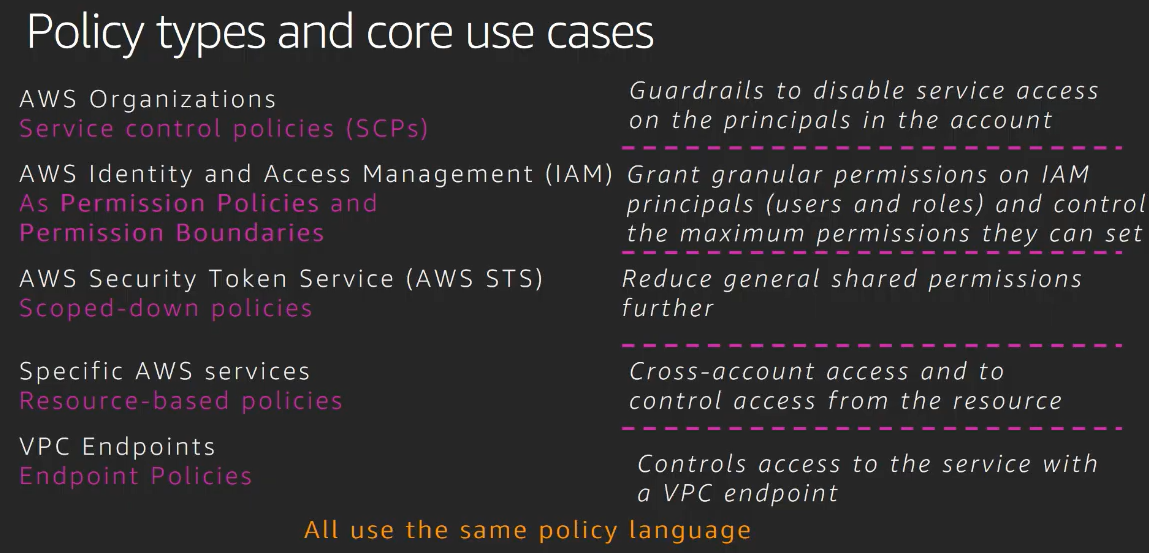
1. AWS Managed Policies
Section titled “1. AWS Managed Policies”AWS creates and maintains these. You cannot edit them. You just attach them.
They are designed for common use cases and job functions. Examples:
| Policy Name | What it does |
|---|---|
ReadOnlyAccess | Read-only access to almost all AWS services |
AdministratorAccess | Full access to everything |
AmazonS3FullAccess | Full S3 access |
AmazonS3ReadOnlyAccess | Read-only S3 access |
AWSLambdaReadOnlyAccess | Read-only Lambda access |
AWSLambda_ReadOnlyAccess | Same - AWS renamed some |
ViewOnlyAccess | View (list/describe) access across services |
For job functions specifically, AWS has:
ReadOnlyAccess- for read-only job functionAdministratorAccess- for administrator job function
You find these in IAM → Policies → filter by “AWS managed”.
2. Customer Managed Policies
Section titled “2. Customer Managed Policies”You create these yourself. They are standalone policies saved in IAM with their own ARN. You can then attach the same policy to multiple users, roles, or groups.
When you update the policy, all attached entities automatically get the updated permissions.
{ "Version": "2012-10-17", "Statement": [ { "Effect": "Allow", "Action": [ "s3:ListAllMyBuckets", "s3:ListBucket", "iam:ListRoles", "iam:ListUsers", "sts:AssumeRole" ], "Resource": "*" } ]}3. Inline Policies
Section titled “3. Inline Policies”These are policies embedded directly inside a specific user, role, or group. They are not standalone. They cannot be reused. If you delete the user or role, the inline policy is deleted with it.
Use inline policies when the permission is unique to that one entity and should never be shared.
3. Identity-Based vs Resource-Based Policies
Section titled “3. Identity-Based vs Resource-Based Policies”This is critical to understand for tasks 4 and 5.
Identity-Based Policy
Section titled “Identity-Based Policy”Attached to an IAM identity (user, role, group). Answers: “What is this identity allowed to do?”
{ "Version": "2012-10-17", "Statement": [ { "Effect": "Allow", "Action": "s3:ListAllMyBuckets", "Resource": "*" } ]}This sits on the role/user side.
Resource-Based Policy
Section titled “Resource-Based Policy”Attached to an AWS resource (S3 bucket, SQS queue, Lambda function, KMS key, etc.).
Answers: “Who is allowed to access this resource?”
S3 bucket policy example:
{ "Version": "2012-10-17", "Statement": [ { "Effect": "Allow", "Principal": { "AWS": "arn:aws:iam::123456789012:role/my-role" }, "Action": [ "s3:GetObject", "s3:PutObject", "s3:ListBucket" ], "Resource": [ "arn:aws:s3:::my-bucket", "arn:aws:s3:::my-bucket/*" ] } ]}Notice the extra field: Principal. Resource-based policies always have a Principal because they need to specify WHO gets the permission. Identity-based policies never have Principal (the identity it’s attached to IS the principal).
4. Policy Evaluation Logic - How AWS Decides Allow or Deny
Section titled “4. Policy Evaluation Logic - How AWS Decides Allow or Deny”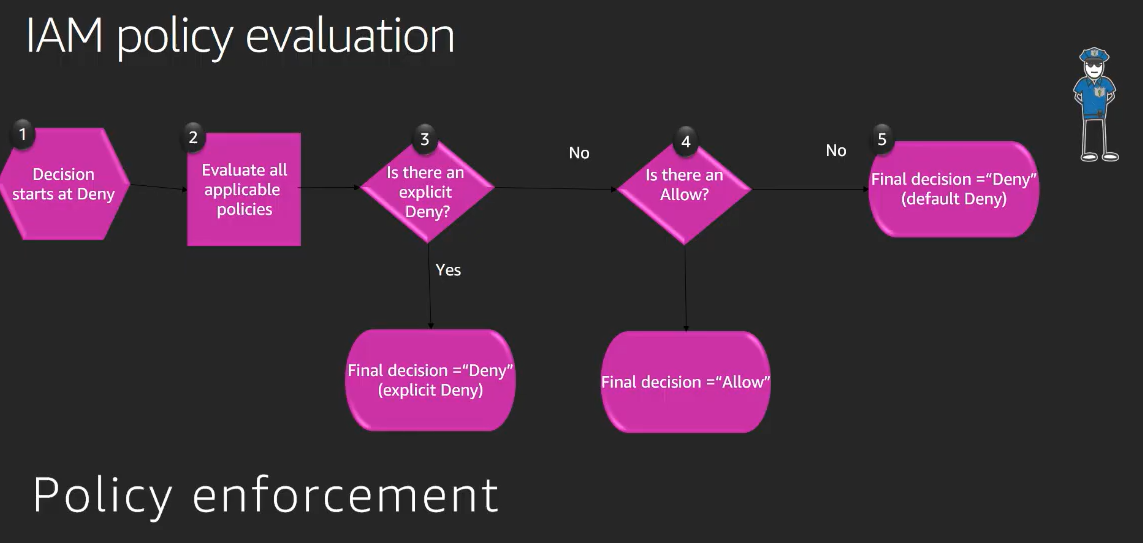
This is the most important concept for tasks 4 and 5. AWS evaluates ALL applicable policies together and follows these rules in strict order:
Rule 1: Explicit Deny always wins. If ANY policy anywhere says Deny, the request is denied. Period. No Allow can override an explicit Deny.
Rule 2: Explicit Allow grants access. If there is an Allow and no explicit Deny, the action is allowed.
Rule 3: Default is Deny. If no policy says anything about an action, it is denied by default. AWS starts with zero permissions.
For cross-account access (different account trying to access your resource): BOTH the identity-based policy on the caller AND the resource-based policy on the resource must Allow the action. One Allow is not enough.
For same-account access: Either the identity-based policy OR the resource-based policy having Allow is enough (as long as there is no Deny anywhere).
Practical example for Task 4:
The role needs to list all buckets (s3:ListAllMyBuckets) - this is a global S3 action not tied to a specific bucket. So the identity-based policy on the role must allow it. No bucket policy needed for this.
The role needs to GetObject/PutObject/ListBucket on one specific bucket. You can grant this via identity-based policy OR resource-based bucket policy OR both. The task asks you to use the bucket policy for this, meaning the bucket policy grants it.
5. IAM Policy Conditions
Section titled “5. IAM Policy Conditions”Conditions let you add rules like “only allow if the request comes from this IP” or “only allow if the request is from this region”.
Condition structure:
"Condition": { "ConditionOperator": { "ConditionKey": "value" }}Common condition operators:
Section titled “Common condition operators:”StringEquals- exact string matchStringLike- string match with wildcardsIpAddress- IP matchesNotIpAddress- IP does NOT matchStringEqualsIgnoreCase- case-insensitive matchArnLike- ARN pattern match
Common condition keys:
Section titled “Common condition keys:”aws:SourceIp- the IP address of the requesteraws:RequestedRegion- the region the request is going toaws:PrincipalArn- the ARN of the identity making the requests3:prefix- S3 key prefixkms:ViaService- the service making the KMS call (like s3.eu-west-1.amazonaws.com)kms:CallerAccount- the account making the KMS call
Example - Deny if request comes from a specific IP:
Section titled “Example - Deny if request comes from a specific IP:”{ "Version": "2012-10-17", "Statement": [ { "Effect": "Deny", "Action": [ "s3:GetObject", "s3:ListBucket" ], "Resource": "*", "Condition": { "IpAddress": { "aws:SourceIp": "203.0.113.5/32" } } } ]}Example - Deny if request is from a specific region:
Section titled “Example - Deny if request is from a specific region:”{ "Version": "2012-10-17", "Statement": [ { "Effect": "Deny", "Action": "ec2:Describe*", "Resource": "*", "Condition": { "StringEquals": { "aws:RequestedRegion": "eu-west-1" } } } ]}Wildcards in Action:
Section titled “Wildcards in Action:”ec2:Describe* means all actions starting with Describe in EC2. The * is a wildcard. Same with s3:Get* for all Get actions in S3, s3:List* for all List actions.
6. IAM Instance Profile
Section titled “6. IAM Instance Profile”An EC2 instance cannot directly have an IAM role attached. The in-between layer is called an Instance Profile.
The structure is: EC2 Instance → Instance Profile → IAM Role
An Instance Profile is just a container that holds exactly one IAM role. When you create a role with “EC2” as the trusted service in the console, AWS automatically creates an instance profile with the same name. In the console you never see this because it is hidden, but it exists.
When you add policies to the IAM Role that the instance profile points to, those policies apply to the EC2 instance.
For Task 3, when it says “add inline policies for the instance profile”, it means add inline policies to the IAM Role that is attached to the instance profile.
7. Lambda Execution Role and Resource-Based Policy
Section titled “7. Lambda Execution Role and Resource-Based Policy”Lambda has two directions of permissions:
Direction 1 - What Lambda can do (Execution Role):
The execution role is an IAM role attached to the Lambda function. It governs what AWS services the Lambda function itself can call. This is an identity-based policy on the role.
Example: Lambda needs to call lambda:ListFunctions to list all Lambda functions. So the execution role must have that permission.
{ "Version": "2012-10-17", "Statement": [ { "Effect": "Allow", "Action": "lambda:ListFunctions", "Resource": "*" } ]}AWS has a managed policy called AWSLambda_ReadOnlyAccess that covers all Lambda read/list actions.
Direction 2 - Who can invoke Lambda (Resource-Based Policy):
Lambda has its own resource-based policy (called a function policy) that controls who can invoke the Lambda function. This is separate from the execution role.
When API Gateway needs to invoke Lambda, you must add a permission to Lambda’s resource-based policy allowing API Gateway to invoke it.
The AWS CLI command for this is lambda:AddPermission. In the console, it appears under the Lambda function’s Configuration → Permissions → Resource-based policy.
The statement looks like:
{ "StatementId": "allow-apigateway", "Effect": "Allow", "Principal": { "Service": "apigateway.amazonaws.com" }, "Action": "lambda:InvokeFunction", "SourceArn": "arn:aws:execute-api:region:account-id:api-id/*/*"}8. AWS KMS (Key Management Service)
Section titled “8. AWS KMS (Key Management Service)”KMS is a service for managing encryption keys. A KMS Customer Managed Key (CMK) is a key you control.
KMS Key Policy
Section titled “KMS Key Policy”Every KMS key has a key policy (a resource-based policy). It controls who can use the key and how.
Unlike other resource-based policies in AWS, KMS key policies are mandatory. If nothing in the key policy allows an action, even the root account is denied. This is unique to KMS.
A typical KMS key policy has sections:
- Allow the root account to manage the key (administrative access)
- Allow specific roles/users to use the key for encryption/decryption
{ "Version": "2012-10-17", "Statement": [ { "Sid": "Enable IAM User Permissions", "Effect": "Allow", "Principal": { "AWS": "arn:aws:iam::123456789012:root" }, "Action": "kms:*", "Resource": "*" }, { "Sid": "Allow role to use the key", "Effect": "Allow", "Principal": { "AWS": "arn:aws:iam::123456789012:role/my-role" }, "Action": [ "kms:Decrypt", "kms:Encrypt", "kms:GenerateDataKey", "kms:DescribeKey" ], "Resource": "*" } ]}KMS Actions you need to know:
Section titled “KMS Actions you need to know:”kms:Encrypt- encrypt data directlykms:Decrypt- decrypt datakms:GenerateDataKey- S3 uses this when encrypting objects. S3 asks KMS for a data key, uses it to encrypt the object, stores the encrypted key alongside the objectkms:DescribeKey- get metadata about the keykms:ReEncryptFrom/kms:ReEncryptTo- re-encrypt data from one key to another
S3 Server-Side Encryption with KMS (SSE-KMS)
Section titled “S3 Server-Side Encryption with KMS (SSE-KMS)”When you enable SSE-KMS on an S3 bucket:
- Every object uploaded is automatically encrypted using the specified KMS key
- When someone downloads an object, S3 calls KMS to decrypt it
- The person downloading needs permission on both S3 AND KMS
To enable default encryption on a bucket, in the console go to: S3 bucket → Properties → Default encryption → Edit → Select SSE-KMS → Choose your key ARN.
For the IAM role to work with a KMS-encrypted S3 bucket, the role needs:
- S3 permissions (GetObject, PutObject, etc.) on the bucket
- KMS permissions (GenerateDataKey, Decrypt, DescribeKey) on the key
The KMS key policy also needs to allow the role. Both the identity-based policy (role’s permissions) AND the KMS key policy must allow access. This follows the same cross-service resource-based policy logic.
A useful condition for KMS to restrict a key to only be used via S3:
"Condition": { "StringEquals": { "kms:ViaService": "s3.eu-west-1.amazonaws.com", "kms:CallerAccount": "123456789012" }}9. API Gateway + Lambda Integration
Section titled “9. API Gateway + Lambda Integration”API Gateway is a service that creates HTTP endpoints. When a user calls the endpoint (via browser or curl), API Gateway receives the request and forwards it to Lambda.
For this to work:
- API Gateway must have permission to invoke the Lambda function → this is done via Lambda’s resource-based policy (
lambda:InvokeFunctionwithapigateway.amazonaws.comas Principal) - Lambda must have permission to do whatever its code does (execution role)
The Lambda’s resource-based policy permission is added via the console under Lambda → Configuration → Resource-based policy → Add permissions, or via AWS CLI with aws lambda add-permission.
PART 2: TASK SOLUTIONS
Section titled “PART 2: TASK SOLUTIONS”Task 1: Using AWS Managed Policies for IAM Resources
Section titled “Task 1: Using AWS Managed Policies for IAM Resources”Concepts used: AWS Managed Policies, attaching policies to roles.
What the task wants:
${iam_role_readonly}→ needs read-only access → attachReadOnlyAccess${iam_role_administrator}→ needs full admin access → attachAdministratorAccess
Steps:
Move 1: Go to IAM → Roles → find ${iam_role_readonly} → Permissions tab → Add permissions → Attach policies → search for ReadOnlyAccess → select the AWS managed one → Attach.
Move 2: Go to IAM → Roles → find ${iam_role_administrator} → Permissions tab → Add permissions → Attach policies → search for AdministratorAccess → select the AWS managed one → Attach.
Done. Two moves, two policy attachments.
Task 2: IAM Inline and Managed Policies
Section titled “Task 2: IAM Inline and Managed Policies”Concepts used: Customer managed policies, inline policies, attaching policies to users and roles.
What the task wants:
The managed policy ${policy_managed} must allow:
- sts:AssumeRole (granted by default it says, but include it)
- s3:ListAllMyBuckets (list all buckets)
- s3:ListBucket (list content in a bucket)
- iam:ListRoles
- iam:ListUsers
The inline policy on ${role_inline} must allow:
- s3:ListAllMyBuckets
- s3:ListBucket
Move 1 - Configure the managed policy ${policy_managed}:
Go to IAM → Policies → find ${policy_managed} → Edit. Replace or update its JSON with:
{ "Version": "2012-10-17", "Statement": [ { "Effect": "Allow", "Action": [ "sts:AssumeRole", "s3:ListAllMyBuckets", "s3:ListBucket", "iam:ListRoles", "iam:ListUsers" ], "Resource": "*" } ]}Save.
Move 2 - Attach managed policy to user ${user}:
IAM → Users → find ${user} → Permissions → Add permissions → Attach policies → search for ${policy_managed} → Attach.
Move 3 - Attach managed policy to role ${role_managed}:
IAM → Roles → find ${role_managed} → Permissions → Add permissions → Attach policies → search for ${policy_managed} → Attach.
Move 4 - Create inline policy for ${role_inline}:
IAM → Roles → find ${role_inline} → Permissions → Add permissions → Create inline policy → JSON:
{ "Version": "2012-10-17", "Statement": [ { "Effect": "Allow", "Action": [ "s3:ListAllMyBuckets", "s3:ListBucket" ], "Resource": "*" } ]}Name it anything and save.
Task 3: Configuring IAM Policies with Conditions
Section titled “Task 3: Configuring IAM Policies with Conditions”Concepts used: IAM conditions, aws:SourceIp, aws:RequestedRegion, Deny effect, inline policies on roles.
What the task wants:
Policy 1 named ${deny_s3_policy}:
- Deny all Get and List actions on S3
- When the request comes from the EC2 instance’s public IP
Policy 2 named ${deny_ec2_policy}:
- Deny all Describe actions on EC2
- When the request is going to the eu-west-1 region
First, find the public IP of the EC2 instance. Go to EC2 → find ${instance} → note the Public IPv4 address. Let’s call it INSTANCE_PUBLIC_IP.
Move 1 - Create ${deny_s3_policy} inline policy on ${iam_role}:
IAM → Roles → ${iam_role} → Permissions → Add permissions → Create inline policy → JSON:
{ "Version": "2012-10-17", "Statement": [ { "Effect": "Deny", "Action": [ "s3:Get*", "s3:List*" ], "Resource": "*", "Condition": { "IpAddress": { "aws:SourceIp": "INSTANCE_PUBLIC_IP/32" } } } ]}Name it ${deny_s3_policy} and save.
Move 2 - Create ${deny_ec2_policy} inline policy on ${iam_role}:
IAM → Roles → ${iam_role} → Permissions → Add permissions → Create inline policy → JSON:
{ "Version": "2012-10-17", "Statement": [ { "Effect": "Deny", "Action": "ec2:Describe*", "Resource": "*", "Condition": { "StringEquals": { "aws:RequestedRegion": "eu-west-1" } } } ]}Name it ${deny_ec2_policy} and save.
Verification: Connect to the EC2 instance via Session Manager. Run aws s3 ls - it should be denied because the request originates from the instance’s public IP. Run aws ec2 describe-instances --region eu-west-1 - it should be denied because the request targets eu-west-1.
Task 4: Policy Evaluation Logic (Allow)
Section titled “Task 4: Policy Evaluation Logic (Allow)”Concepts used: Identity-based policy, resource-based S3 bucket policy, policy evaluation logic, Principal in bucket policies.
What the task wants:
${iam_role}can list ALL buckets → identity-based policy on the role${iam_role}can GetObject, PutObject, ListBucket ONLY in${s3_bucket}→ S3 bucket policy on that bucket${iam_role}cannot do anything in${s3_default_bucket}→ no policy grants this, so default deny applies
Move 1 - Identity-based inline policy on ${iam_role} to list all buckets:
s3:ListAllMyBuckets is a global S3 action. It lists buckets, not objects. Resource must be * because it doesn’t apply to a specific bucket.
IAM → Roles → ${iam_role} → Permissions → Add permissions → Create inline policy → JSON:
{ "Version": "2012-10-17", "Statement": [ { "Effect": "Allow", "Action": "s3:ListAllMyBuckets", "Resource": "*" } ]}Save.
Move 2 - Resource-based bucket policy on ${s3_bucket}:
Go to S3 → find ${s3_bucket} → Permissions tab → Bucket policy → Edit.
You need to get the role ARN first: IAM → Roles → ${iam_role} → copy the ARN.
{ "Version": "2012-10-17", "Statement": [ { "Effect": "Allow", "Principal": { "AWS": "arn:aws:iam::YOUR_ACCOUNT_ID:role/${iam_role}" }, "Action": [ "s3:ListBucket" ], "Resource": "arn:aws:s3:::${s3_bucket}" }, { "Effect": "Allow", "Principal": { "AWS": "arn:aws:iam::YOUR_ACCOUNT_ID:role/${iam_role}" }, "Action": [ "s3:GetObject", "s3:PutObject" ], "Resource": "arn:aws:s3:::${s3_bucket}/*" } ]}Save.
Why this works:
- ListAllMyBuckets works because the identity policy allows it
- GetObject/PutObject/ListBucket on
${s3_bucket}works because the bucket policy allows the role AND the role is in the same account (same-account access needs only one side to allow) - Nothing works on
${s3_default_bucket}because no policy anywhere grants it → default deny
Task 5: Policy Evaluation Logic (Deny)
Section titled “Task 5: Policy Evaluation Logic (Deny)”Concepts used: Explicit Deny overrides Allow, identity-based policy with AWS managed policy, resource-based bucket policy with Deny.
What the task wants:
${iam_role}has full S3 access → attachAmazonS3FullAccessmanaged policy- BUT
${iam_role}cannot delete objects in${s3_bucket}→ add Deny in the bucket policy
Move 1 - Attach AmazonS3FullAccess to ${iam_role}:
IAM → Roles → ${iam_role} → Permissions → Add permissions → Attach policies → search AmazonS3FullAccess → Attach.
Move 2 - Update bucket policy on ${s3_bucket} to deny DeleteObject for this role:
Go to S3 → ${s3_bucket} → Permissions → Bucket policy → Edit.
The bucket already has an existing policy. You need to ADD a new statement to it (do not replace the whole policy, just add a new statement to the existing Statement array):
{ "Effect": "Deny", "Principal": { "AWS": "arn:aws:iam::YOUR_ACCOUNT_ID:role/${iam_role}" }, "Action": "s3:DeleteObject", "Resource": "arn:aws:s3:::${s3_bucket}/*"}The full policy will look like the existing statements plus this new Deny statement in the Statement array.
Why this works: The identity-based policy (AmazonS3FullAccess) allows s3:DeleteObject. But the bucket policy has an explicit Deny for s3:DeleteObject for this specific role. Explicit Deny always wins over any Allow. So the role has full S3 access everywhere EXCEPT deleting objects in this specific bucket.
Task 6: Using AWS Lambda Function with API Gateway
Section titled “Task 6: Using AWS Lambda Function with API Gateway”Concepts used: Lambda execution role, Lambda resource-based policy, API Gateway invoking Lambda, principle of least privilege.
What the task wants:
The Lambda function code returns a list of Lambda functions. So it calls lambda:ListFunctions. The execution role needs permission for this. The managed policy with least privilege that covers Lambda API read actions is AWSLambda_ReadOnlyAccess.
API Gateway needs to invoke the Lambda function. So Lambda’s resource-based policy needs to allow API Gateway to call lambda:InvokeFunction.
Move 1 - Attach AWSLambda_ReadOnlyAccess to ${iam_role}:
IAM → Roles → ${iam_role} → Permissions → Add permissions → Attach policies → search AWSLambda_ReadOnlyAccess → Attach.
This gives Lambda the ability to call lambda:ListFunctions and other read-only Lambda API actions. This follows least privilege because you are not giving full Lambda access, only read-only.
Move 2 - Add resource-based policy to Lambda allowing API Gateway to invoke it:
Go to Lambda → find ${lambda_function} → Configuration tab → Permissions → Resource-based policy statements → Add permissions.
Select “AWS service” → Service: apigateway → Action: lambda:InvokeFunction.
For the Source ARN, use the API Gateway ARN. Find the API Gateway ARN: go to API Gateway → ${apigatewayv2_api} → copy the API ID. The ARN format is:
arn:aws:execute-api:REGION:ACCOUNT_ID:API_ID/*/*
The /*/* means any stage and any route.
Give it a Statement ID like allow-apigateway-invoke and save.
Verification: Open a browser and hit the API Gateway’s invoke URL. It should return a list of Lambda functions in your account.
Task 7: Protecting Data in S3 Using AWS KMS Customer Managed Key
Section titled “Task 7: Protecting Data in S3 Using AWS KMS Customer Managed Key”Concepts used: KMS key policy, S3 SSE-KMS encryption, identity-based policy for KMS, GenerateDataKey, Decrypt.
What the task wants:
${iam_role}needs permissions to work with${kms_key_arn}→ update KMS key policy to allow the role, and add KMS permissions to the role’s identity policy${s3_bucket_2}must have default encryption enabled using${kms_key_arn}- Copy object from
${s3_bucket_1}to${s3_bucket_2}(the copy will be automatically encrypted)
The task says “do not grant full administrator access” and the key can only be used for ${s3_bucket_2}.
Move 1 - Grant necessary KMS permissions to ${iam_role}:
The role already has full IAM and S3 access per the task description. It needs KMS permissions to use the key.
Go to IAM → Roles → ${iam_role} → Permissions → Add permissions → Create inline policy:
{ "Version": "2012-10-17", "Statement": [ { "Effect": "Allow", "Action": [ "kms:Decrypt", "kms:Encrypt", "kms:GenerateDataKey", "kms:DescribeKey", "kms:ReEncryptFrom", "kms:ReEncryptTo" ], "Resource": "${kms_key_arn}" } ]}Then go to KMS → Customer managed keys → find the key with ARN ${kms_key_arn} → Key policy → Edit. Add the role as a key user (there is a “Add key users” option in the console which adds the appropriate statement), or manually add to the policy JSON:
{ "Sid": "Allow role to use key", "Effect": "Allow", "Principal": { "AWS": "arn:aws:iam::YOUR_ACCOUNT_ID:role/${iam_role}" }, "Action": [ "kms:Decrypt", "kms:Encrypt", "kms:GenerateDataKey", "kms:DescribeKey", "kms:ReEncryptFrom", "kms:ReEncryptTo" ], "Resource": "*"}Note: Inside a KMS key policy, Resource: "*" means this key itself. It is fine to use * here.
Move 2 - Enable SSE-KMS on ${s3_bucket_2}:
Go to S3 → ${s3_bucket_2} → Properties tab → Default encryption → Edit → Encryption type: SSE-KMS → AWS KMS key: Enter key ARN → paste ${kms_key_arn} → Save.
Now every object uploaded to this bucket is automatically encrypted with this key.
Move 3 (the copy for verification):
The task says three moves but lists two config steps. The third move is the actual copy. Do this via AWS CLI (you can use CloudShell in the console):
aws s3 cp s3://${s3_bucket_1}/confidential_credentials.csv s3://${s3_bucket_2}/confidential_credentials.csvBecause ${s3_bucket_2} has default SSE-KMS encryption configured, the copied file is automatically encrypted with ${kms_key_arn}. You can verify by going to S3 → ${s3_bucket_2} → click on the object → Properties → Server-side encryption settings. It should show KMS and the key ARN.
QUICK REFERENCE CHEAT SHEET
Section titled “QUICK REFERENCE CHEAT SHEET”When to use which policy type:
- AWS Managed: standard roles like read-only, admin, S3 full access. Don’t reinvent the wheel.
- Customer Managed: custom permissions that need to be shared across multiple users/roles.
- Inline: permissions unique to one specific user or role that should never be reused.
S3 resource ARN patterns:
arn:aws:s3:::bucket-name→ for bucket-level actions (ListBucket, CreateBucket)arn:aws:s3:::bucket-name/*→ for object-level actions (GetObject, PutObject, DeleteObject)- Need both in policy when allowing both levels of access
Deny vs Allow evaluation:
- Explicit Deny always wins, no exceptions
- No explicit Allow = implicit Deny (default)
- Explicit Allow only wins if there is no explicit Deny anywhere
Identity-based vs Resource-based:
- Identity-based: sits on the user/role, has no Principal field
- Resource-based: sits on the resource (S3, Lambda, KMS), always has Principal field
KMS with S3:
- Role needs
kms:GenerateDataKeyandkms:Decryptat minimum to read/write KMS-encrypted S3 objects - KMS key policy AND role’s identity policy BOTH must allow the KMS actions