

Networking
Docker Networking
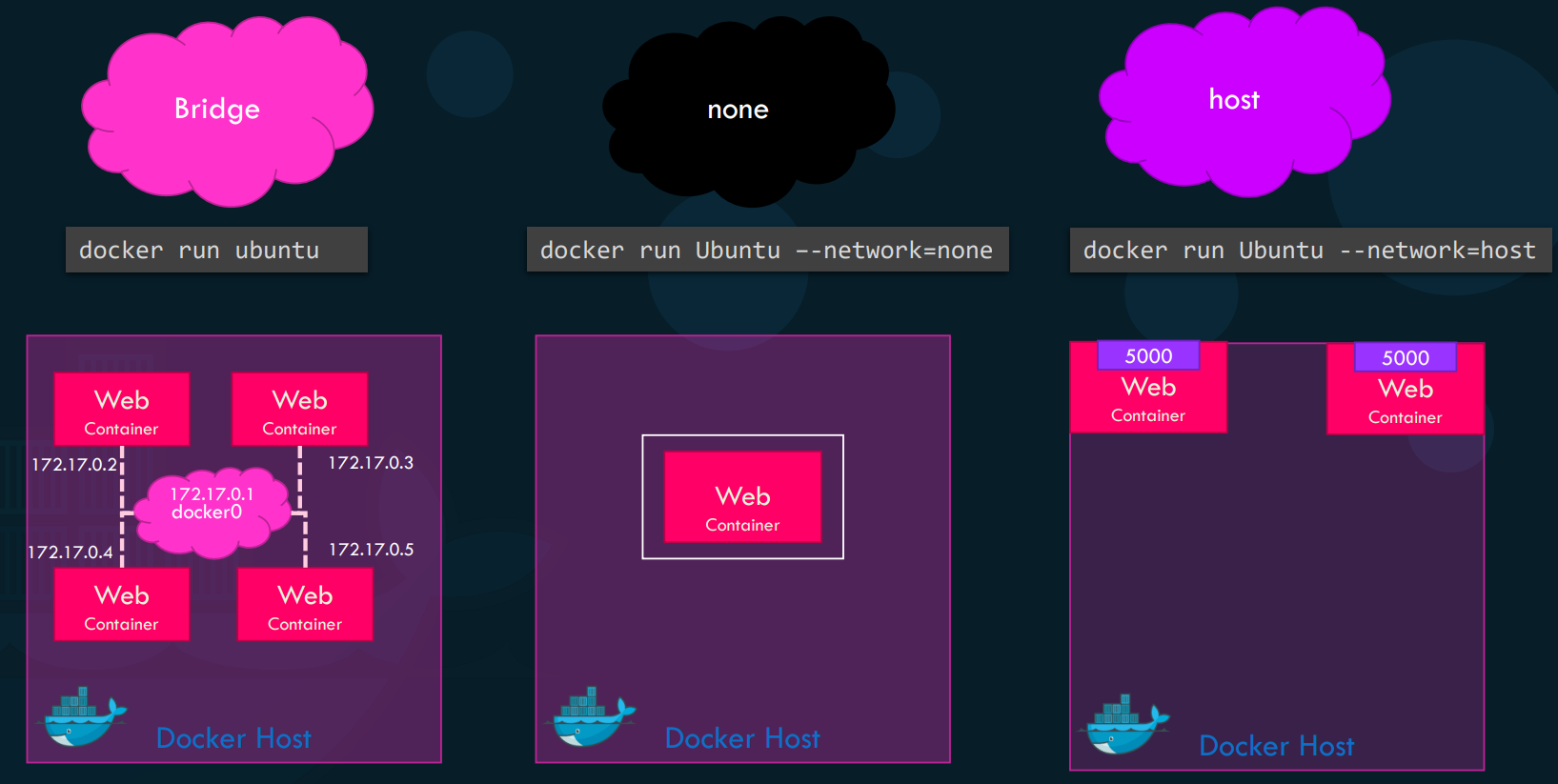
Section titled “Docker Networking”When Docker is installed, it automatically initializes three default networks: bridge, none (null), and host. The bridge network is the default attachment for any new container unless otherwise specified. You can manually assign a network during startup using the --network flag:
docker run --network=<network_name> <image>
where network_name may be host , none
Bridge Network
Section titled “Bridge Network”This is a private internal network created on the host. Containers on this network typically receive an internal IP address in the 172.17.x.x range.
- Internal Communication: Containers can communicate with each other using these internal IPs.
- External Access: Because the network is private, the outside world cannot reach these containers directly. You must use port mapping to bridge the host’s physical port to the container’s virtual port.
- Example:
docker run -p 8080:80 nginxmaps the host’s port 8080 to the container’s port 80.
Host Network
Section titled “Host Network”Associating a container with the host network removes network isolation between the Docker host and the container.
- Mechanism: If a web server runs on port 5000 inside the container, it is instantly available on port 5000 of the host’s physical IP without any port mapping.
- Constraint: You cannot run multiple containers using the same port on a single host network, as they all share the host’s networking stack.
- Example:
docker run --network=host web-app
None Network
Section titled “None Network”Containers attached to this network are completely isolated. They have no external network access and cannot communicate with other containers. They possess only a loopback interface.
- Example:
docker run --network=none secret-processor
Custom Bridge Networks
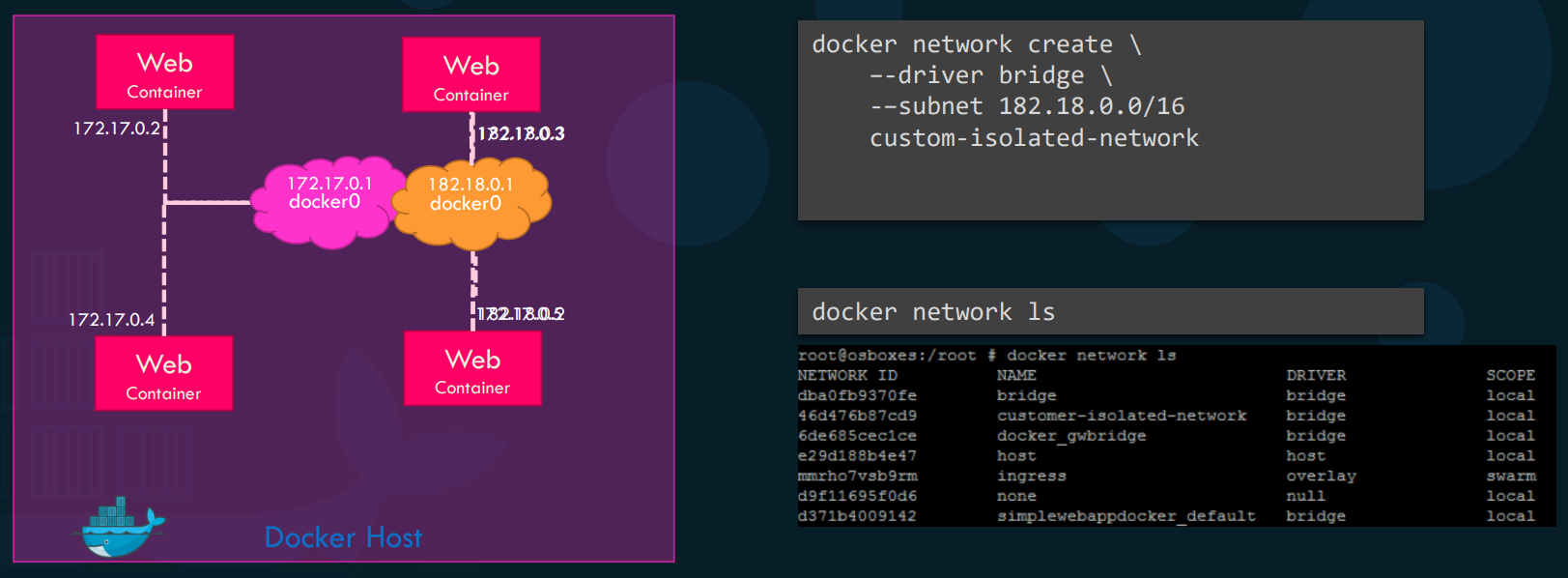
Section titled “Custom Bridge Networks”Docker allows you to create your own isolated internal networks to group specific containers (e.g., keeping a web-tier and db-tier on separate subnets).
- Create Network:
docker network create --driver bridge --subnet 182.18.0.0/16 my-net-1 - List Networks:
docker network ls - Connect at Runtime:
docker run --network=my-net-1 mysql
Container Inspection
Section titled “Container Inspection”To find the IP address, MAC address, or network settings assigned to a container, use the inspect command:
-
Command:
docker inspect <container_id_or_name>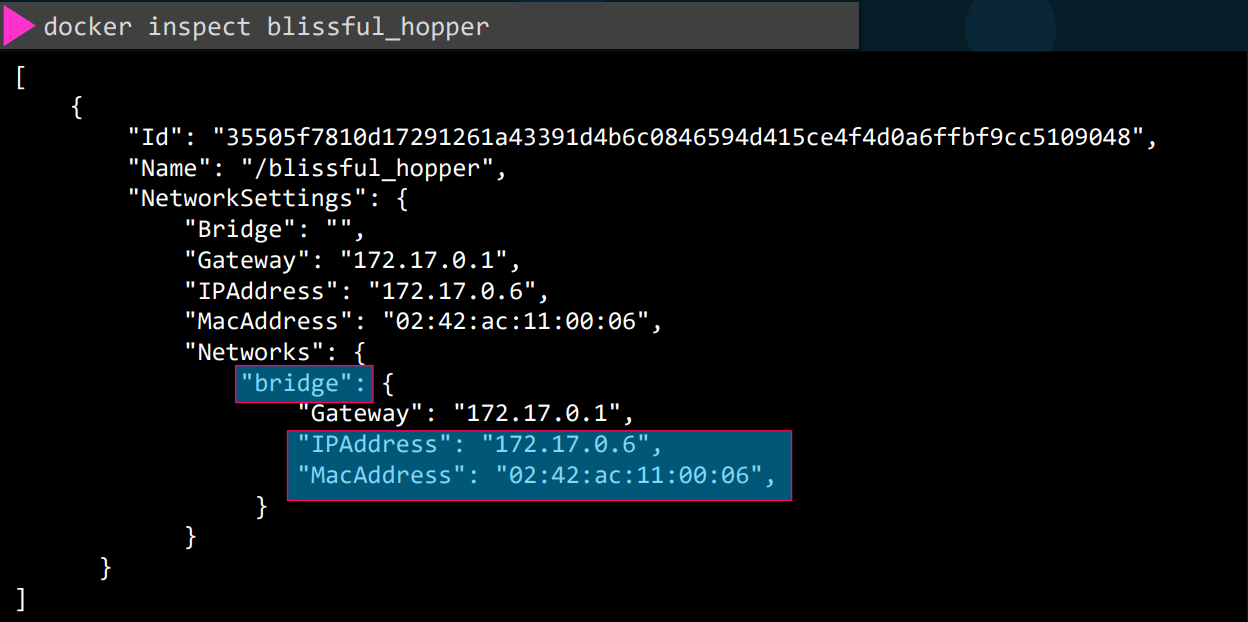
-
We can also inspect a Network to see it’s internal details like NetworkID, Subnet etc..
~ ➜  docker network lsNETWORK ID     NAME      DRIVER    SCOPE5246ce26bbf6   bridge    bridge    localc9ae16eb7e15   host      host      localb90d714f40ac   none      null      local
~ ➜  docker inspect 5246ce26bbf6[    {        "Name": "bridge",        "Id": "5246ce26bbf6ab7c468f07e66c9b7f8fd91813a8f64c7b37cf4cbfd4e15801b3",        "Created": "2026-03-18T04:09:42.406071604Z",        "Scope": "local",        "Driver": "bridge",        "EnableIPv6": false,        "IPAM": {            "Driver": "default",            "Options": null,            "Config": [                {                    "Subnet": "172.12.0.0/24",                    "Gateway": "172.12.0.1"                }            ]        },        "Internal": false,        "Attachable": false,        "Ingress": false,        "ConfigFrom": {            "Network": ""        },        "ConfigOnly": false,        "Containers": {},        "Options": {            "com.docker.network.bridge.default_bridge": "true",            "com.docker.network.bridge.enable_icc": "true",            "com.docker.network.bridge.enable_ip_masquerade": "true",            "com.docker.network.bridge.host_binding_ipv4": "0.0.0.0",            "com.docker.network.bridge.name": "docker0",            "com.docker.network.driver.mtu": "1500"        },        "Labels": {}    }]
Docker DNS and Service Discovery
Section titled “Docker DNS and Service Discovery”The Problem with Static IPs
Section titled “The Problem with Static IPs”The core problem with Static IPs is their volatility; since IP addresses are dynamically assigned from a pool, a container restart or host reboot can cause a service to lose its IP or swap it with another, breaking any hardcoded connections.
- Volatile Lifecycle: If a container crashes, is stopped, or the host reboots, that IP is released back into the pool.
- Race Conditions: When the system comes back up, if a “Redis” container starts before a “MySQL” container, they might swap the IP addresses they had previously.
- Hardcoding Risks: If your application code is hardcoded to connect to
172.17.0.3, and that IP now belongs to a different service after a restart, your application will either fail or send data to the wrong destination.
How Docker DNS Works (Name-to-IP Mapping)
Section titled “How Docker DNS Works (Name-to-IP Mapping)”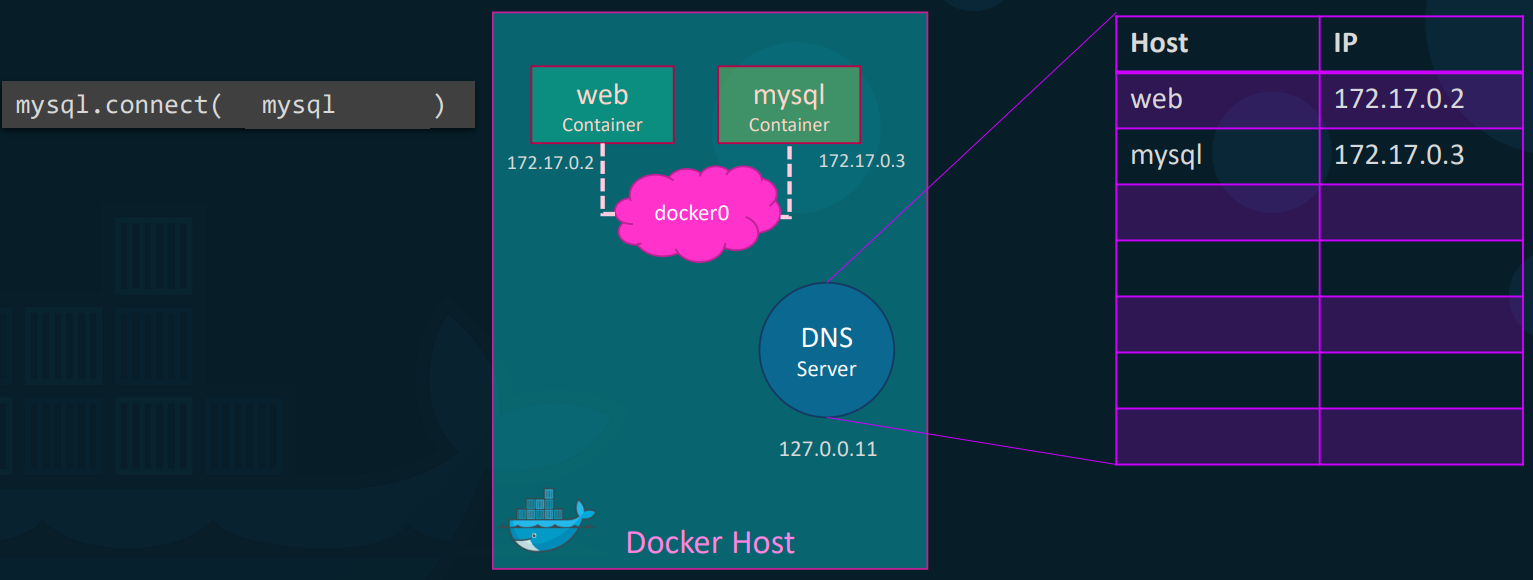
To solve the problem with static IPs, Docker maintains an internal DNS service available within the network that dynamically maps container names to their current IPs. When a container attempts to communicate, it uses its internal /etc/resolv.conf (pointing to the DNS resolver at 127.0.0.11) or /etc/hosts to resolve the target container name into the correct, up-to-date IP address automatically.
- Communication Workflow:
- Your Web-App container tries to connect to a database using the hostname
mysql-db. - The request hits the internal DNS resolver at
127.0.0.11. - The resolver looks up
mysql-db, finds the current IP (e.g.,172.17.0.5), and returns it to the Web-App. - The connection is established without the developer ever needing to know the IP.
- Your Web-App container tries to connect to a database using the hostname
SIMPLY…
- Built-in DNS: Docker includes an internal DNS server (running at
127.0.0.11). This allows containers to reach each other using their container names instead of volatile IP addresses. - Practical Usage: In a web-to-database connection string, you would use
db-container-nameinstead of172.17.0.3.
Underlying Technology
Section titled “Underlying Technology”Docker implements this isolation using Network Namespaces, which provide a separate network stack for each container. These namespaces are then linked together using Virtual Ethernet pairs (veth pairs), which act like a virtual patch cable connecting the container’s namespace to the Docker bridge.
-
Explore the current setup and identify the number of networks that exist on this system.
Terminal window ~ ➜ docker network lsNETWORK ID NAME DRIVER SCOPE7c79f5afbc66 bridge bridge localc9ae16eb7e15 host host localb90d714f40ac none null local -
Assume we have container with NAME
alpine-1, Identify the network it is attached to.Terminal window ~ ➜ docker inspect alpine-1 | grep "Network""NetworkMode": "host","NetworkSettings": {"Networks": {"NetworkID": "c9ae16eb7e1591f4393fb7fed794bc6088832c131003d84372b909d880bd1c0e",~ ➜ docker network lsNETWORK ID NAME DRIVER SCOPE7c79f5afbc66 bridge bridge localc9ae16eb7e15 host host localb90d714f40ac none null local -
What is the subnet configured on
bridgenetwork?Terminal window ~ ➜ docker network lsNETWORK ID NAME DRIVER SCOPE7c79f5afbc66 bridge bridge localc9ae16eb7e15 host host localb90d714f40ac none null local~ ➜ docker inspect 7c79f5afbc66 | grep "Subnet""Subnet": "172.12.0.0/24", -
Run a container named
alpine-2using thealpineimage and attach it to thenonenetwork.docker run --name=alpine-2 --network=none alpine
BIG TASK
Section titled “BIG TASK”- Step1 - Create a new network named
wp-mysql-networkusing thebridgedriver. Allocate subnet182.18.0.0/24Configure Gateway182.18.0.1- Answer:
docker network create --driver=bridge --subnet=182.18.0.0/24 --gateway=182.18.0.1 wp-mysql-network
- Answer:
- Step 2 - Deploy a mysql database using the
mysql:5.7image and name itmysql-db. Attach it to the newly created networkwp-mysql-networkand Set the database password to usedb_pass123, The environment variable to set isMYSQL_ROOT_PASSWORD- Answer:
docker run --name=mysql-db --network=wp-mysql-network -e MYSQL_ROOT_PASSWORD=db_pass123 mysql:5.7
- Answer:
- Step 3 - Deploy a web application named
webappusing thekodekloud/simple-webapp-mysqlimage. Expose the container’s port8080to port38080on the host.- The application makes use of two environment variable:
DB_Hostwith the valuemysql-db2:DB_Passwordwith the valuedb_pass123Make sure to attach it to the newly created network calledwp-mysql-network, Also make sure to link the MySQL and the webapp container.
- Answer:
docker run --name=webapp --network=wp-mysql-network -e DB_Host=mysql-db -e DB_Password=db_pass123 -p 38080:8080 --link mysql-db:mysql-db kodekloud/simple-webapp-mysql
~ ➜ docker run --name=mysql-db --network=wp-mysql-network -e MYSQL_ROOT_PASSWORD=db_pass123 mysql:5.7Unable to find image 'mysql:5.7' locally5.7: Pulling from library/mysql20e4dcae4c69: Pull complete1c56c3d4ce74: Pull completee9f03a1c24ce: Pull complete68c3898c2015: Pull complete6b95a940e7b6: Pull complete90986bb8de6e: Pull completeae71319cb779: Pull completeffc89e9dfd88: Pull complete43d05e938198: Pull complete064b2d298fba: Pull completedf9a4d85569b: Pull completeDigest: sha256:4bc6bc963e6d8443453676cae56536f4b8156d78bae03c0145cbe47c2aad73bbStatus: Downloaded newer image for mysql:5.72026-03-18 05:02:42+00:00 [Note] [Entrypoint]: Entrypoint script for MySQL Server 5.7.44-1.el7 started......Version: '5.7.44' socket: '/var/run/mysqld/mysqld.sock' port: 3306 MySQL Community Server (GPL)~ ➜ docker run --name=webapp --network=wp-mysql-network -e DB_Host=mysql-db -e DB_Password=db_pass123 -p 38080:8080 --link mysql-db:mysql-db kodekloud/simple-webapp-mysql * Serving Flask app "app" (lazy loading) * Environment: production WARNING: Do not use the development server in a production environment. Use a production WSGI server instead. * Debug mode: off * Running on http://0.0.0.0:8080/ (Press CTRL+C to quit) . .