

Bash Scripting
Resources
Section titled “Resources”-
Shell: A command-line interpreter that acts as the interface between the user and the operating system kernel.
-
sh (Bourne Shell): The original Unix shell developed in 1977. It is the syntax standard but lacks modern features like command history or advanced tab completion.
-
Bash (Bourne Again Shell): An enhanced version of
shand the default shell for most Linux distributions. It is backward-compatible withshbut adds features like arrays and improved scripting logic. -
Shell Scripting: The process of writing a series of commands in a text file to be executed by a shell. It is primarily used for automating repetitive tasks, system administration, and batch processing.
sh is the specification; Bash is a popular implementation of that specification; Shell Scripting is the application of either to automate logic.
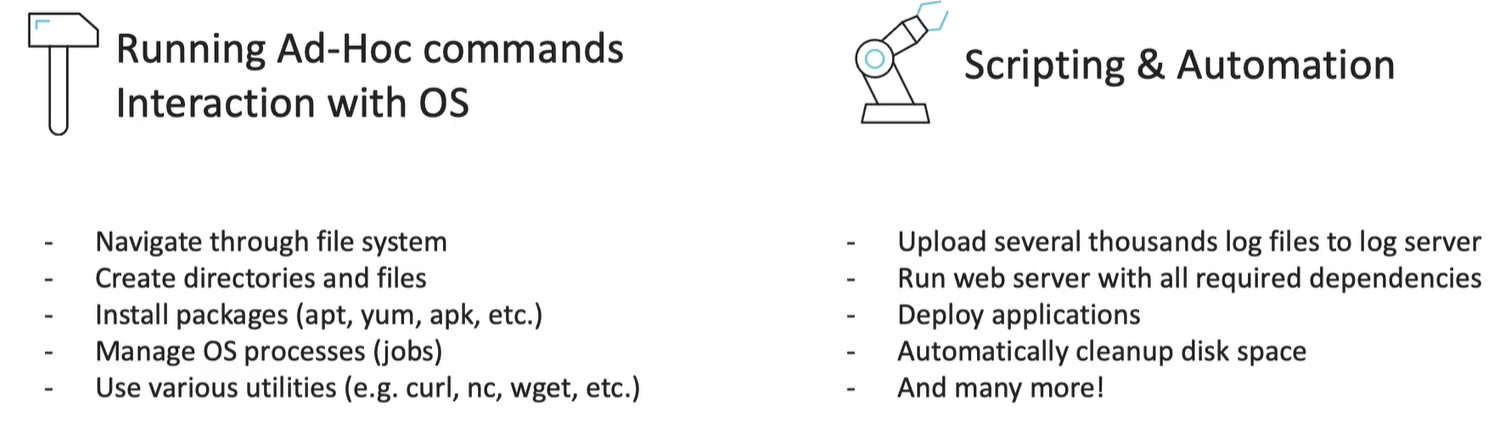
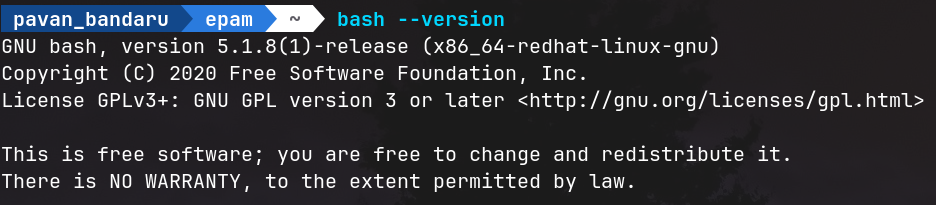
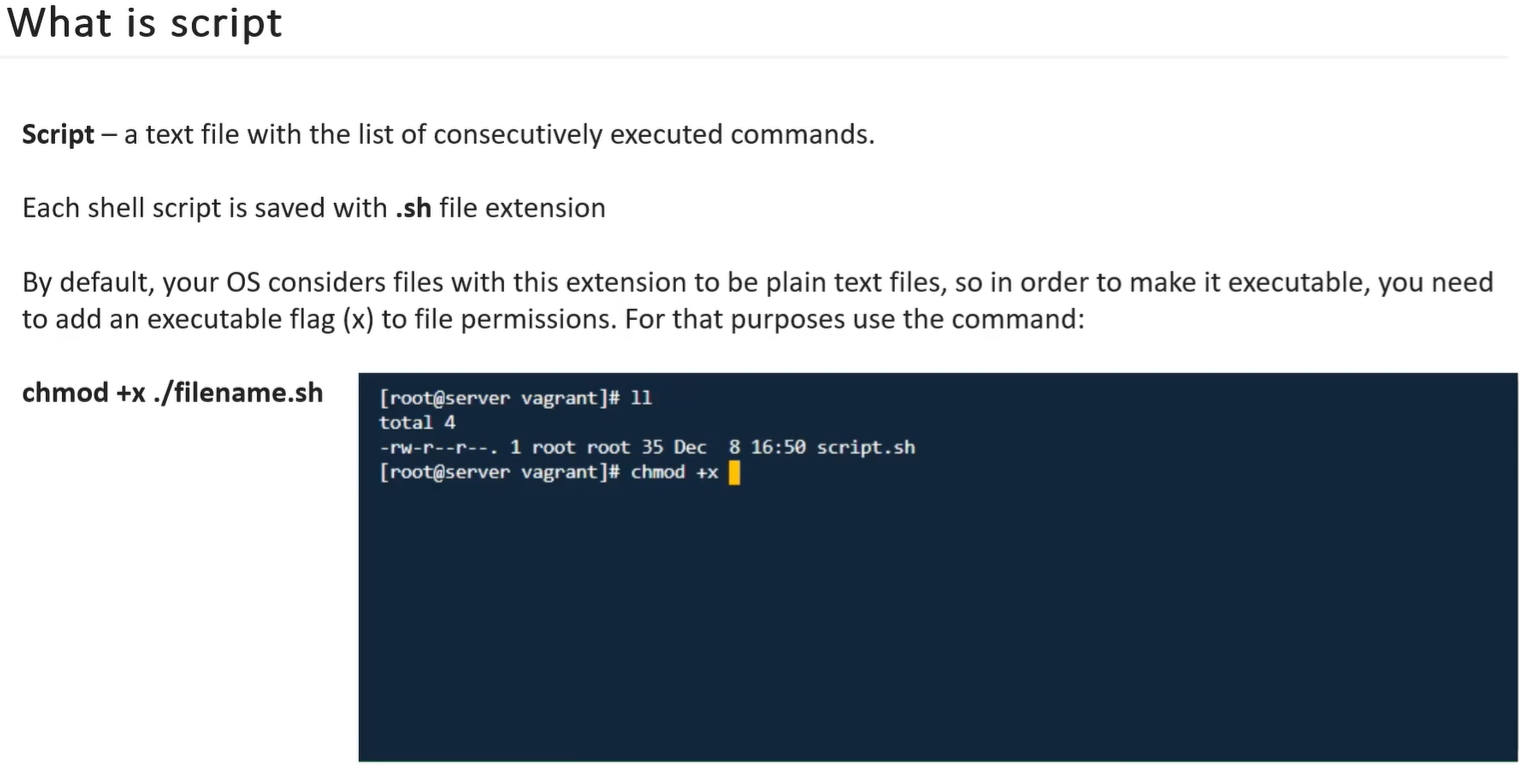
Creating the Scripts and Making Executables.
Section titled “Creating the Scripts and Making Executables.”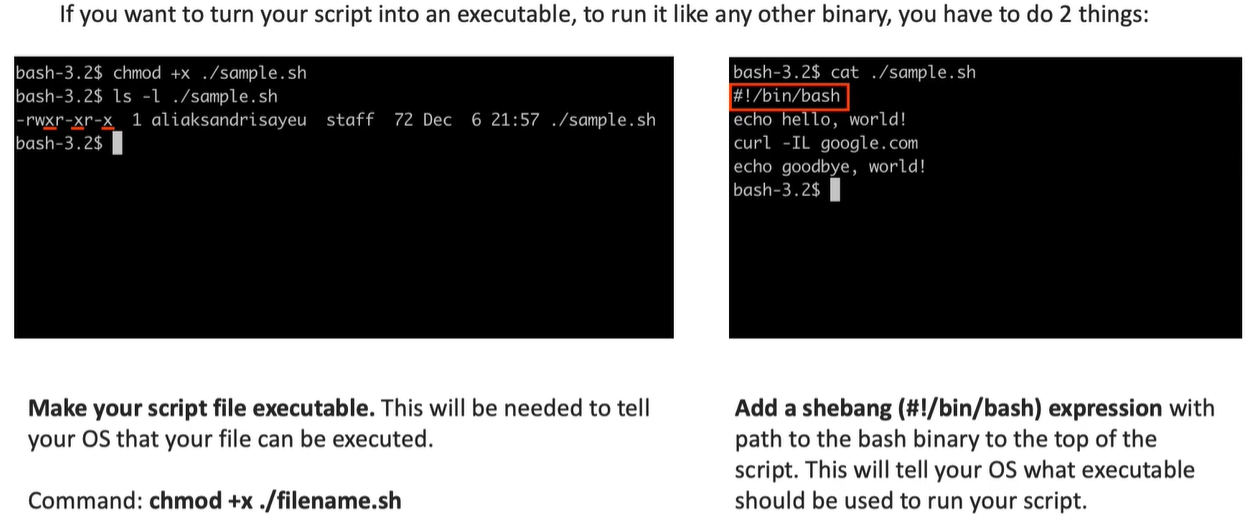
Why Scripts?
Section titled “Why Scripts?”- Automate Boring Tasks or Repetitive Tasks.
- Reduce Errors.
Use cases
Section titled “Use cases”- Installing / Configuring / Updating Software, Servers, etc.
- Backups / Restore.
- Mount new volumes.
- Adding and configuring new users’ privileges.
- System / Network Monitoring.
How to Script?
Section titled “How to Script?”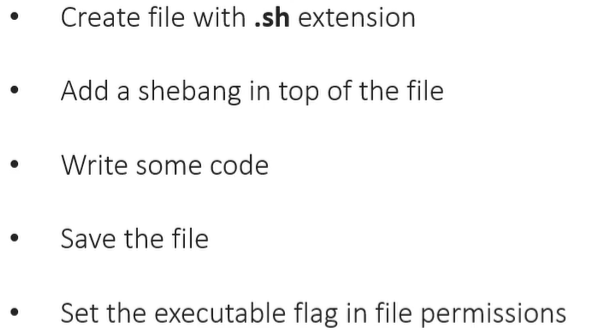
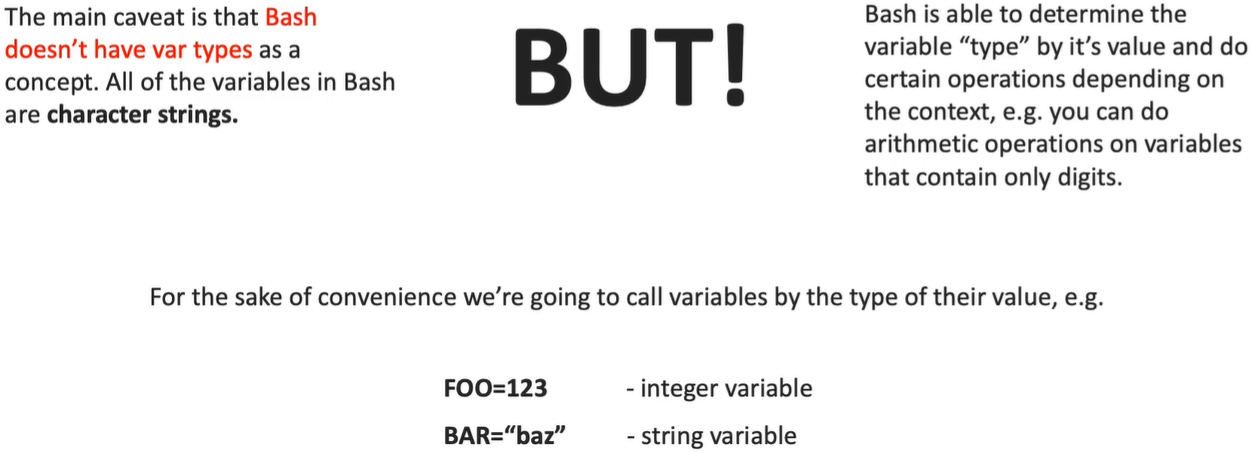
Variables
Section titled “Variables”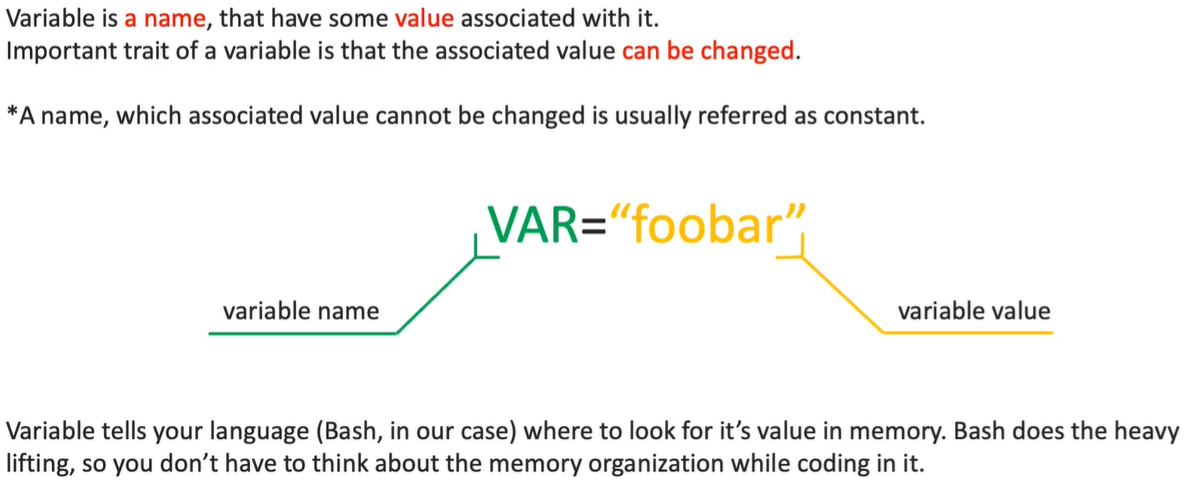
[ ](The Classic/Portable Way):- It is actually a command, not just syntax.
- Pros: It is “portable,” meaning it works in almost every shell (sh, bash, zsh, etc.).
- Cons: It is basic and “lacks functionality” compared to the modern version.
[[ ]](The Modern/Bash Way):- It is a built-in keyword specifically for Bash.
- Pros: It is safer, supports regular expressions (regexp), and allows for wildcards.
- Cons: It won’t work in older or strictly Bourne-compatible shells.
Example:
file="script.sh"
if [[ $file == *.sh ]]; then    echo "This is a shell script."fi
→ supports regex and wildcards like *
Arrays
Section titled “Arrays”- Defined using parentheses, such as
MY_ARRAY=("val1" "val2" "val3"). - Indexing: Zero-indexed by default, meaning the first item is at position 0, though the provided table uses 1-based indexing for its specific examples.
- Data Types: Bash arrays are heterogeneous, meaning you can mix strings, integers, and other types in a single array.
- Elements are stored as a list of indexed strings.
# Define arrayFRUITS=("apple" "banana" "cherry" "date" "elderberry")
# 1. Get second element: "banana"echo ${FRUITS[1]}
# 2. Get length of "banana": 6echo ${#FRUITS[1]}
# 3. Total elements: 5echo ${#FRUITS[@]}
# 4. Slice (start index 3, get 2): "date elderberry"echo ${FRUITS[@]:3:2}
# 5. Replace "apple" with "apricot"echo ${FRUITS[@]/apple/apricot}
# 6. Delete element at index 2 (cherry)unset FRUITS[2]
# 7. Iterate through remainingfor i in "${FRUITS[@]}"; do echo "I like $i"done| Command | Description |
|---|---|
${VAR[1]} | Retrieves the element at index 1. |
${VAR[@]} | Expands to all elements currently in the array. |
${#VAR[1]} | Returns the character count (length) of the element at index 1. |
${#VAR[@]} | Returns the total count of elements stored in the array. |
${VAR[@]:3:2} | Slices the array to get 2 elements starting from index 3. |
${VAR[@]/foo/bar} | Returns all elements, replacing occurrences of “foo” with “bar”. |
unset VAR[2] | Deletes the element located at index 3 (specifically the third position in 0-indexed shells). |
for i in "${VAR[@]}" | A standard loop to perform an action on every item in the array. |
Environment Variables
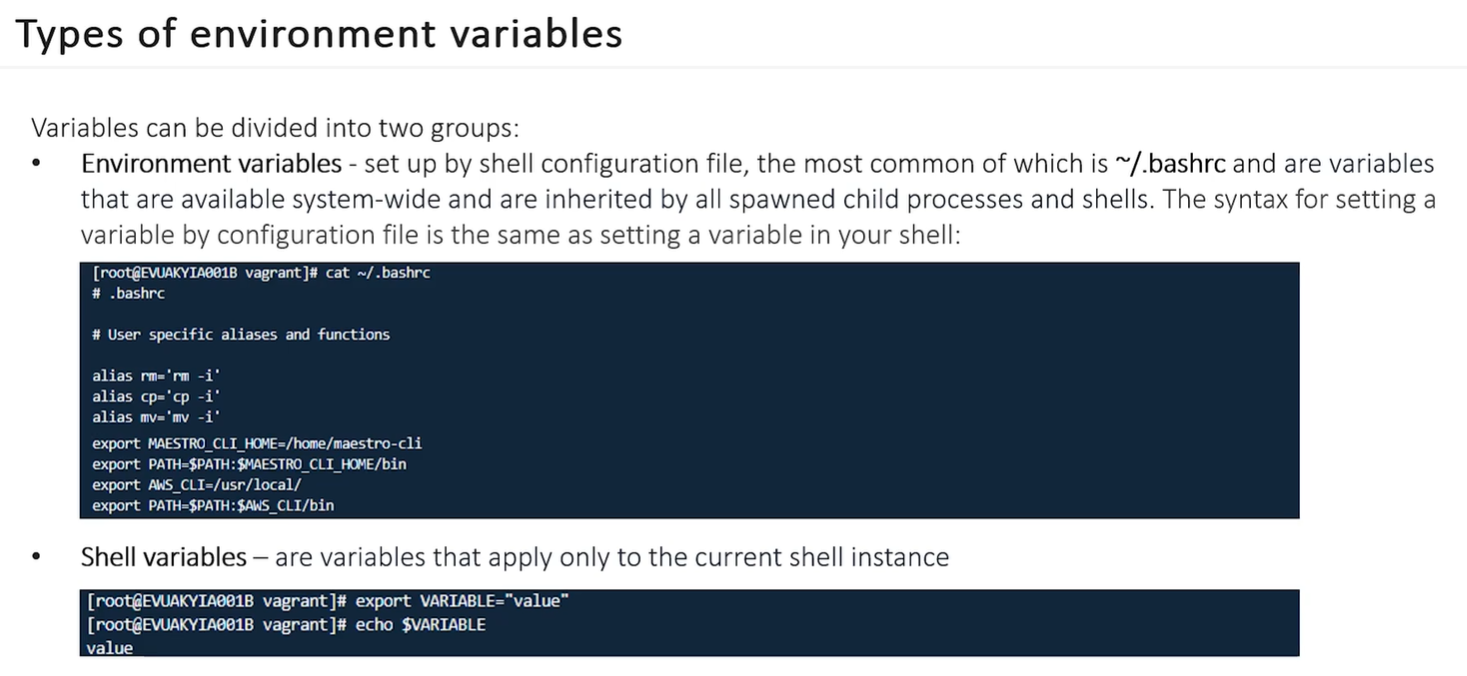
Section titled “Environment Variables”- Environment variables are dynamic values stored within your system that influence how applications and the shell behave. You can think of them as a “settings profile” for your computer’s terminal.
The Core Concept
Section titled “The Core Concept”- Definition: A named value (KEY=value) used by the system to store information like your default editor, system language, or where programs are located.
- Format: Conventionally written in UPPER CASE and are case-sensitive.
Example: USER=root tells the system who is currently logged in.
| Feature | Shell Variable | Environment Variable |
|---|---|---|
| Scope | Only the current terminal window. | Current terminal + any “child” programs started from it. |
| Creation | FOO="bar". | export FOO="bar". |
| Persistence | Lost when you close the terminal. | Can be made permanent by adding to ~/.bashrc. |
Shell Variable Example
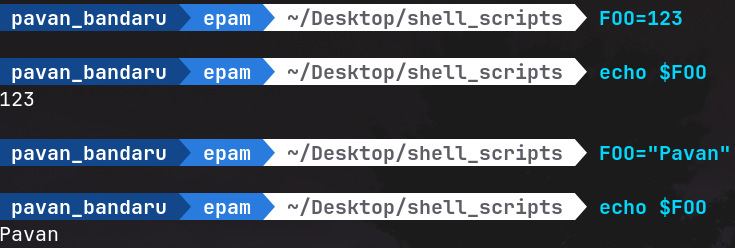
Environment Variable
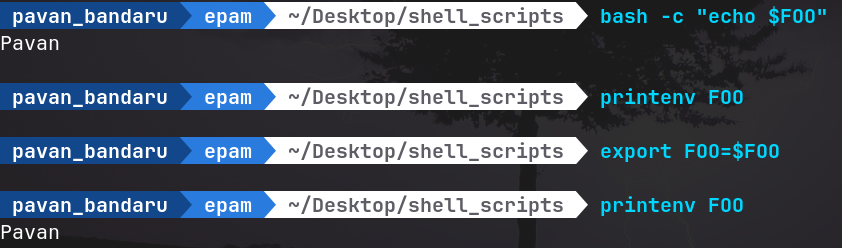
→ Note that, once a variable is environment variable.. it can be accessed by other shell sessions as well. Environment variables are variables that are available system-wide and are inherited by all spawned child processes and shells.
PATH Variable
Section titled “PATH Variable”PATH is the most important environment variable. It is a list of directories where the system looks for executable files (commands).
-
Example:
- The Problem: If you download a tool like
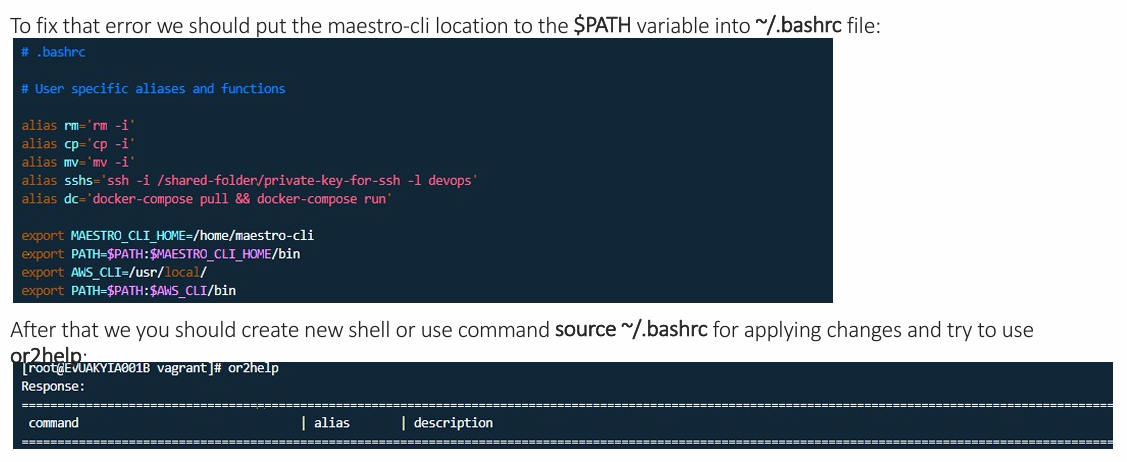
maestro-clito a custom folder, the terminal won’t recognize the commandor2help. - The Solution: You add that folder’s location to your
PATHvariable.
# Adding a new folder to the existing PATH export PATH=$PATH:/home/maestro-cli/binNow, the system will check
/home/maestro-cli/binwhenever you type a command. - The Problem: If you download a tool like
-
printenv: Shows all your current environment variables. -
export: Promotes a local shell variable to an environment variable. -
unset: Deletes a variable. -
source ~/.bashrc: Forces the system to read your configuration file and apply changes immediately.
Proof that Shell variables Can’t be accessed from Child Process of same shell session..
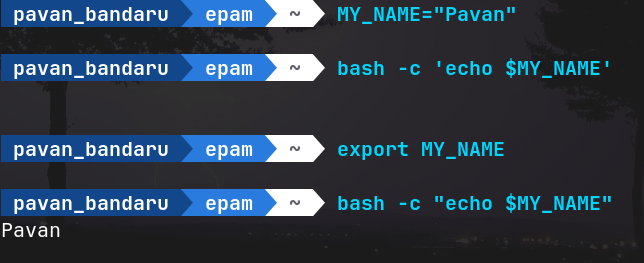
Note: bash -c RUNs commands in child process of current shell
Special Args. Variables
Section titled “Special Args. Variables”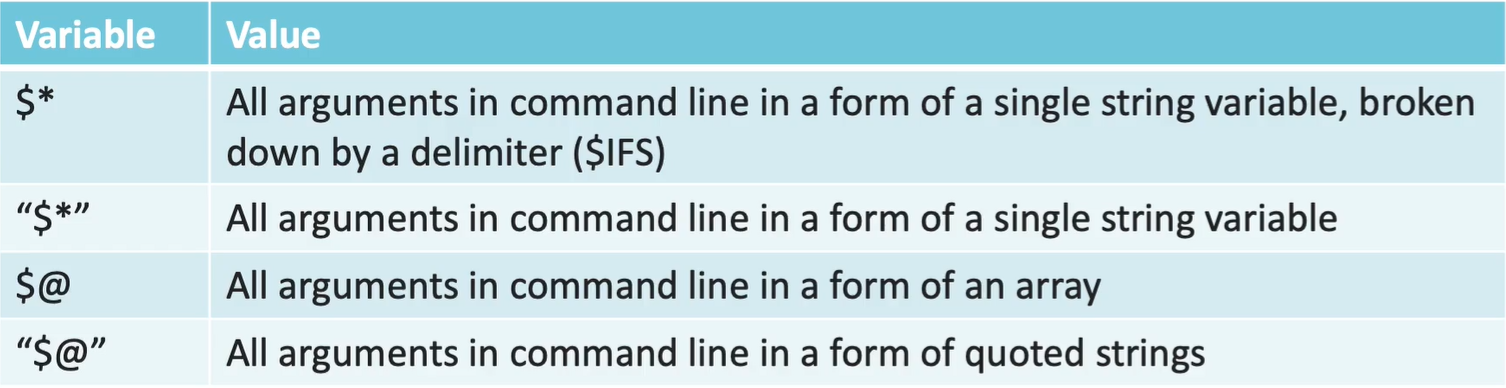
Example: bash script.sh "one" "two" "three four"
#!/bin/bash
echo "--- 1. Using \$* (Unquoted) ---"for i in $*; do echo "<$i>"; done# Logic: Splits "three four" into two words.
echo -e "\n--- 2. Using \$@ (Unquoted) ---"for i in $@; do echo "<$i>"; done# Logic: Same as above; without quotes, it's identical to $*.
echo -e "\n--- 3. Using \"\$*\" (Quoted) ---"for i in "$*"; do echo "<$i>"; done# Logic: Everything is mashed into ONE single string.
echo -e "\n--- 4. Using \"\$@\" (Quoted) ---"for i in "$@"; do echo "<$i>"; done# Logic: Preserves the original 3 arguments exactly.| Syntax | How it sees “one” “two” “three four” | Total Items |
|---|---|---|
$* | <one> <two> <three> <four> | 4 |
$@ | <one> <two> <three> <four> | 4 |
"$*" | <one two three four> | 1 |
"$@" | <one> <two> <three four> | 3 |
More Specials..
Section titled “More Specials..”| Variable | Purpose |
|---|---|
$? | Exit status (0 = success, 1+ = fail). |
$$ | Process ID of the current shell. |
$# | Count of arguments. |
$0 | Name of the running script. |
$n | Specific argument by position (1, 2, 3…). |
$! | Process ID of the last background job. |
$- | Currently active shell flags. |
$_ | Last argument of the previous command. |
#!/bin/bash
echo "No.of Command Line args = $#"echo "Current script PID = $$"
echo "<---- START ---->"lsecho "<---- DONE ---->"echo "Exit Code of above ls command = $?"
echo "<---- START ---->"random_command# This will now correctly show a non-zero exit code (likely 127)echo "Exit code of above failed command = $?"echo "<---- DONE ---->"
echo "<---- START ---->"echo "sleeping for 3s in background"sleep 3 &  # <--- Added '&' to make it a background jobecho "<---- DONE ---->"
# Now $! will show the PID of the sleep processecho "PID of Previous Sleep BG Job = $!"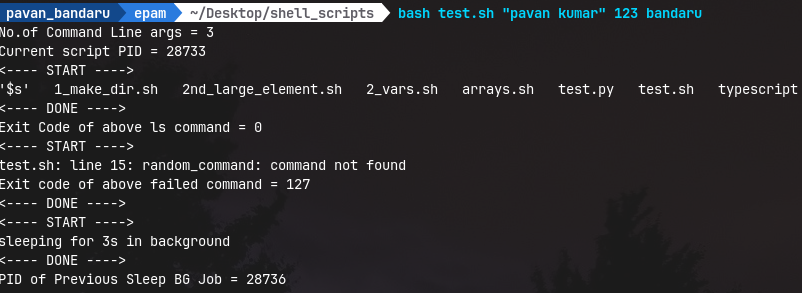
Realworld Automation…
Section titled “Realworld Automation…”following script will compress and upload all log files following pattern _log<NUM>.log of local machine into .tar and uploads to specified AWS S3 Bucket.. using AWS CLI..
**ls ./Desktop/server_logs/**-rw-r--r--. 1 pavan_bandaru pavan_bandaru 0 Feb 16 12:01 app_log1.log-rw-r--r--. 1 pavan_bandaru pavan_bandaru 0 Feb 16 12:01 app_log2.log-rw-r--r--. 1 pavan_bandaru pavan_bandaru 0 Feb 16 12:01 app_log3.log-rw-r--r--. 1 pavan_bandaru pavan_bandaru 0 Feb 16 12:01 app_log4.log-rw-r--r--. 1 pavan_bandaru pavan_bandaru 0 Feb 16 12:01 app_log5.log#!/bin/bash
# 1. Corrected logic to -ne (not equal) and added spaces for the test operator[ $# -ne 2 ] && echo "Usage: $0 <local_path> <aws_bucket_name>" && exit 1
LOCAL_PATH=$1S3_BKT=$2LOG_PATTERN="^.*_log[0-9]+\.log$"ARCHIVE_NAME="backup_$(date +%Y%m%d)_$$.tar.gz" # Using PID i.e $$ along with timestamp...
# Archive all local files....# Fixed variable name from $LOCAL_DIR to $LOCAL_PATHecho "Starting archiver (PID: $$) for $LOCAL_PATH"
BACKUP_FILES=""
for file in "$LOCAL_PATH"/*;do file_name=$(basename "$file") # Extracts filename from path # Corrected: Added $ to LOG_PATTERN for variable expansion if [[ $file_name =~ $LOG_PATTERN ]]; then BACKUP_FILES+="$file " # space to seprate files... fidone
# Fixed: Added space after [[ for syntax and set exit to 1 for failure[[ -z "$BACKUP_FILES" ]] && echo "No files Log Files Found!! Exiting..." && exit 1
# Compress into .tar.gzecho "COMPRESSING Logs into << $ARCHIVE_NAME >>"tar -czf "$ARCHIVE_NAME" $BACKUP_FILES # Connects command to data stream
# While Loop for Reliable Upload# Logic: Try to copy to S3; exit code 0 stops the loop# Fixed: Corrected variable name from $S2_BKT to $S3_BKTecho "Uploading to s3://$S3_BKT/"
# Logic: While the exit code of the command is NOT 0 (success)while ! aws s3 cp "$ARCHIVE_NAME" "s3://$S3_BKT/" > /dev/null 2>&1do echo "Network error. Retrying in 5 seconds..." sleep 5done
# Only remove local archive if the previous S3 command succeeded[ $? -eq 0 ] && echo "Upload Verified!" && rm "$ARCHIVE_NAME" || echo "Critical: Upload failed."
echo "Process complete. Total arguments processed: $#"