

Jenkins Setup in AWS EC2
1. The Big Picture: Jenkins & Docker Slaves
Section titled “1. The Big Picture: Jenkins & Docker Slaves”Before the steps, here is the “gist” of how this architecture functions:
- The Jenkins Controller (Master): This is your main EC2 instance. it doesn’t do the “heavy lifting.” Instead, it manages the UI, schedules jobs, and tells the “Slaves” what to do.
- The Docker Slaves (Agents): These are the workers. In a modern setup, these aren’t necessarily separate permanent machines. When a build starts, Jenkins uses the Docker Pipeline Plugin to spin up a temporary Docker container on the same EC2 or a remote one.
- Where they run: They run as containers. Once your code is built and tested inside that container, Jenkins destroys the container, keeping your main server clean and “stateless.”
2. Step-by-Step Installation (2026 Version)
Section titled “2. Step-by-Step Installation (2026 Version)”Phase A: Install Java 21 (LTS)
Section titled “Phase A: Install Java 21 (LTS)”Jenkins is a Java application. We use Java 21 for better performance and long-term support.
sudo dnf update -ysudo dnf install java-21-amazon-corretto-devel -y
java -version
Phase B: Install Jenkins
Section titled “Phase B: Install Jenkins”We now use the specific keyrings directory for better security management in Ubuntu.
# 1. Download the Jenkins repository configurationsudo wget -O /etc/yum.repos.d/jenkins.repo \    https://pkg.jenkins.io/redhat-stable/jenkins.repo
# 2. Import the GPG key for securitysudo rpm --import https://pkg.jenkins.io/redhat-stable/jenkins.io-2023.key
# 3. Upgrade and install Jenkinssudo dnf upgrade -ysudo dnf install jenkins -y
# 4. Enable and start Jenkins servicesudo systemctl enable jenkinssudo systemctl start jenkins
Phase C: AWS Network Setup
Section titled “Phase C: AWS Network Setup”-
Go to EC2 Console > Security Groups.
-
Edit Inbound Rules for your instance’s group.
-
Add Rule: Custom TCP | Port 8080 | Source My IP (Preferable for security) or 0.0.0.0/0.
-
OS Firewall (If enabled): RHEL often has
firewalldactive.sudo firewall-cmd --permanent --add-port=8080/tcp sudo firewall-cmd --reload
3. Initial Setup & Docker Integration
Section titled “3. Initial Setup & Docker Integration”Unlock Jenkins
Section titled “Unlock Jenkins”-
Access
http://<your-ec2-ip>:8080. -
Get the password:
Terminal window sudo cat /var/lib/jenkins/secrets/initialAdminPassword -
Select Install Suggested Plugins.
-
Create your Admin User.
Install Docker & Grant Permissions
Section titled “Install Docker & Grant Permissions”To use Docker as a slave, Jenkins needs permission to talk to the Docker engine.
# Install Docker (Amazon Linux 2023 / RHEL 9)sudo dnf install docker -y
# Start and Enable Dockersudo systemctl enable dockersudo systemctl start docker
# Add users to the docker groupsudo usermod -aG docker jenkinssudo usermod -aG docker ec2-user  # Or 'cloud-user' depending on the AMI
# Reload the Jenkins service to recognize the new group membershipsudo systemctl restart jenkins
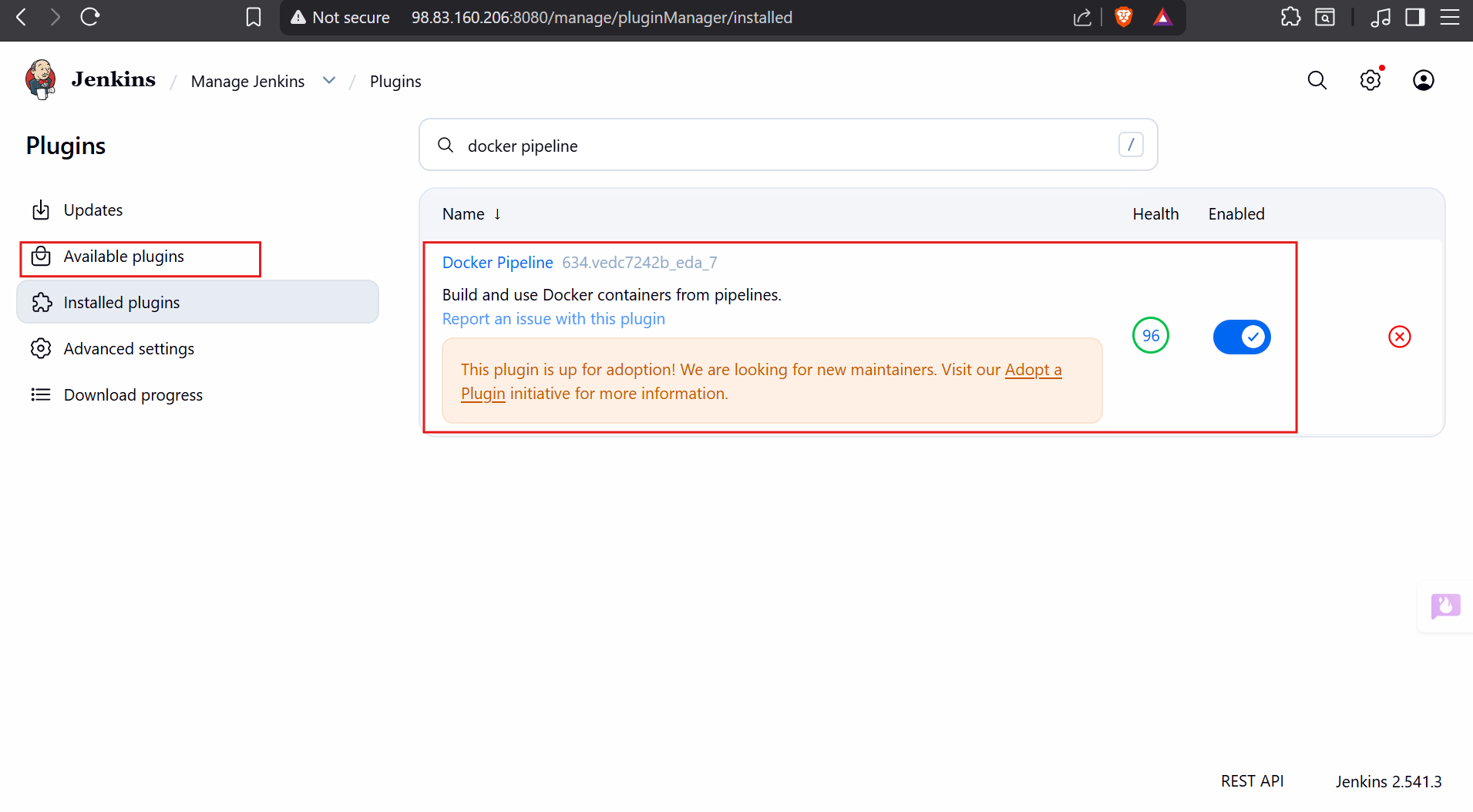
Install “Docker Pipeline” Plugin
Section titled “Install “Docker Pipeline” Plugin”- In Jenkins UI: Manage Jenkins > Plugins > Available Plugins.
- Search for “Docker Pipeline”.
- Install it and check the box to Restart Jenkins when done.
4. How to use it (The “New” Way)
Section titled “4. How to use it (The “New” Way)”You no longer need to manually “configure” a slave in the settings for every job. Just use a Jenkinsfile like this:
pipeline { agent { docker { image 'node:20-alpine' } // This spins up a 'Slave' container automatically } stages { stage('Build') { steps { sh 'node -v' } } }}