

Git
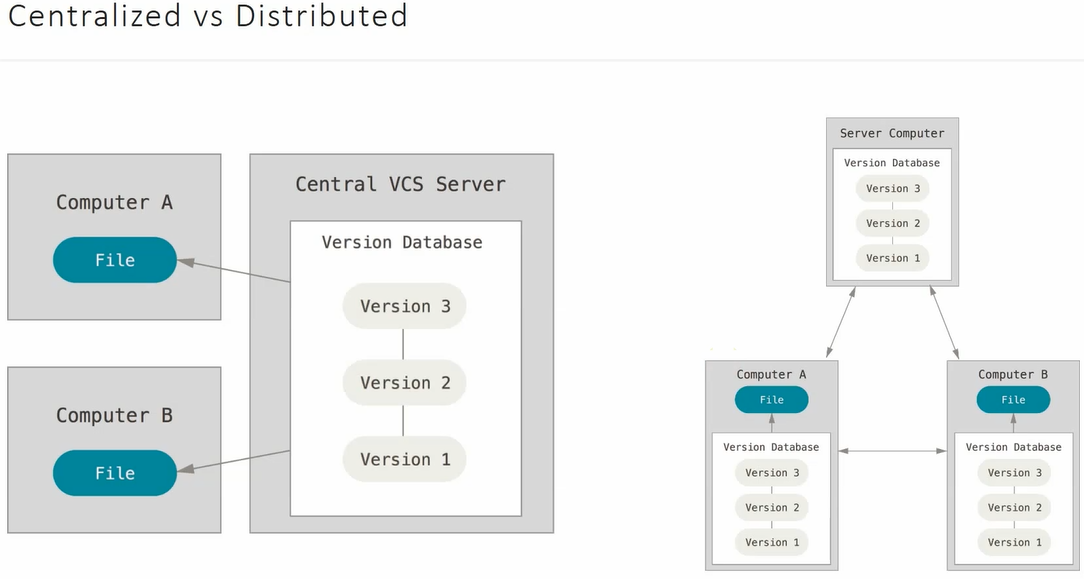
- Client Side
- Generate SSH private key and paste it in Remote Server
ssh-keygen -t ed25519 -C "your_email@epam.com"- copy key from
cat ~/.ssh/id_ed25519.pub
- Generate SSH private key and paste it in Remote Server
- Server side
- Example: Gitlab
- Go to
autocode.git.epam.com. - Navigate to Settings → SSH Keys.
- Paste the content you just copied and click Add Key.
- Go to
- Example: Gitlab
Global Conf
Section titled “Global Conf”git config --global user.email "email"git config --global user.username "username"
Core Structure
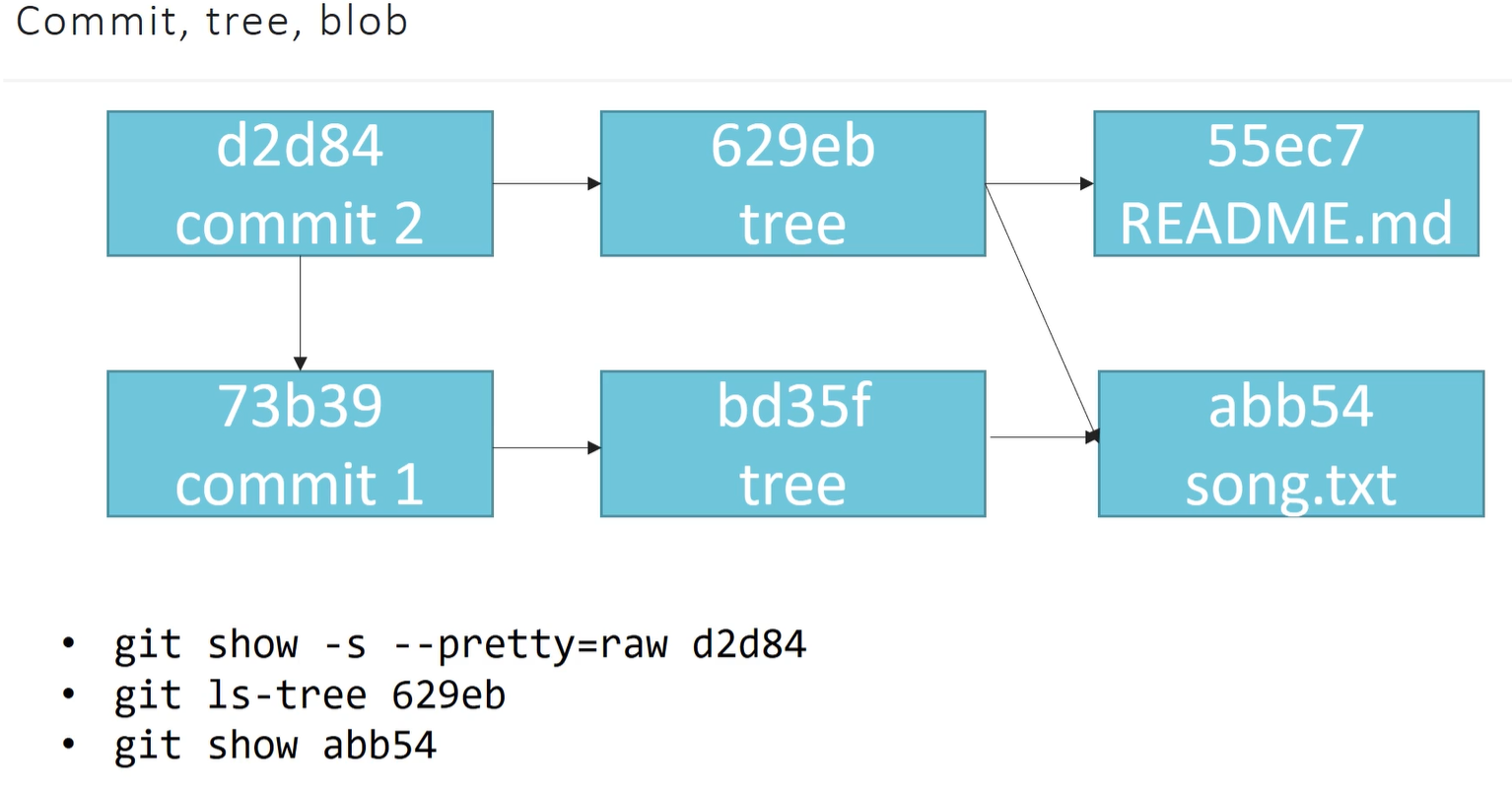
Section titled “Core Structure”HEAD(file): A reference to the branch or commit currently checked out; it usually contains a path likeref: refs/heads/main.config(file): Stores repository-specific settings, such as remote URLs, user identity, and branch merging preferences.index(file): A binary file serving as the “Staging Area”; it tracks file paths, timestamps, and hashes to prepare the next commit.objects/(folder): The “database” containing all file content (blobs), directory structures (trees), and commit metadata.-
Organization: Named by the 40-character SHA-1 hash; the first 2 characters form the subfolder name to prevent file system performance lag from having thousands of files in one directory.
Component Named By Contains Commit Hash Author, Date, Message, and Tree Hash Tree Hash List of filenames and their corresponding Blob Hashes Blob Hash The raw data/content of a file
-
refs/(folder): Contains pointers to commit hashes;refs/heads/stores local branch tips, whilerefs/tags/stores release markers.refs/heads/master→ points to recent commit hash or sha1
logs/(folder): Keeps a history of whereHEADand branches have pointed (reflog), allowing you to recover “lost” commits.hooks/(folder): Contains executable scripts (likepre-commit) that trigger automatically during specific Git actions
.gitignore
Section titled “.gitignore”→ A .gitignore file is a plain text file that tells Git which files or directories to ignore in your project. It prevents temporary files, sensitive data, and large dependencies from being accidentally staged or committed to the repository.
→ It acts as a permanent filter for your staging area, automatically excluding specified files from git status and git add.
# Ignore OS-specific metadata.DS_StoreThumbs.db
# Ignore build directories and compiled binaries/build/*.o*.class*.exe
# Ignore environment variables (SENSITIVE DATA).envauth_tokens.json
# Ignore logs and temp files*.logtmp/
# Ignore IDE specific folders.vscode/.idea/| Feature | .gitignore | .git/hooks | .git/config |
|---|---|---|---|
| Primary Goal | Exclude files. | Automate actions. | Configure behavior. |
| Location | Project Root (Visible). | Inside .git/ (Hidden). | Inside .git/ (Hidden). |
| Shared? | Yes (Committed). | No (Local only). | No (Local only). |
| Example | node_modules/ | pre-push script. | user.email |
.git/hooks (The Automation)
Section titled “.git/hooks (The Automation)”Definition: Scripts that Git triggers automatically when certain events happen (like committing or pushing).
- It enforces rules or automates tasks.
- Practical Example: A “pre-commit” hook that automatically checks your code for syntax errors. If the errors exist, the hook stops the commit from happening.
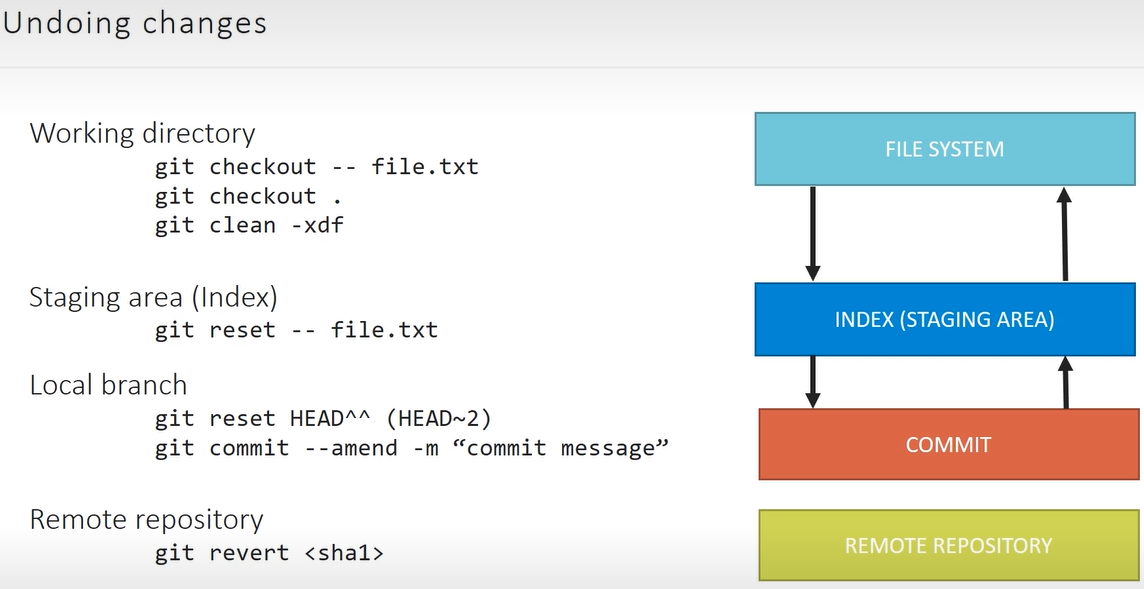
⇒ git reset -- file.ext → this will upstage that particular file..
⇒ git reset HEAD^^ (or git reset HEAD~2) ⇒ moves HEAD back to 2 previous commits..
- The changes from those commits are kept in your working directory but are unstaged (they show up as modified files).
⇒
git clean -fd: Removes untracked files and untracked directories.
⇒ git revert <sha1>/HEAD → this will add a new commit on top of current head by reverting changes from specified HEAD or specific commit hash
Checkout
Section titled “Checkout”1. Changing Branches
Section titled “1. Changing Branches”When you use a branch name, Git moves the HEAD pointer to that branch and updates your files to match that branch’s latest state.
git checkout feature-login
2. Recovering/Restoring Files
Section titled “2. Recovering/Restoring Files”From Staging (Undo local changes)
Section titled “From Staging (Undo local changes)”If you edited a.txt but haven’t run git add yet, you can throw away your changes:
git checkout -- a.txt⇒ Git takes the version currently in the Index and overwrites the version in your Working Directory.git checkout .→ discards all local chnages and matches all files (entire project) to index i.e previous commit
From a Commit (Recover deleted or old files)
Section titled “From a Commit (Recover deleted or old files)”If you deleted a file or want an old version:
git checkout HEAD -- a.txt⇒ Git goes to theHEADcommit, grabsa.txt, and places it in both your Index and Working Directory.
3. Detached HEAD (Inspecting History)
Section titled “3. Detached HEAD (Inspecting History)”⇒ git checkout 4a2b1c3 ⇒ HEAD points directly to a commit rather than a branch label. (DETACH HEAD)
Reset Command
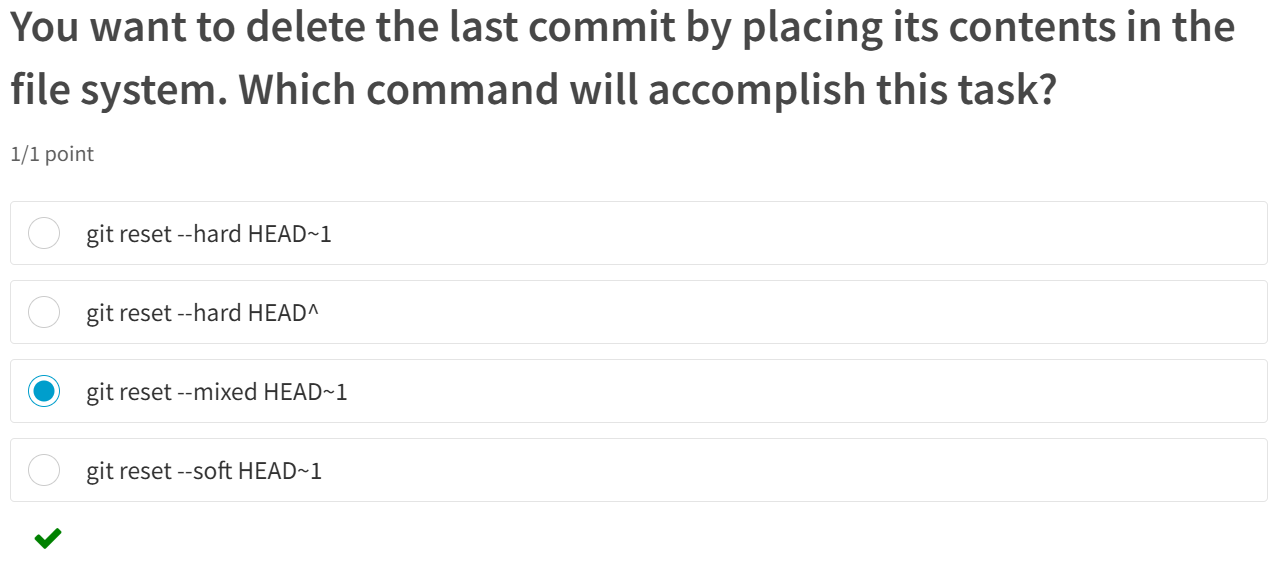
Section titled “Reset Command”1. Soft Reset (-soft)
Section titled “1. Soft Reset (-soft)”Definition: Moves history back but keeps all your work staged and ready to be committed again.
- The Logic: Only the Commit History changes.
- Example: You committed, but realized you forgot to add a small comment.
git reset --soft HEAD~1- Result: The commit is gone, but the code is still in your Staging Area (green in
git status). Just fix the comment and commit again.
2. Mixed Reset (-mixed - The Default)
Section titled “2. Mixed Reset (-mixed - The Default)”Definition: Moves history back and keeps your work, but “unstages” it so you have to git add it again.
- The Logic: Both the Commit History and the Staging Area change.
- Example: You made a messy commit with 5 different files and want to split them into 5 separate commits.
git reset --mixed HEAD~1- Result: The commit is gone. The files are still on your computer (Working Directory), but they are Unstaged (red in
git status). You can now add them one by one.
3. Hard Reset (-hard)
Section titled “3. Hard Reset (-hard)”Definition: Moves history back and deletes everything you’ve done since that commit.
- The Logic: History, Staging, and Working Directory are all wiped clean.
- Example: You tried a new feature, it’s a total disaster, and you want to pretend it never happened.
git reset --hard HEAD~1- Result: All changes are permanently deleted. Your folder looks exactly like it did at the previous commit. Use with caution!
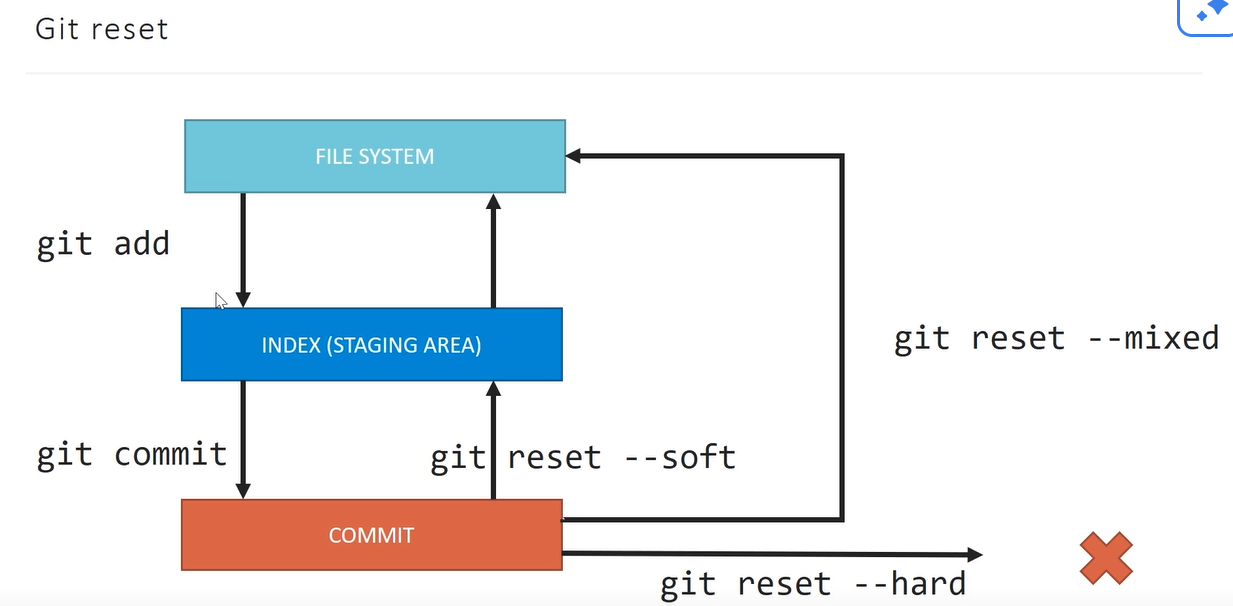
| Reset Mode | Moves Branch Pointer? | Clears Staging Area? | Wipes Working Directory? | Best Use Case |
|---|---|---|---|---|
--soft | Yes | No | No | Squashing commits or fixing a commit message. |
--mixed | Yes | Yes | No | Redoing the staging process or fixing messy adds. |
--hard | Yes | Yes | Yes | Deleting bad work and starting over completely. |
Revert Command
Section titled “Revert Command”Creates a brand-new commit that performs the inverse operations of a specific target commit (if the target added a line, the revert deletes it).
- Direction: Forward-moving (undoes work by adding more history).
- History: Preserved. The “mistake” stays in the log, followed by the “correction.”
- Practical Example: You pushed a commit that accidentally deleted the database configuration. To fix it safely on a shared server, you
revertthat commit. - Command:
git revert <commit-hash>
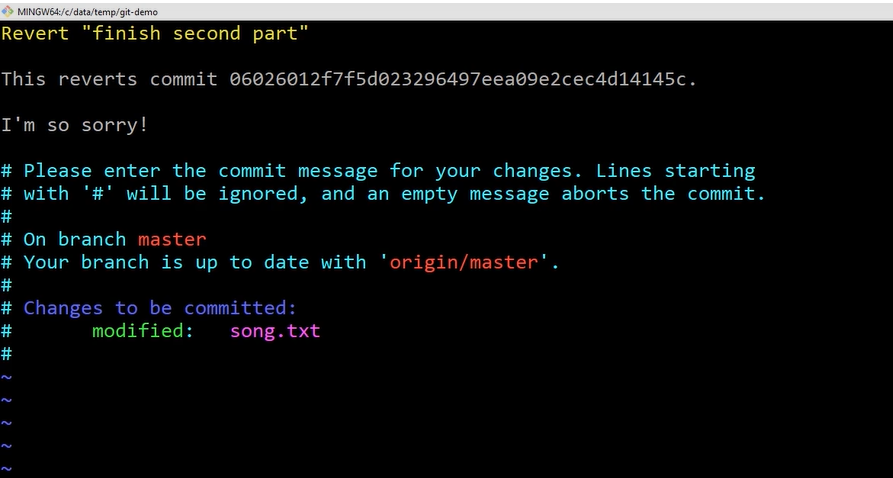
Eg: git revert 06026 … then this will revert 06026 commit changes and opens up the following editor to edit comments etc..
→ Brain Freak!
Section titled “→ Brain Freak!”assume you commit some code having bug → you revert it, so bug removed → you again revert that bug fixed code.. now what happens? you have bug again!!!
Branching
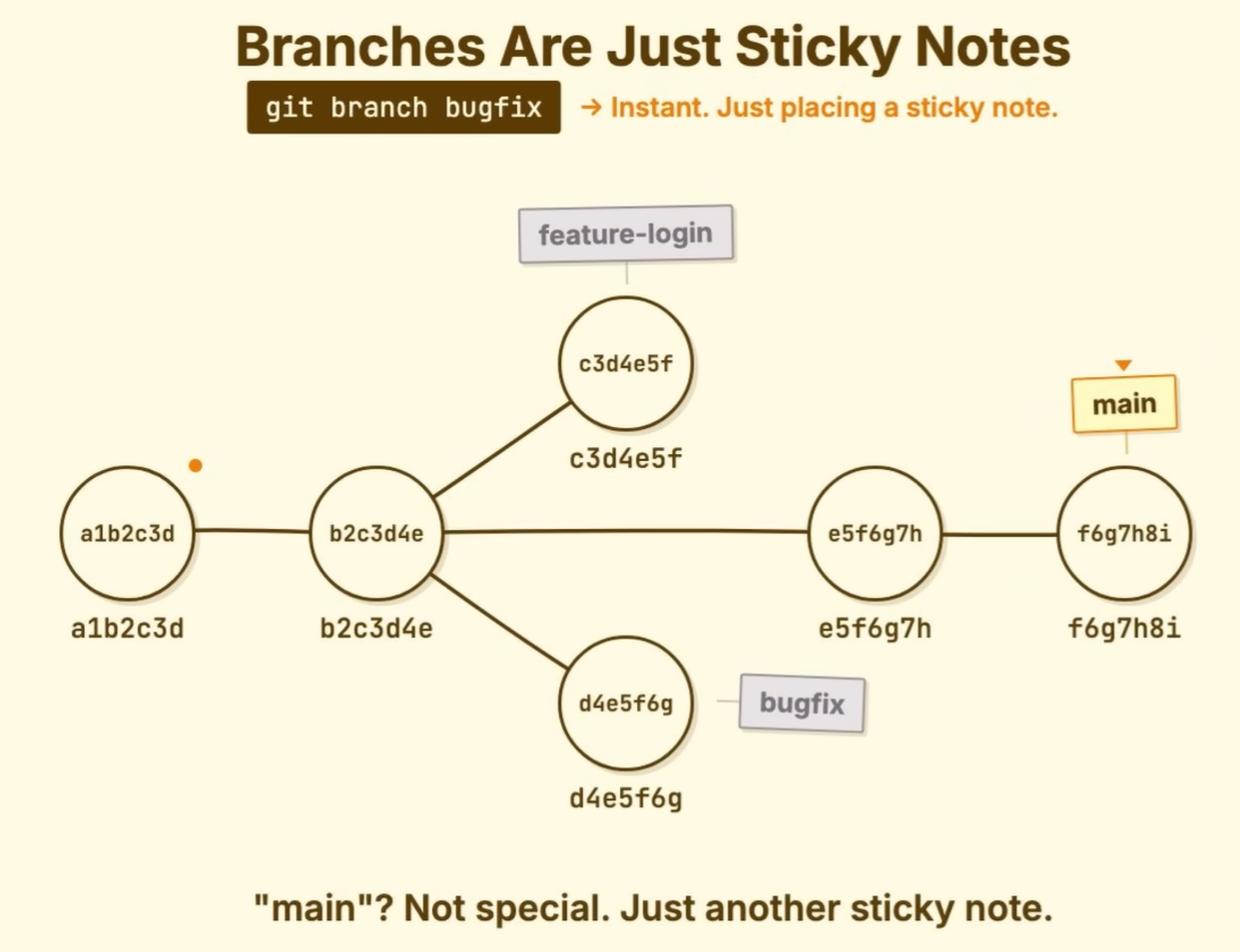
Section titled “Branching”- Branch is like a Label/Sticky Note attaches to specific commit in the history..
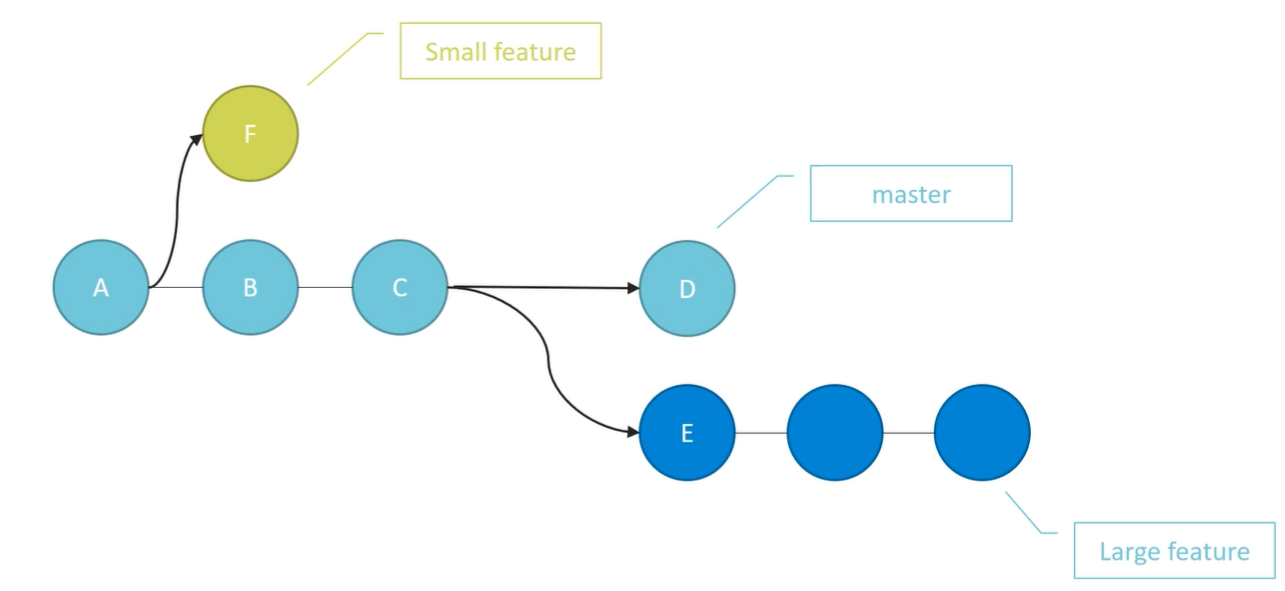
- Fast-Forward
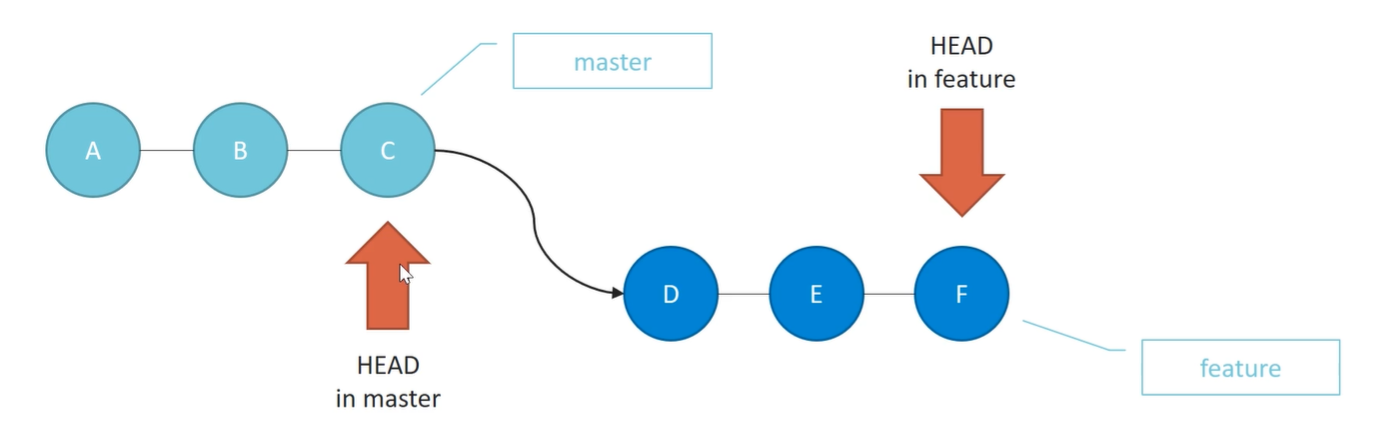
- Non-FFM
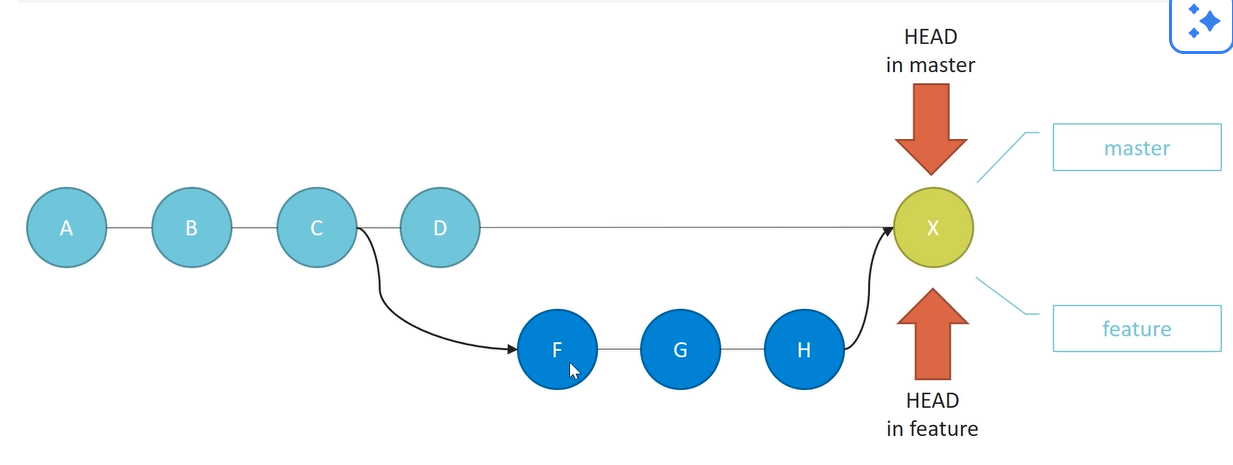
Merge Command
Section titled “Merge Command”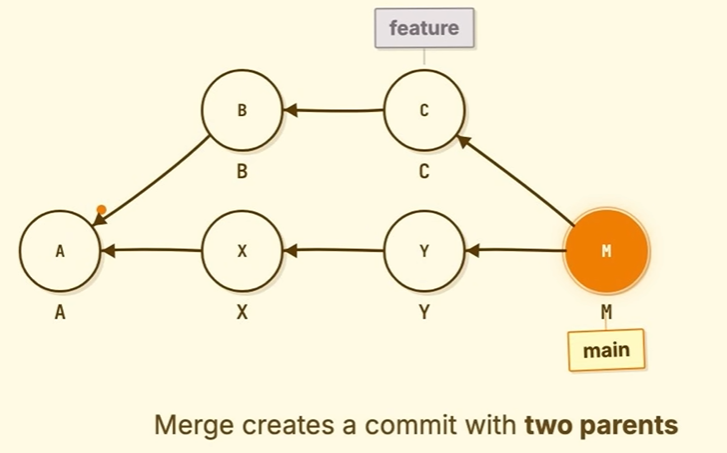
git merge <target feat branch>→ make sure to run this command from the branch you want to continue your work eg:main
Rebase
Section titled “Rebase”-
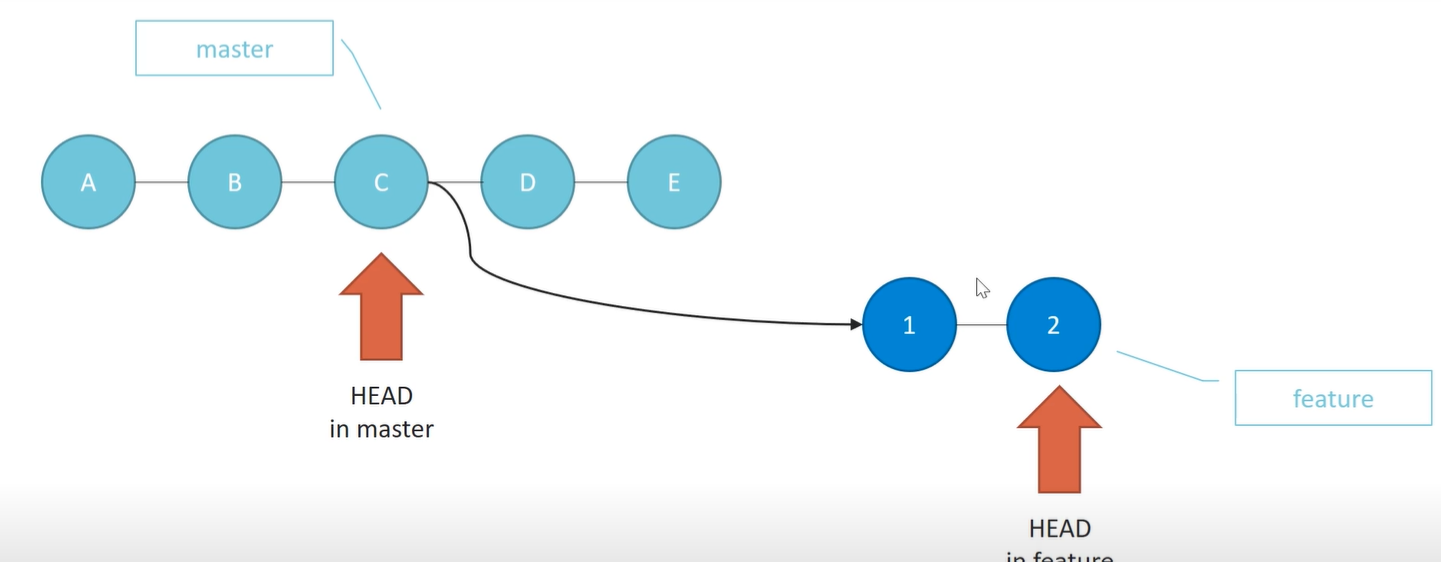
NEVER REBASE OTHER BRANCHS FROM
MAIN, ALWAYS REBASEMAINFROM OTHER BRANCHES… -
Rewrites the hashes/history → since we are changing the parent of the commit hash changes..
what if we do so…
before rebase..
After Rebase - DANGER
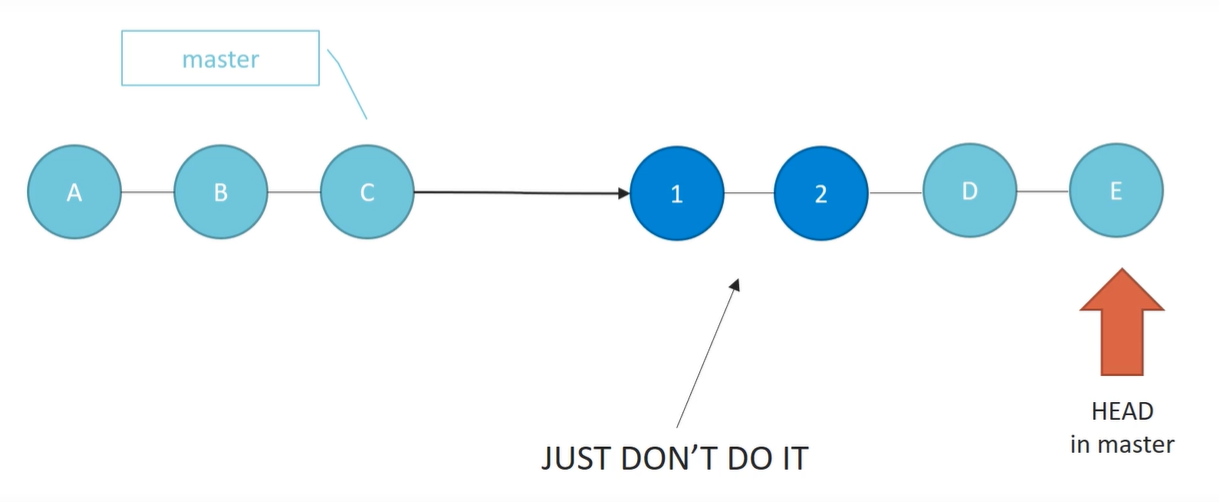
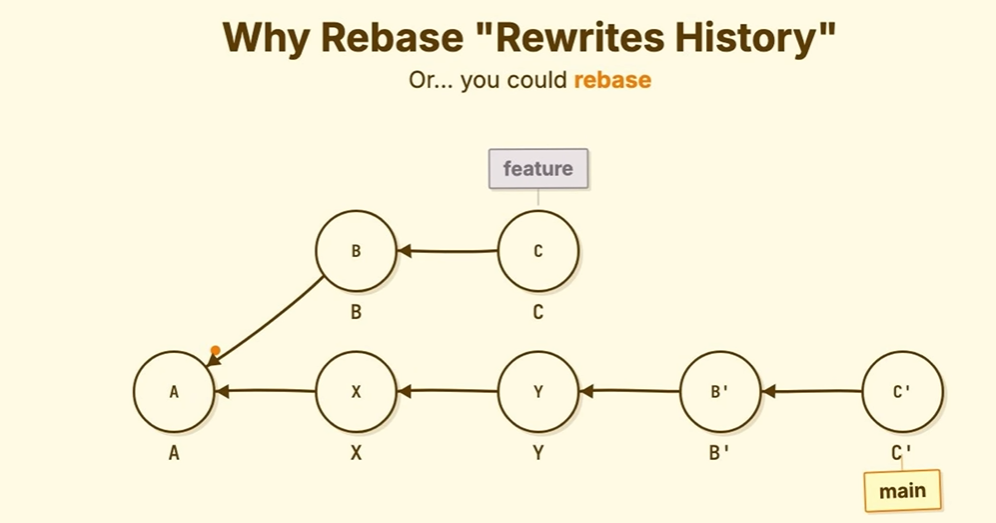
- those unreferenced nodes.. in this example B and C are Orphans and Garbage Collected!
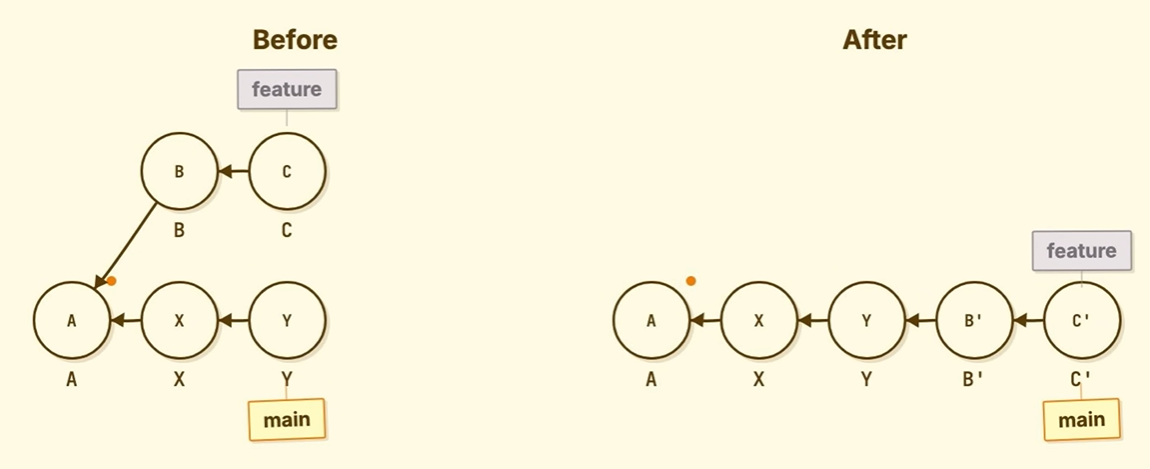
Before
After
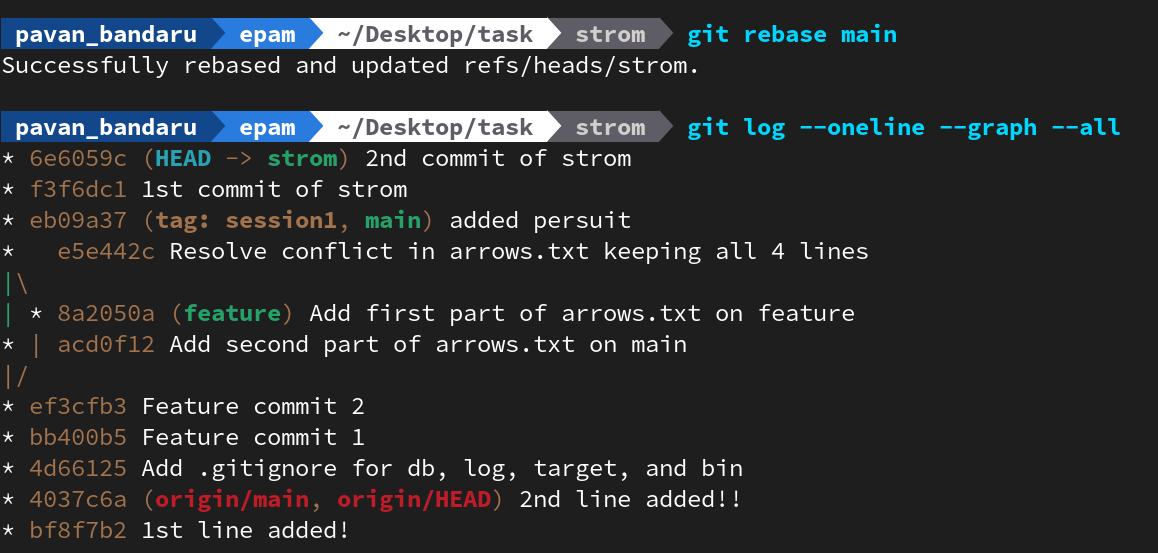
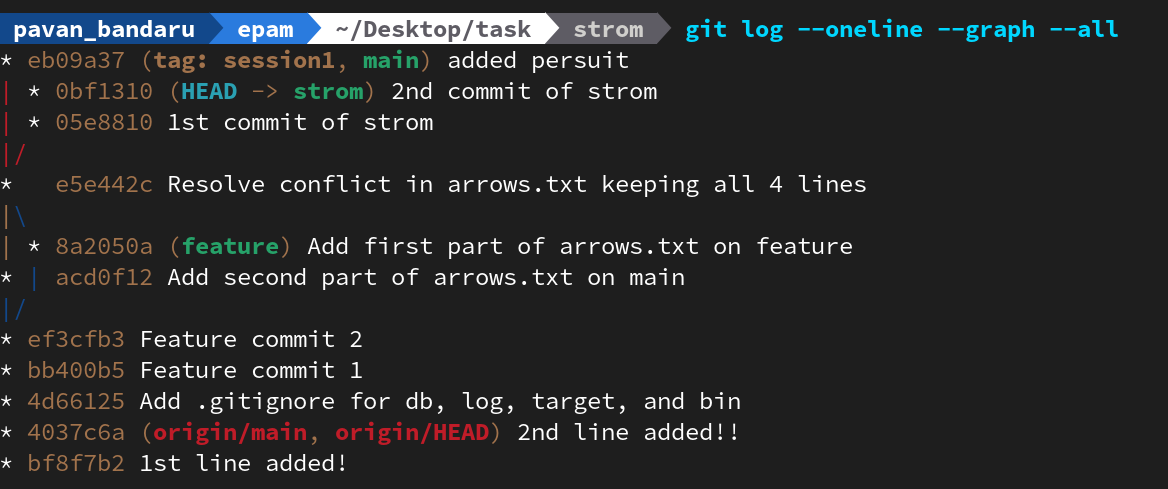
after rebase to keep main updated with strom do..
git checkout maingit merge storm- then push these changes to remote..
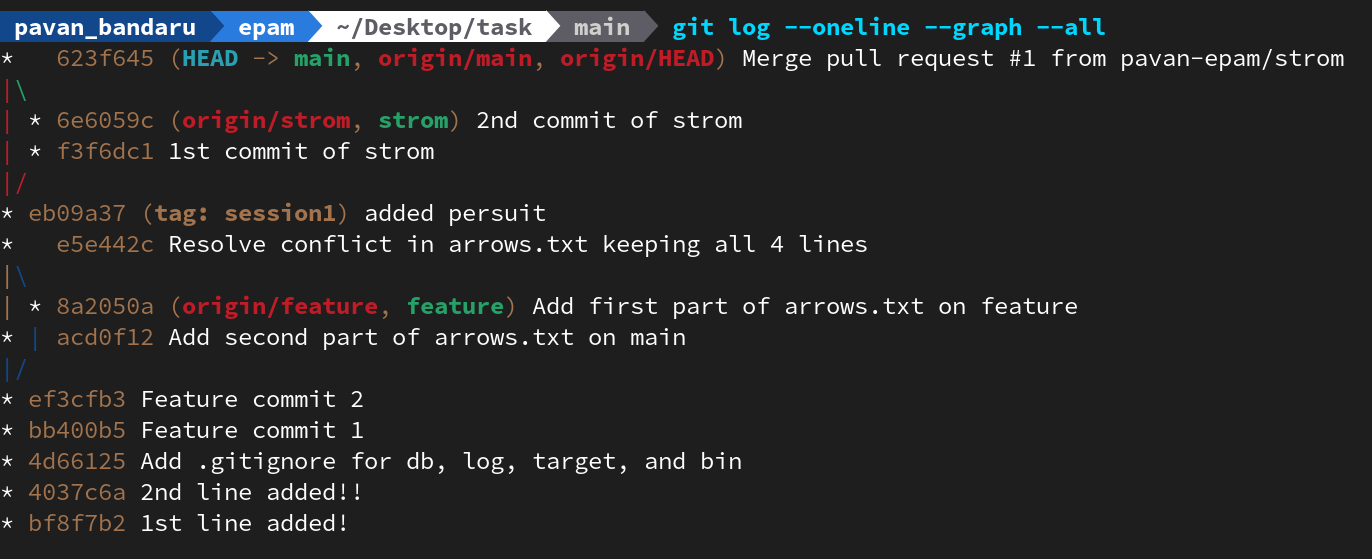
- after pushing all local branches and all to github i.e
git push origin --alli did this merge from github by creating PR and merging… - then from local
git pull origin * - Now we can see the contents of the strom branch in main as well
Cherry-Pick
Section titled “Cherry-Pick”- Selects a single, specific commit from one branch and applies an identical copy of it onto your current branch.
- Direction: Selective (pick-and-place).
- History: Creates a new commit with a new hash, but identical content.
- Practical Example: A teammate fixed a critical security bug on
branch-B. You don’t want their entire half-finished branch, so youcherry-pickjust that one bug-fix commit into yourmainbranch. - Command:
git cherry-pick <commit-hash>
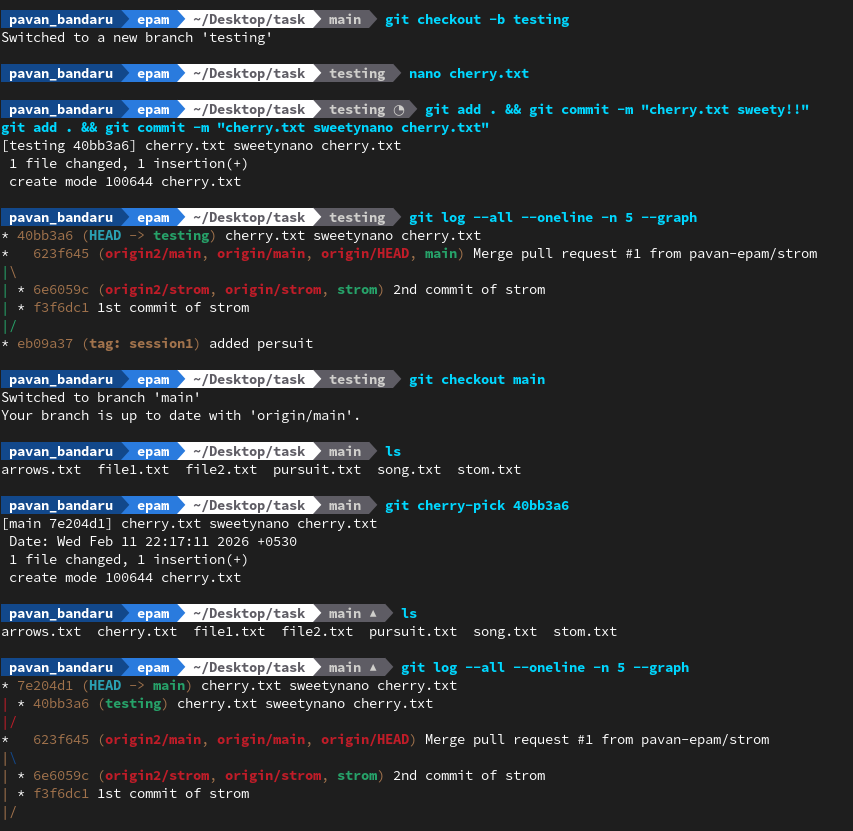
- in this example i picked a commit
40bb3a6… fromtestingbranch and inserted intomainbranch…. - we can see the change in
mainbranch files i.echerry.txtfromtestingbranch got added tomain
| Feature | Merge | Rebase | Cherry-Pick |
|---|---|---|---|
| Scope | Entire Branch | Entire Branch | Single Commit |
| History Style | Non-linear (Branching) | Linear (Straight line) | Individual transfer |
| New Commits? | Yes (1 Merge Commit) | Yes (All hashes change) | Yes (1 New Commit) |
| Risk Level | Low (Safe) | High (History Rewriting) | Low |
| Primary Goal | Integration | Clean History | Selective Porting |
| Orphans | N/A - Bcoz Branch Still Points | Garbage Collected | N/A - Not Removing any commits |
- tag is like a marker that doesn’t change..
- to mark milestone or achievement in history…
- checkout tags helps to
- NOTE: you have to push tags separately to remote repo..
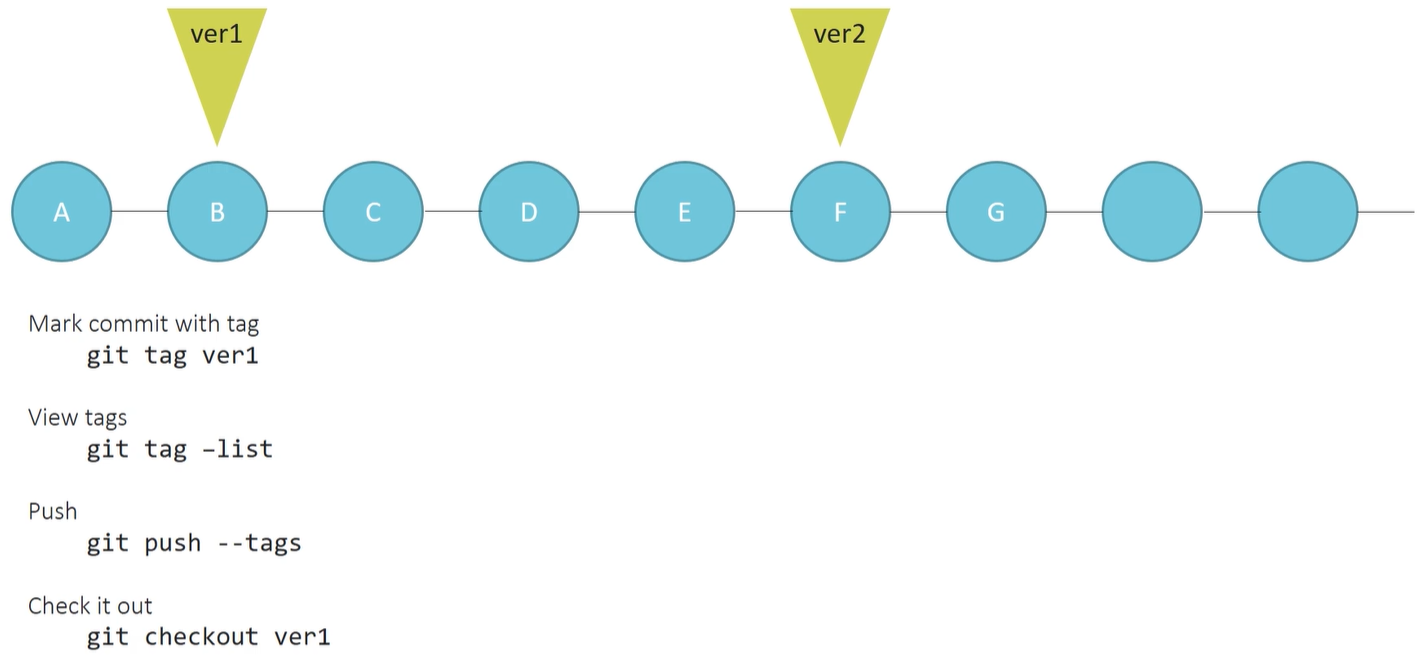
Example:
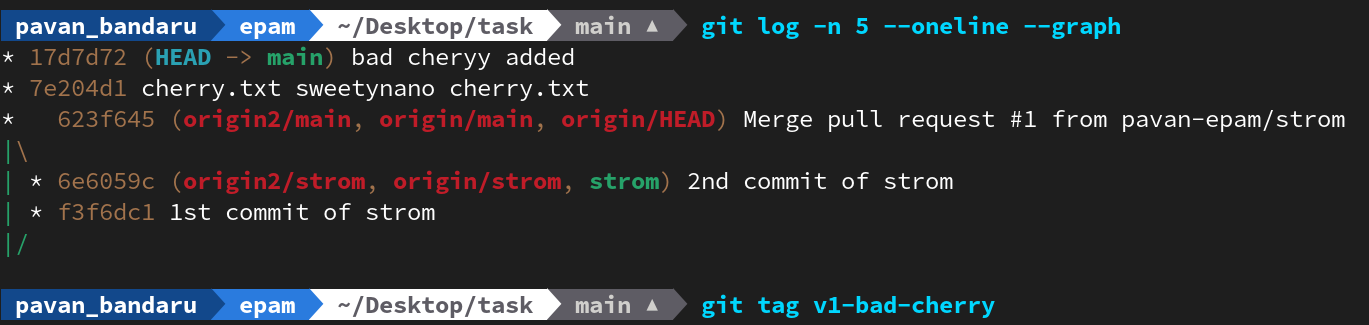
After Adding Tag..
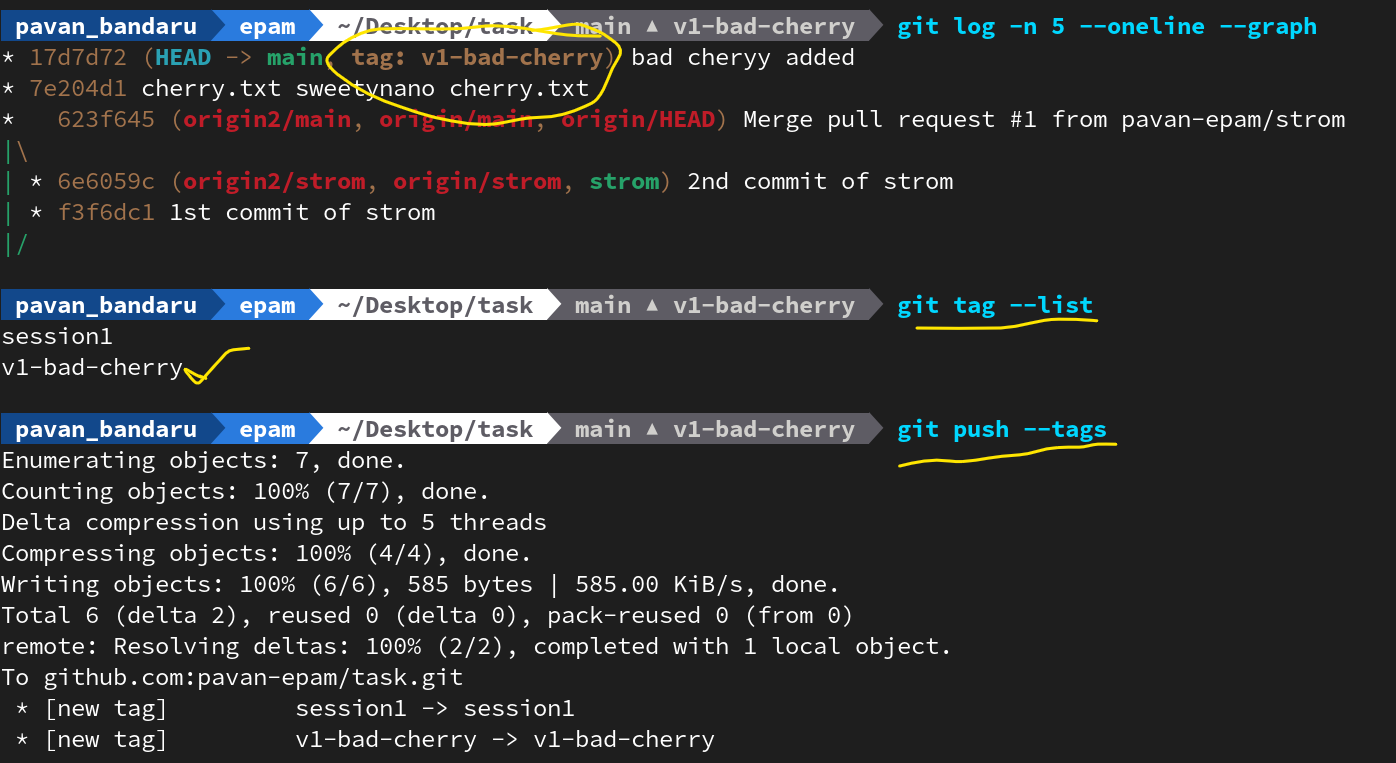
git checkout <tag>→ check out a tag to view the repository exactly as it was at that point in history.
Stashing…
Section titled “Stashing…”- Git Stashing is like a temporary “safety locker” for your uncommitted code; it lets you quickly save your current messy changes, clean your working directory, and switch tasks without losing work.
- It is used to save temporary work somewhere in
- after pop or apply you may need to stage the content..
| Action | Command | Practical Example |
|---|---|---|
| Save | git stash save "description" | You’re half-done with a new feature, but a critical bug fix is needed right now. Use this to safely tuck away your “work-in-progress” so you can move to the fix. |
| View | git stash list | You’ve stashed several times over the week. Run this to see your list of “lockers” and find which one has your feature code. |
| Restore | git stash pop | You finished the bug fix and want your feature work back. This “pops” the most recent stash out of the locker, applies it to your code, and deletes it from the stash list. |
| Restore | git stash apply | Similar to pop, but it keeps a copy in the locker just in case. Use this if you want to test your stashed changes on multiple different branches. |
| Remove | git stash drop | You realized the stashed work was actually a bad idea. Use this to permanently delete that specific “locker” and clear your stash list. |
Git Branching Strategies
Section titled “Git Branching Strategies”- Resource - https://www.youtube.com/watch?v=GQQqf-C2ha4
1. Centralized Strategy OR Git Flow(The “Simple” Way)
Section titled “1. Centralized Strategy OR Git Flow(The “Simple” Way)”In this model, everyone works on a single main branch (usually called master or main).
-
Real-World Analogy: A shared document where multiple people are editing at once.
-
Workflow: Developers like Alice and Bob pull the latest code, make their changes, and push them directly back to the
masterbranch. -
Best For: Small, fast-moving teams or solo projects where coordination is easy and you want zero complexity.
-
Example: You have a small script for your Linux Networking Practical Task. You and a teammate just push small fixes directly to
masteras you find them.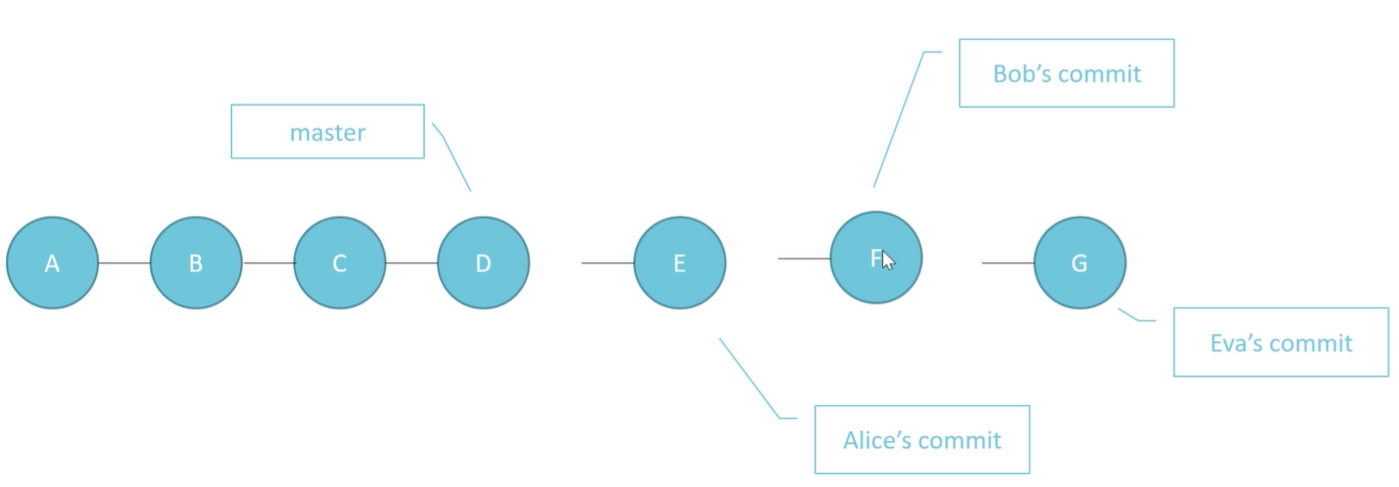
2. GitHub Flow OR Feature Branch Workflow (The “Standard” Way)
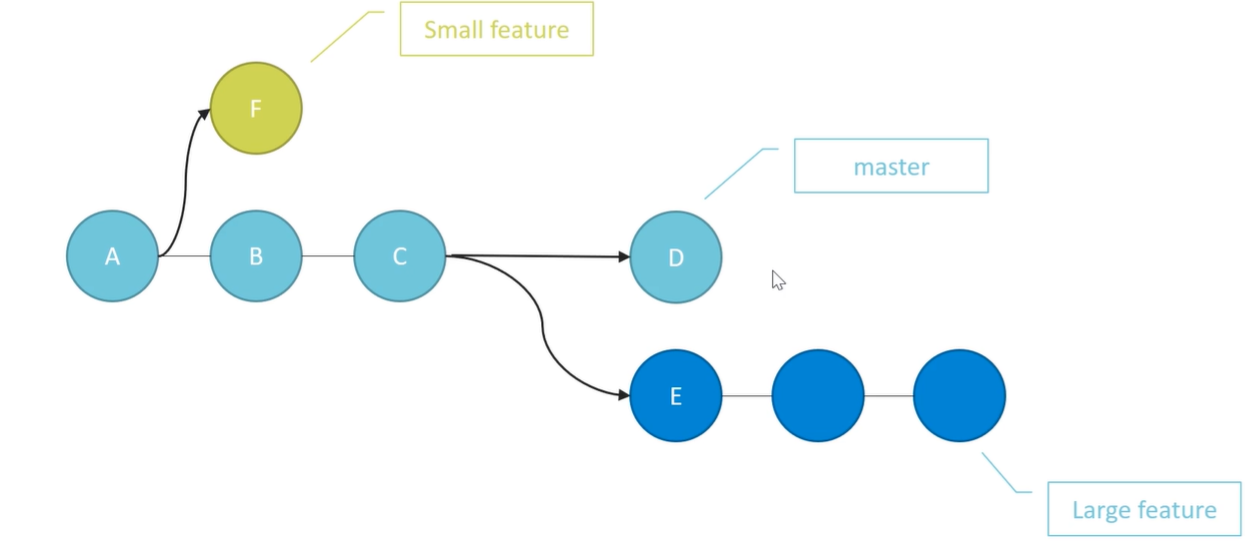
Section titled “2. GitHub Flow OR Feature Branch Workflow (The “Standard” Way)”A simpler, minimalist alternative to GitFlow. Its core principle is that anything in the main branch should always be deployable. The workflow involves creating a branch from main, making changes, opening a pull request, getting it reviewed, merging back to main, and deploying immediately
Simply, Instead of everyone editing the main branch, every new piece of work is done in a dedicated branch.
- Real-World Analogy: Writing different chapters of a book in separate files before combining them into the final manuscript.
- Flow: New Issue or Feat → Create a new Branch → do work → commit → send PR → Review by Team → done → Merge it to Main. → Deliver main always
- Workflow:
- Create a branch for a “Small feature” (e.g., branch
F). - Develop and test the feature in isolation.
- Merge it into
masteronce it’s verified and stable.
- Create a branch for a “Small feature” (e.g., branch
- Best For: Most modern software teams. It keeps the “production” code in
masterclean and unbroken while features are being built.
3. Gitflow (The “Structured” Way)
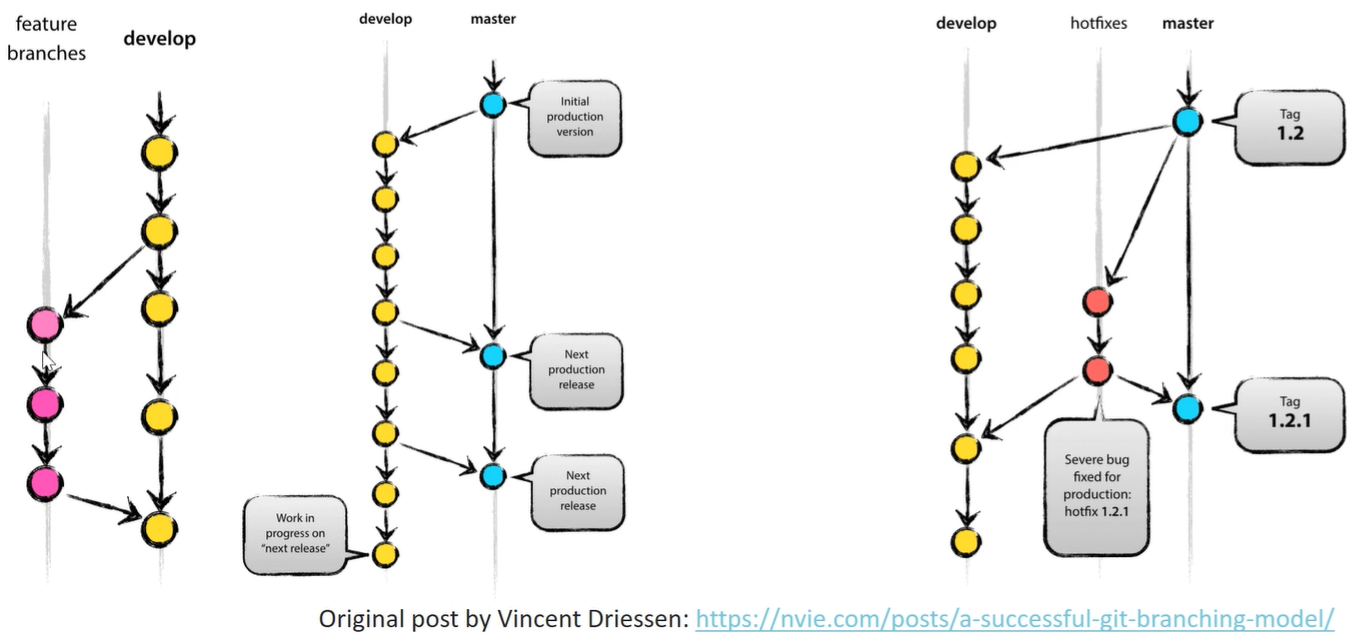
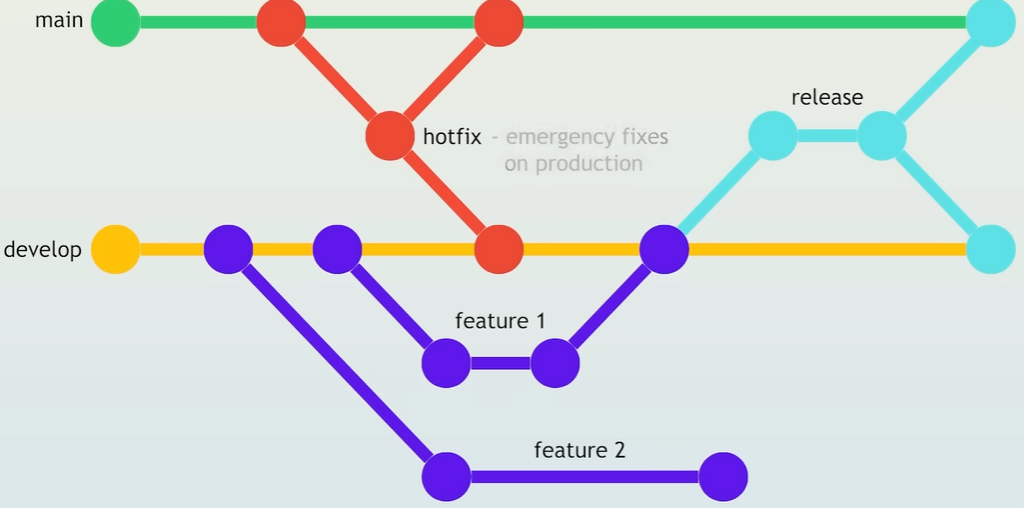
Section titled “3. Gitflow (The “Structured” Way)”Introduced in 2010, GitFlow is a structured approach with multiple long-lived branches, each serving a specific purpose (3:37). These include:
- Main branch: For production-ready code.
- Develop branch: For work-in-progress code, used for integration.
- Feature branches: For new work.
- Release branches: For preparing deployments.
- Hotfix branches: For urgent production fixes.
Real-World Analogy: A factory assembly line. Parts (Features) are made separately, assembled into a prototype (Develop), and then sent to the showroom (Master).
- Pros:
- Ideal for software that ships in versions, such as mobile apps or desktop applications, and requires supporting multiple versions simultaneously (6:06).
- Provides clear structure for large teams.
- Makes auditing easier in regulated industries.
- Cons:
- Slows down development and deployment due to extensive branch management overhead
- Doesn’t work well with continuous delivery (7:41) due to frequent merge conflicts from long-lived branches.
- Considered a bad practice for modern web applications that deploy continuously.
- Workflow:
- Master: Only contains official release history (e.g., version 1.2).
- Develop: The main “integration” branch for the next release.
- Hotfixes: Used to quickly fix a “severe bug” in production without waiting for the next release cycle.
- Best For: Projects with scheduled release cycles and a need for high stability.
4. Distributed/Forking Workflows (The “Open Source” Way)
Section titled “4. Distributed/Forking Workflows (The “Open Source” Way)”In these models, developers don’t all push to one “blessed” repository. Instead, everyone has their own public copy.
- Integration Manager Workflow: Developers push to their own “developer public” repos, and an “integration manager” pulls those changes into the “blessed repository”.
- Dictator and Lieutenants Workflow: Used for massive projects (like the Linux Kernel). Lieutenants filter changes from groups of developers and pass them to one “dictator” who makes the final decision.
- Forking Workflow: Common on GitHub. You “fork” (copy) an original repository, make changes in your copy, and then submit a “pull request” to ask the original owner to include your work.
5. Trunk Based
Section titled “5. Trunk Based”Key principles:
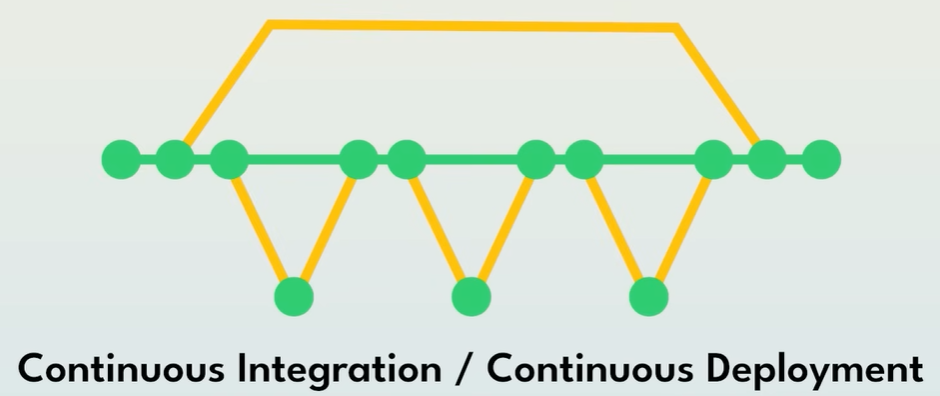
- It encourages continuous integration where teams commit directly to the
mainbranch or use very short-lived branches that are merged back within half a day. - This approach is the industry best practice for high-performing DevOps teams.
How it works:
- Multiple developers work on a feature, committing to
mainmultiple times a day. - Incomplete features are hidden from users using feature flags.
- Every small commit triggers automated tests, ensuring fast feedback loops and minimizing merge conflicts.
- Once development is complete, the feature flag is flipped, making the feature live.
How This is Different from Github Flow?
Example
Dev A adds:
- Button layout (incomplete)
Dev B adds:
- API integration
But incomplete code is hidden behind feature flags.
Code looks like this:
if FEATURE_PAYMENT_UI_ENABLED:render_new_ui()So:
- Code is merged to main
- But users don’t see it
- Work continues safely
| GitHub Flow | Trunk-Based | |
|---|---|---|
| Integration timing | After feature complete | Continuously |
| Branch lifetime | Days/weeks | Hours/day |
| Conflict detection | Late | Early |
| Feature flags needed | Optional | Common |
| Risk | Big merge pain | Small frequent fixes |
Pros:
- Rapid integration and faster deployment: Teams using TBD have better deployment frequency and faster recovery times.
- Ideal for constantly updated SaaS products with only one version in production.
- Forces the implementation of robust automated testing and strong CI/CD pipelines.
- Highly effective when properly implemented, with many engineers considering it the best approach.
Cons:
- Requires experienced and disciplined developers who are used to clean Git workflows.
- High risk if test coverage is weak: Bad code committed to
maincan break production if tests don’t catch it. - Demands a cultural shift within the team to adopt smaller commits, feature flags, and continuous integration concepts.
- Requires proper systems and guard rails to prevent accidental production damage.
Questions
Section titled “Questions”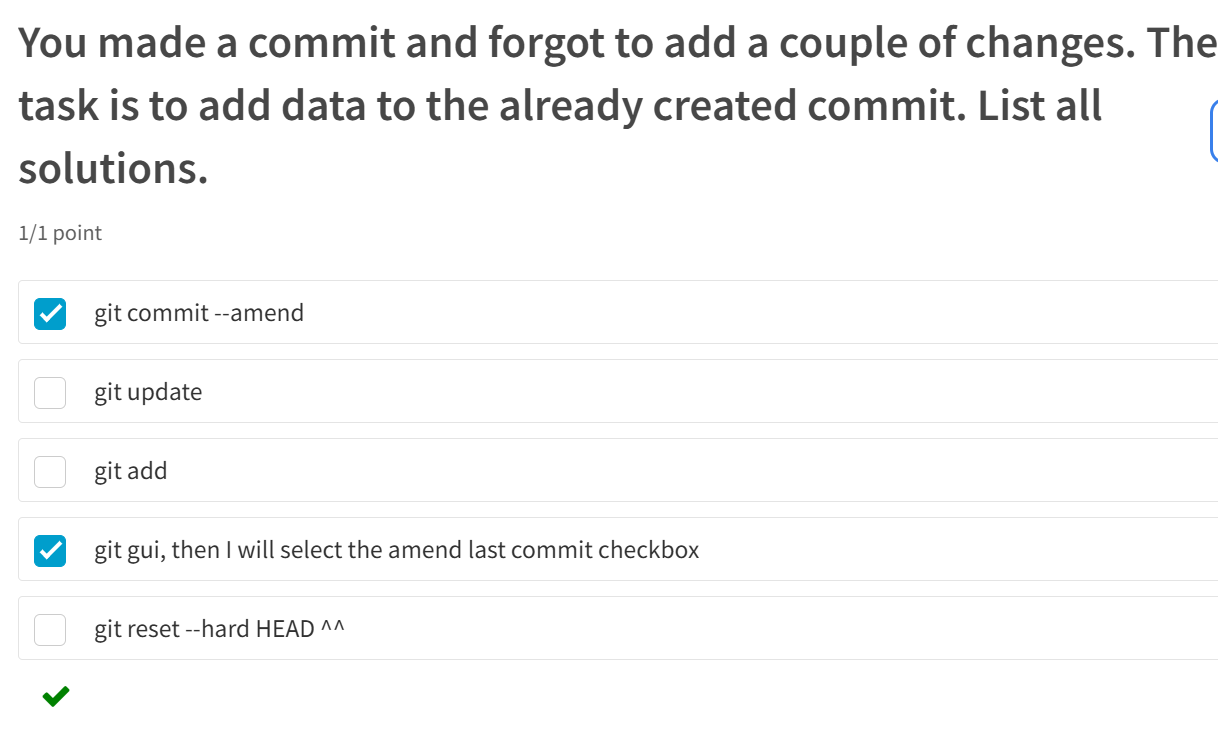
How to read expression from external file?
sed -n -f ex_file file_name