IPs & Interfaces
1. Finding Your Network Interfaces
Section titled “1. Finding Your Network Interfaces”Before configuring anything, you need to know the name of your network card (e.g., enp0s3).
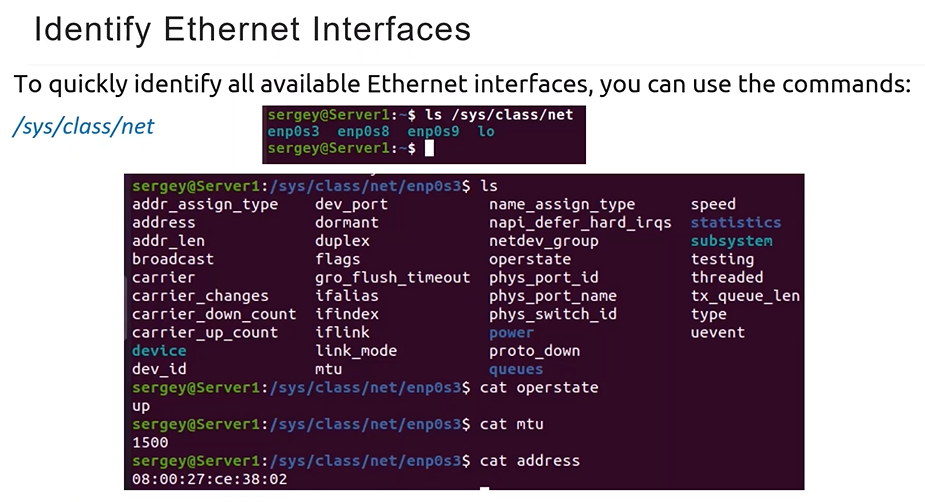
- Quick Check:
ls /sys/class/net. - The “Standard” Way:
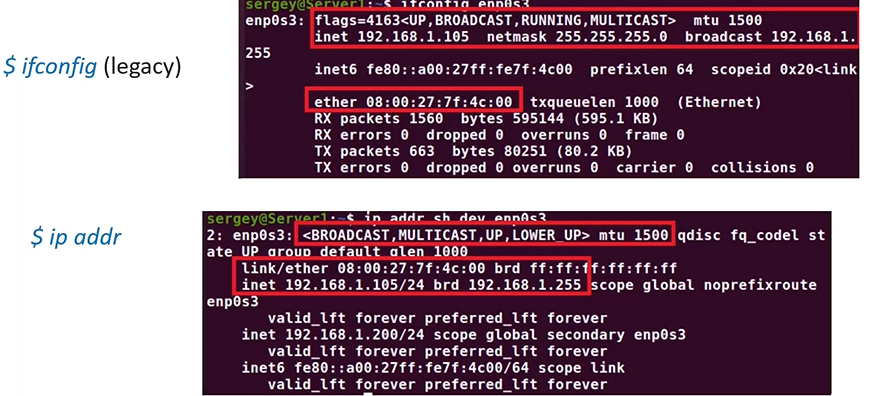
ip addr(orip a). - Detailed Hardware Info:
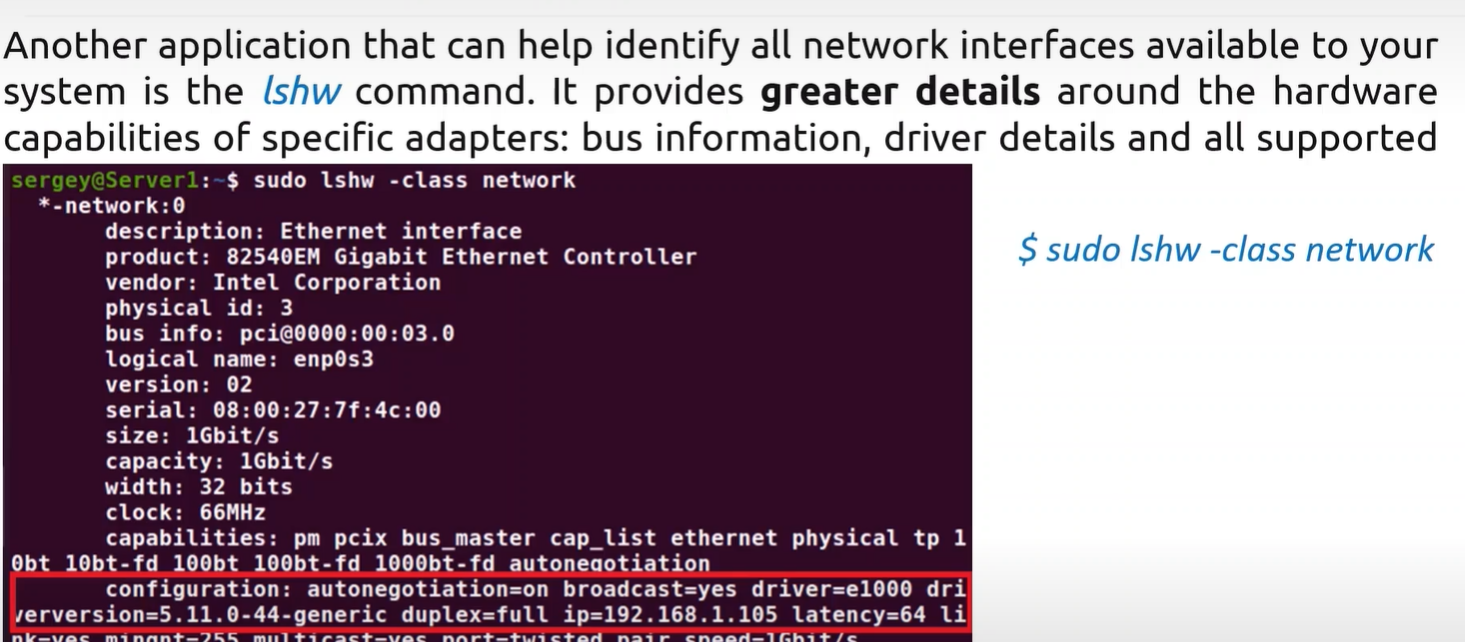
sudo lshw -class network. - Legacy/Old Way:
ifconfig.
2. The ip Command (The Modern Standard)
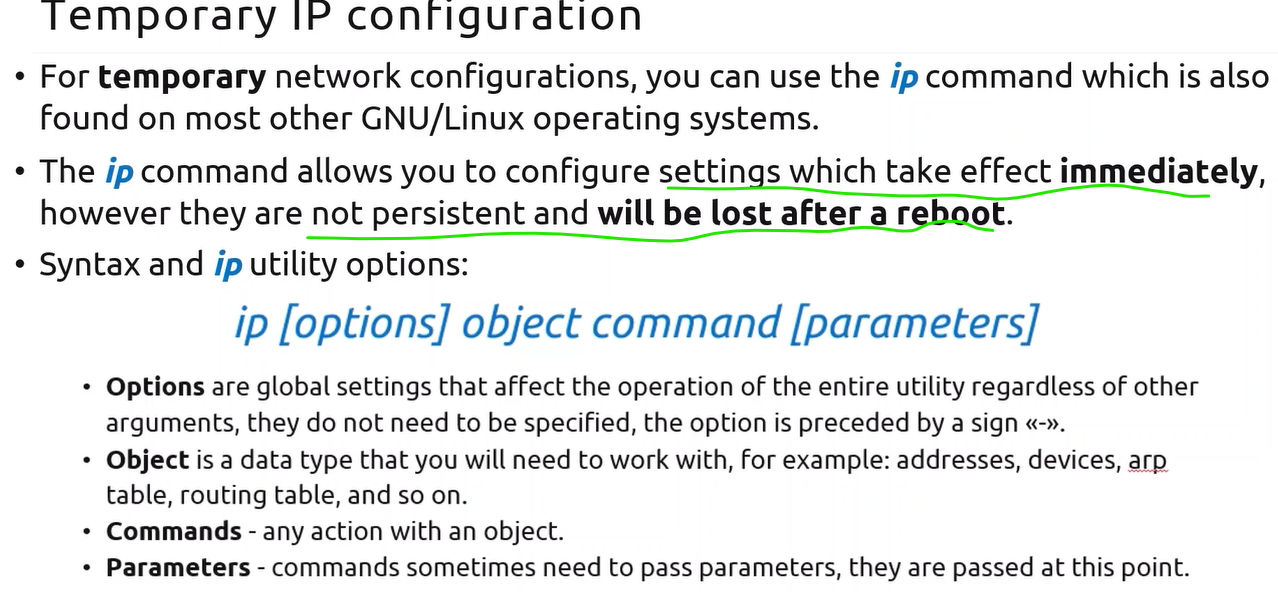
Section titled “2. The ip Command (The Modern Standard)”The ip utility is used for immediate, temporary changes that disappear after a reboot.
Command Format
Section titled “Command Format”ip [options] object command [parameters]
Top Objects & Commands
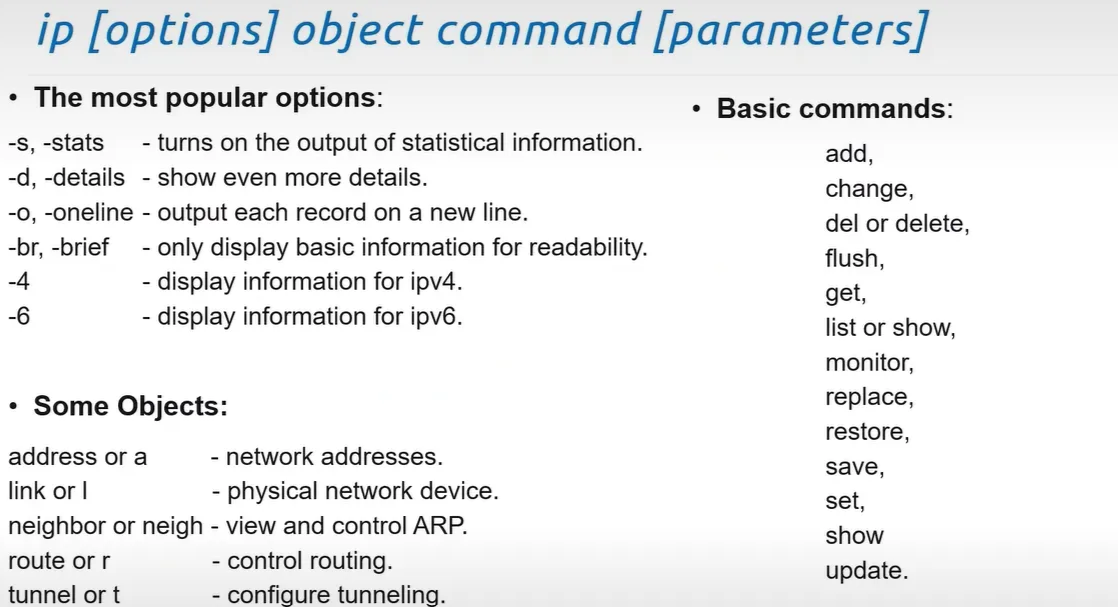
Section titled “Top Objects & Commands”- Objects:
address(ora),link(orl),route(orr). - Common Options:
br(Brief): Summary for readability.4/6: Show only IPv4 or IPv6.s(Stats): Show traffic statistics.
Key Usage Examples
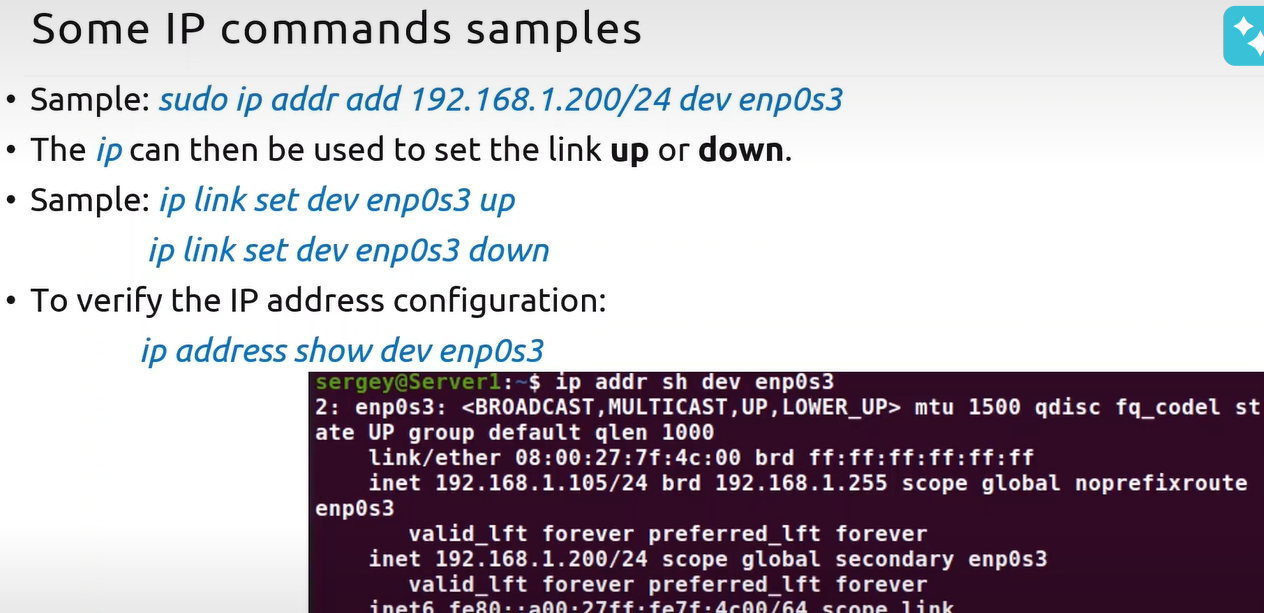
Section titled “Key Usage Examples”- Add IP:
sudo ip addr add 192.168.1.200/24 dev enp0s3. - Bring Interface Up/Down:
ip link set dev enp0s3 up(ordown). - Set Gateway:
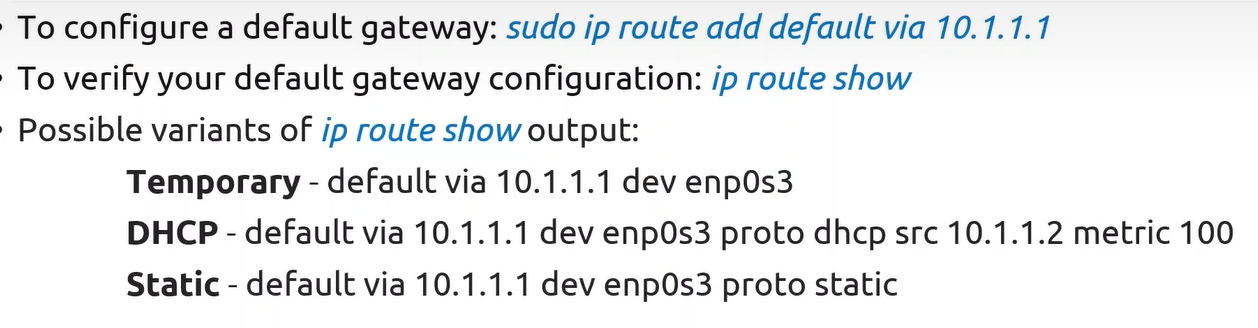
sudo ip route add default via 10.1.1.1. - Clear All IPs:
ip addr flush enp0s3.
3. Permanent Configuration
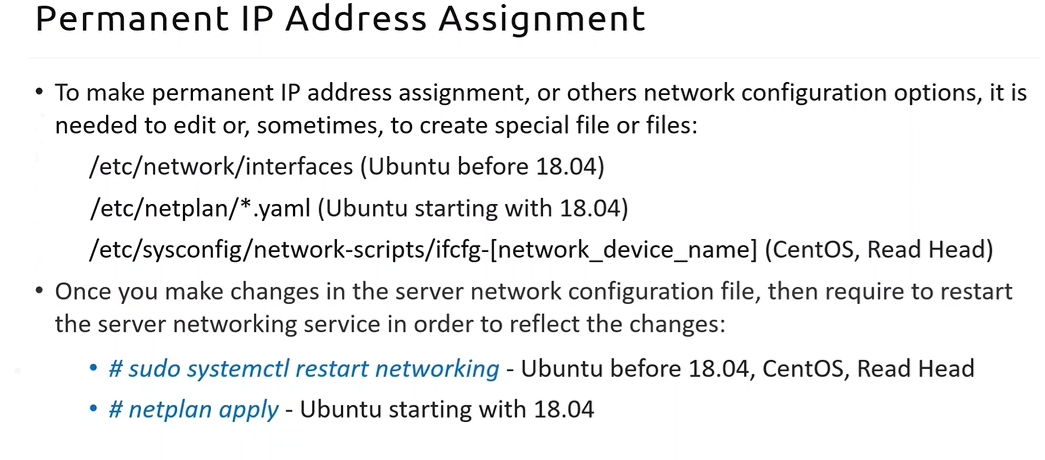
Section titled “3. Permanent Configuration”To make changes survive a reboot, you must edit configuration files.
Ubuntu (Netplan)
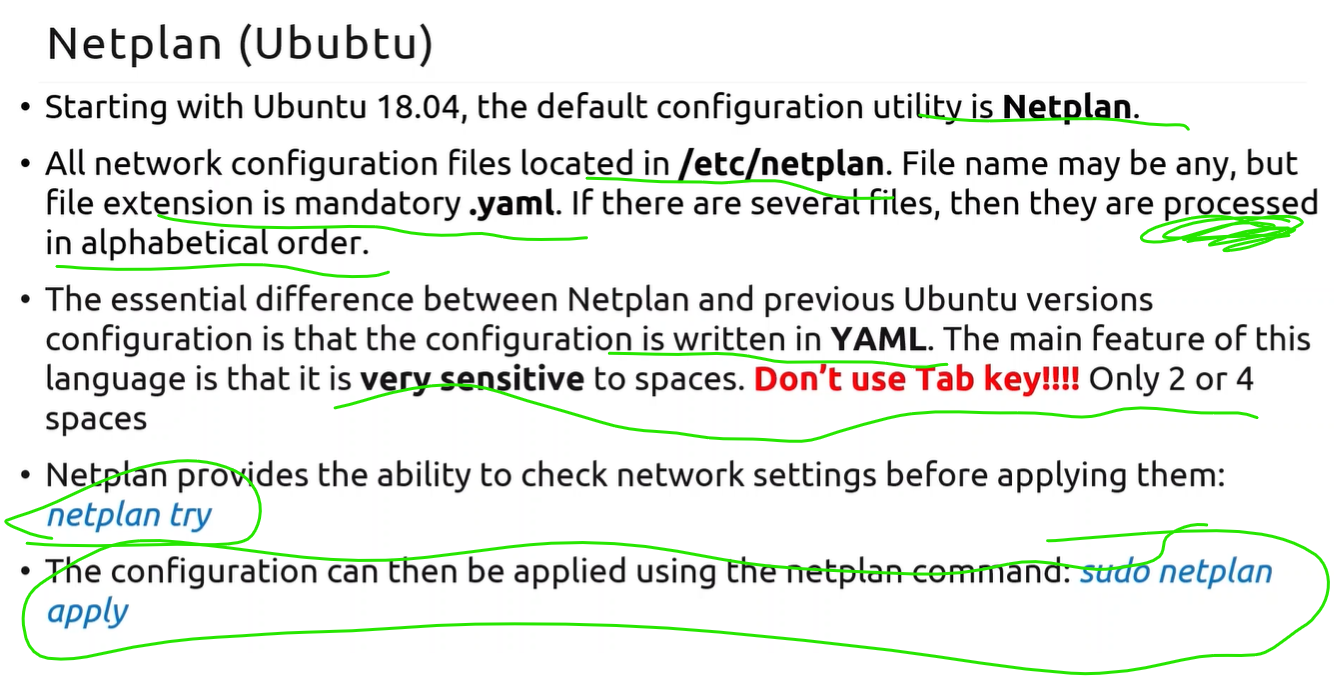
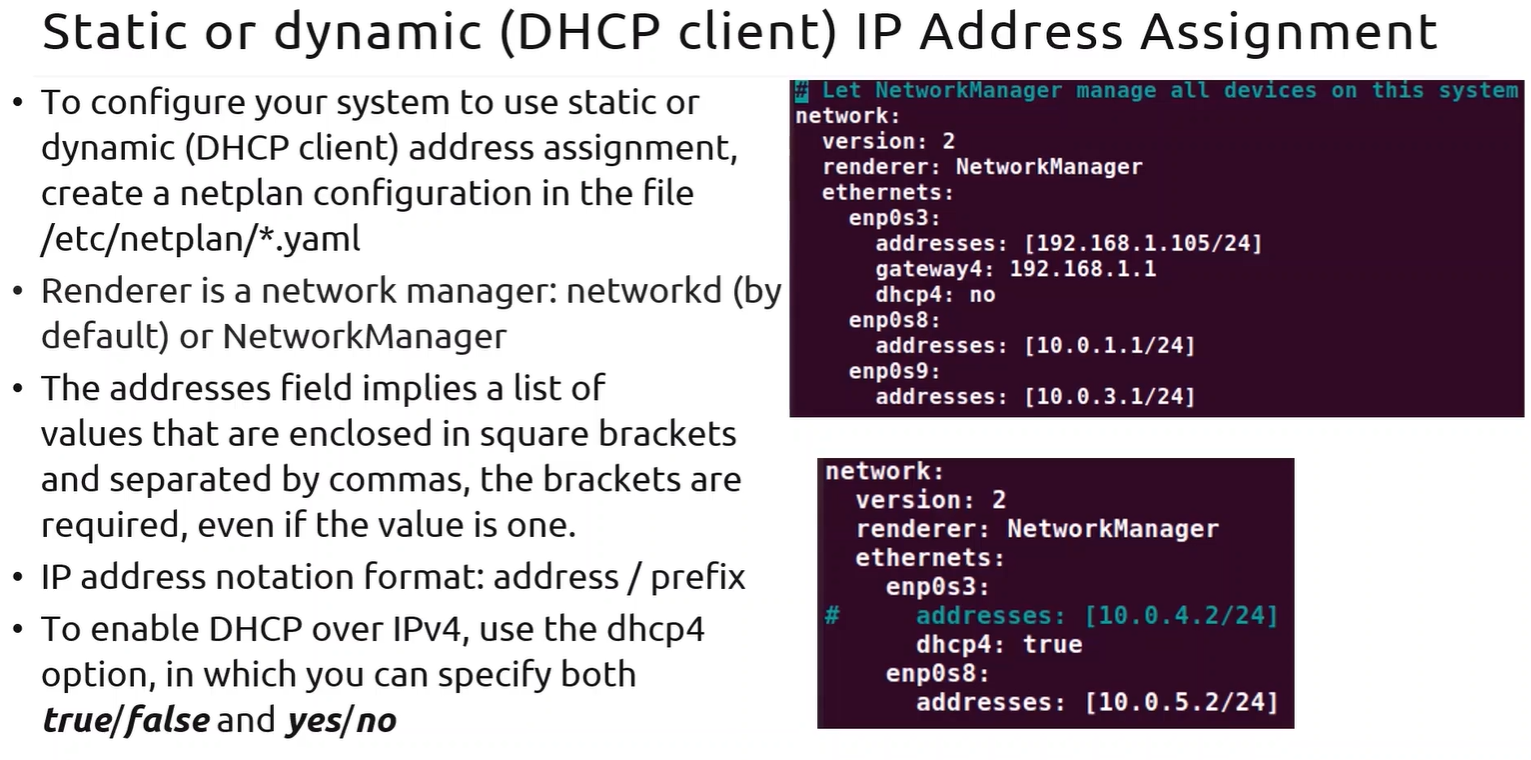
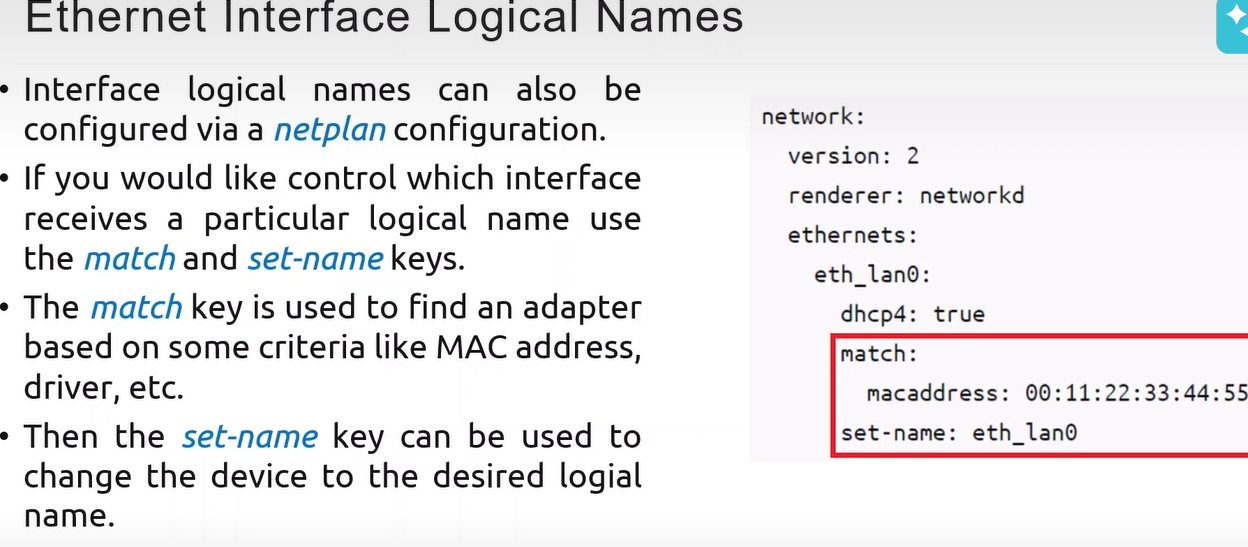
Section titled “Ubuntu (Netplan)”Uses YAML files in /etc/netplan/*.yaml.
Warning: No tabs allowed! Use only spaces.
- To Apply:
sudo netplan apply. - To Test:
netplan try(reverts if you lose connection).
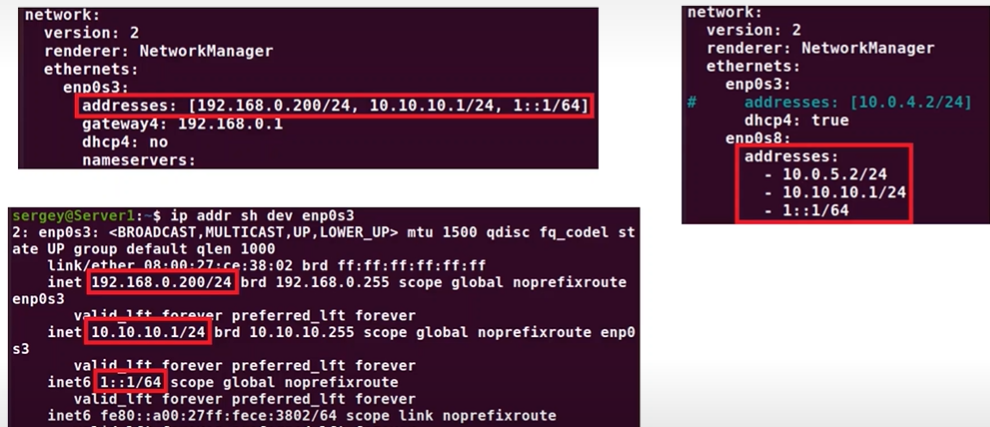
NOTE: An Interface can have multiple address
CentOS (Network Scripts)
Section titled “CentOS (Network Scripts)”Uses text files in /etc/sysconfig/network-scripts/ifcfg-[interface].
-
To Apply:
systemctl restart network(Note: Modern CentOS/RHEL 9 usesnmcliinstead). -
Key File Settings:
BOOTPROTO="none"(for Static) or"dhcp".ONBOOT="yes"(starts on boot).- NOTE:
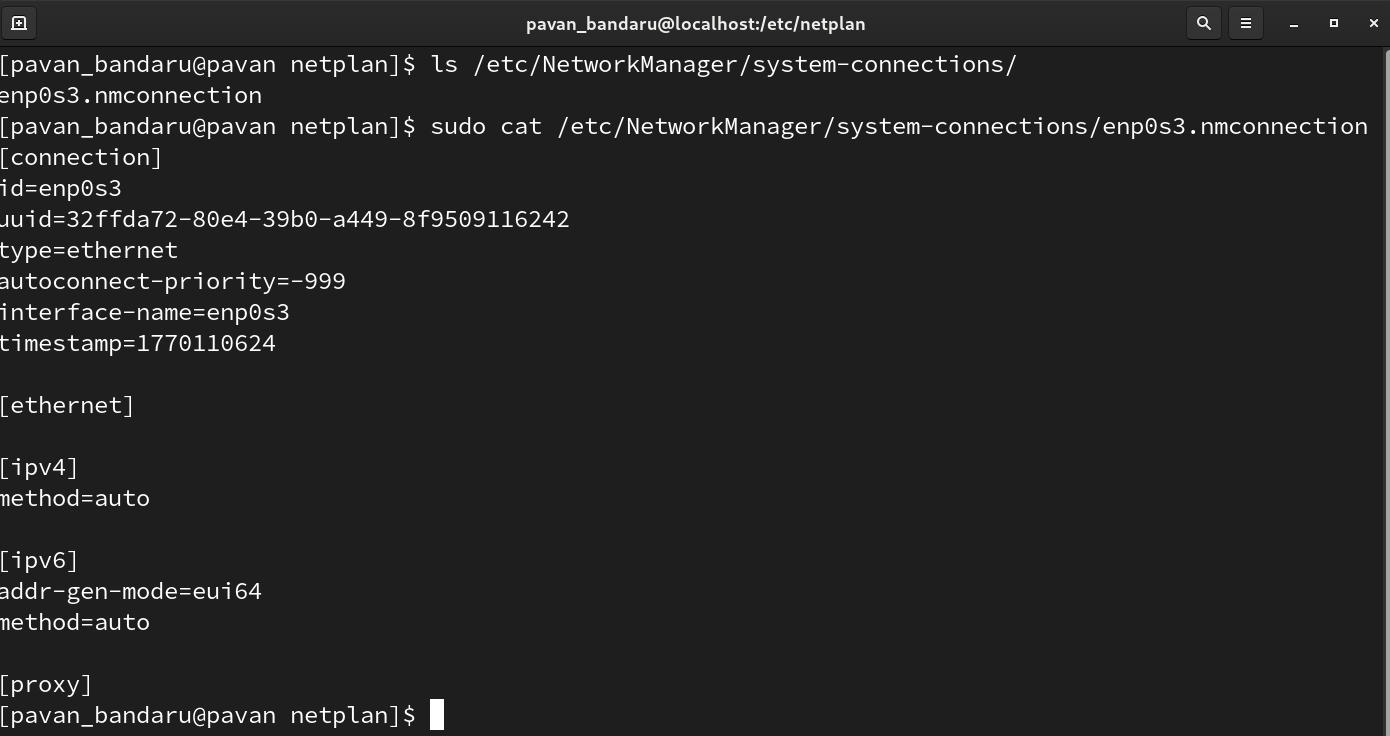
networkand above script config is Depricated in new versions of RedHat.. its moved to/etc/NetworkManager/system-connections
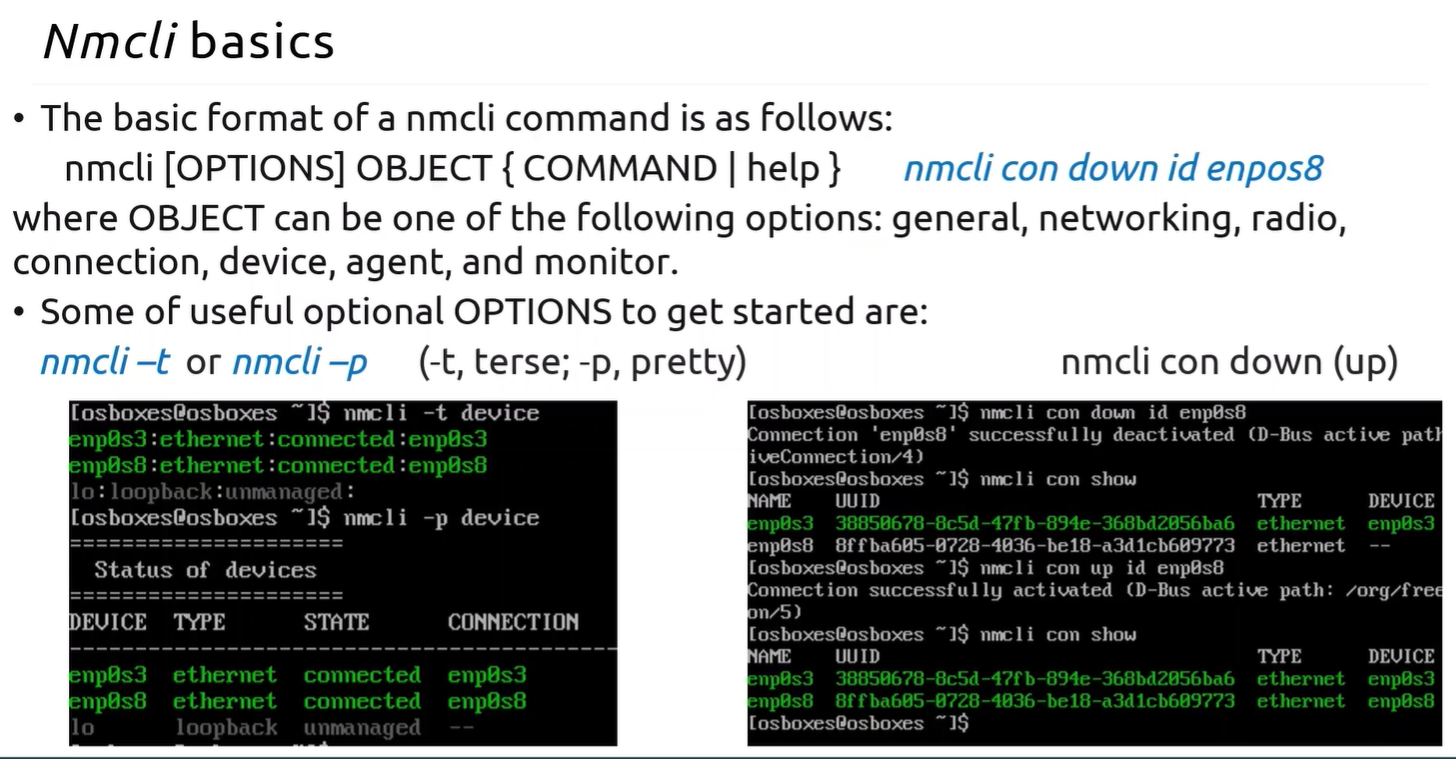
Section titled “nmcli (NetworkManager CLI)”nmcli(NetworkManager CLI)Best for servers and scripts. It controls the NetworkManager service directly.
- Show status:
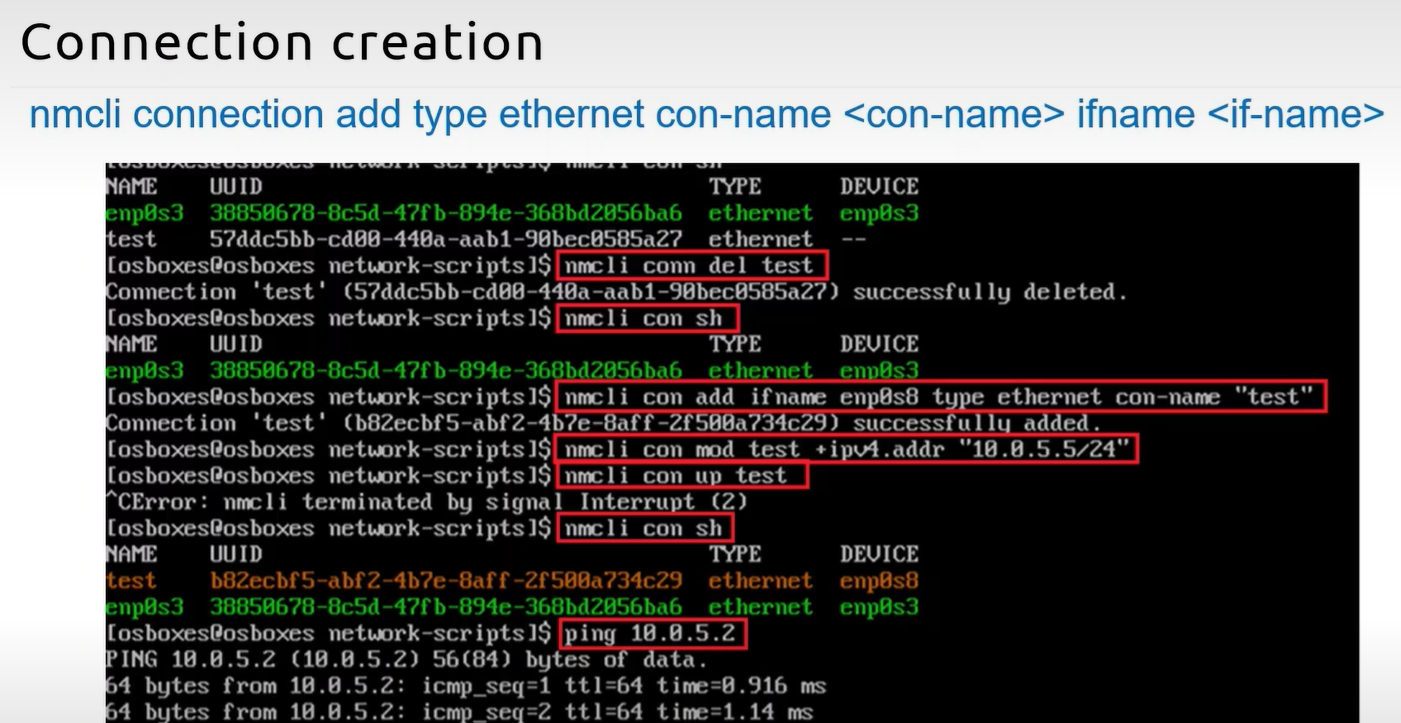
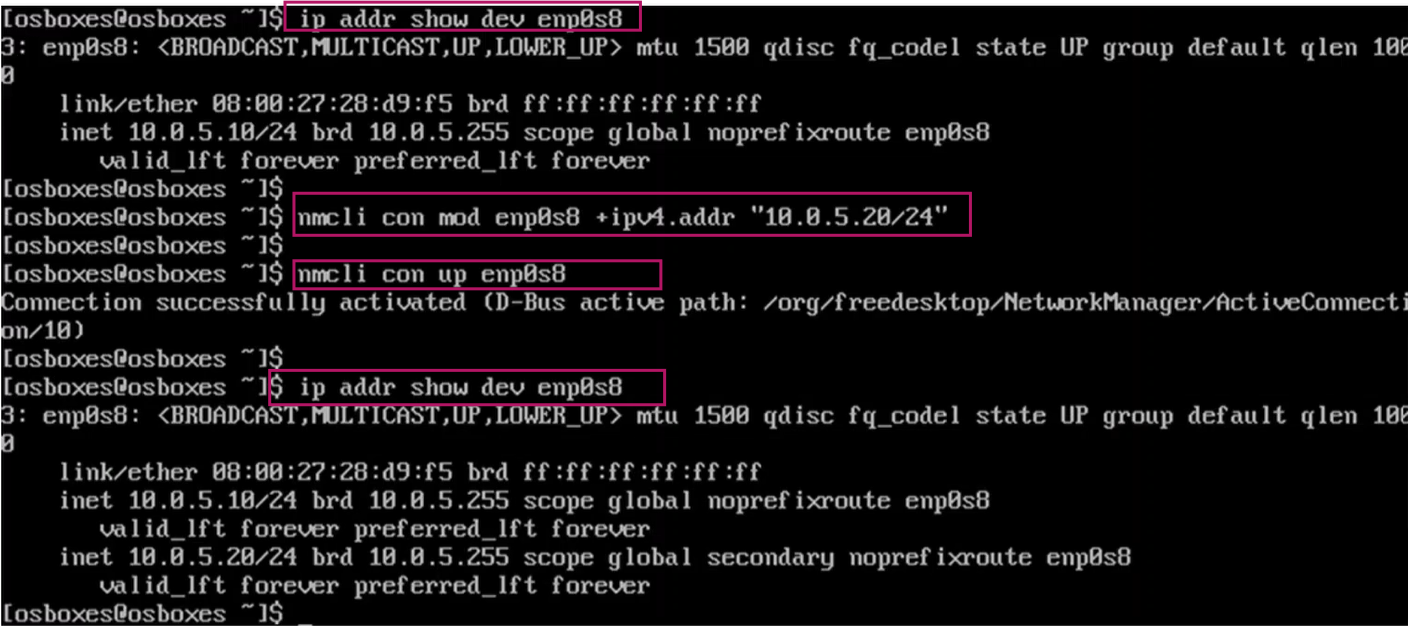
nmcli deviceornmcli connection show. - Modify connection:
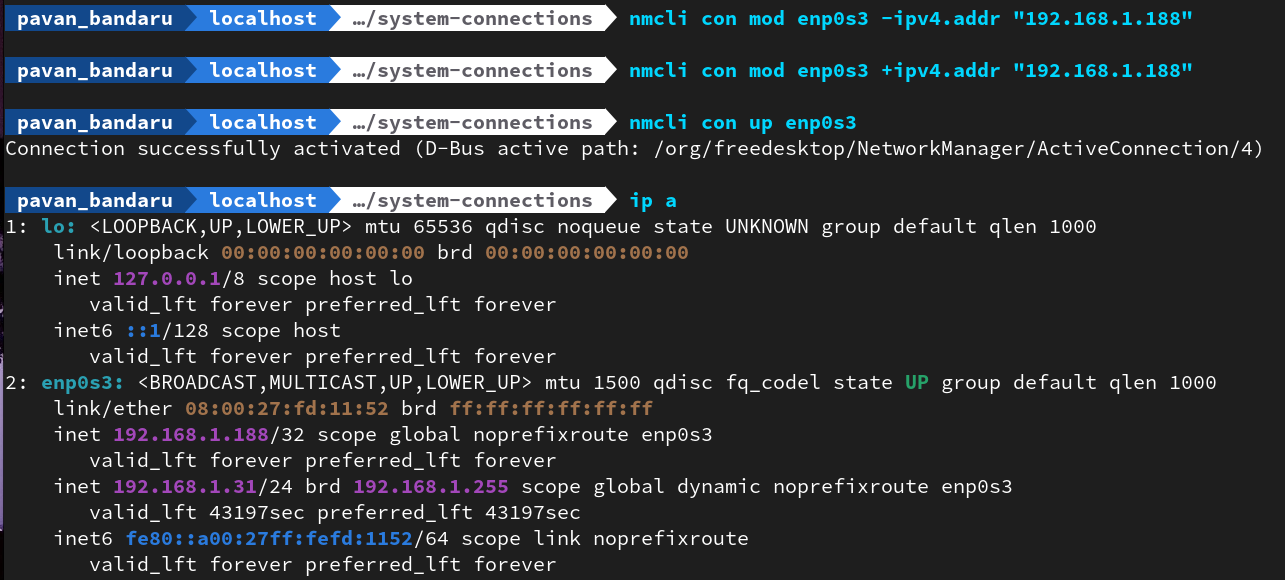
nmcli con mod [name] +ipv4.addr "10.0.5.20/24". - Activate changes:
nmcli con up [name].
N/w Modification..
Section titled “N/w Modification..”nmcli con mod <CON_NAME> +/- ipv4.addr “IP ADDR”nmcli con up/down <CON_NAME>
OLD stuff can be managed by
ifcfgfromsudo dnf install network-scripts -y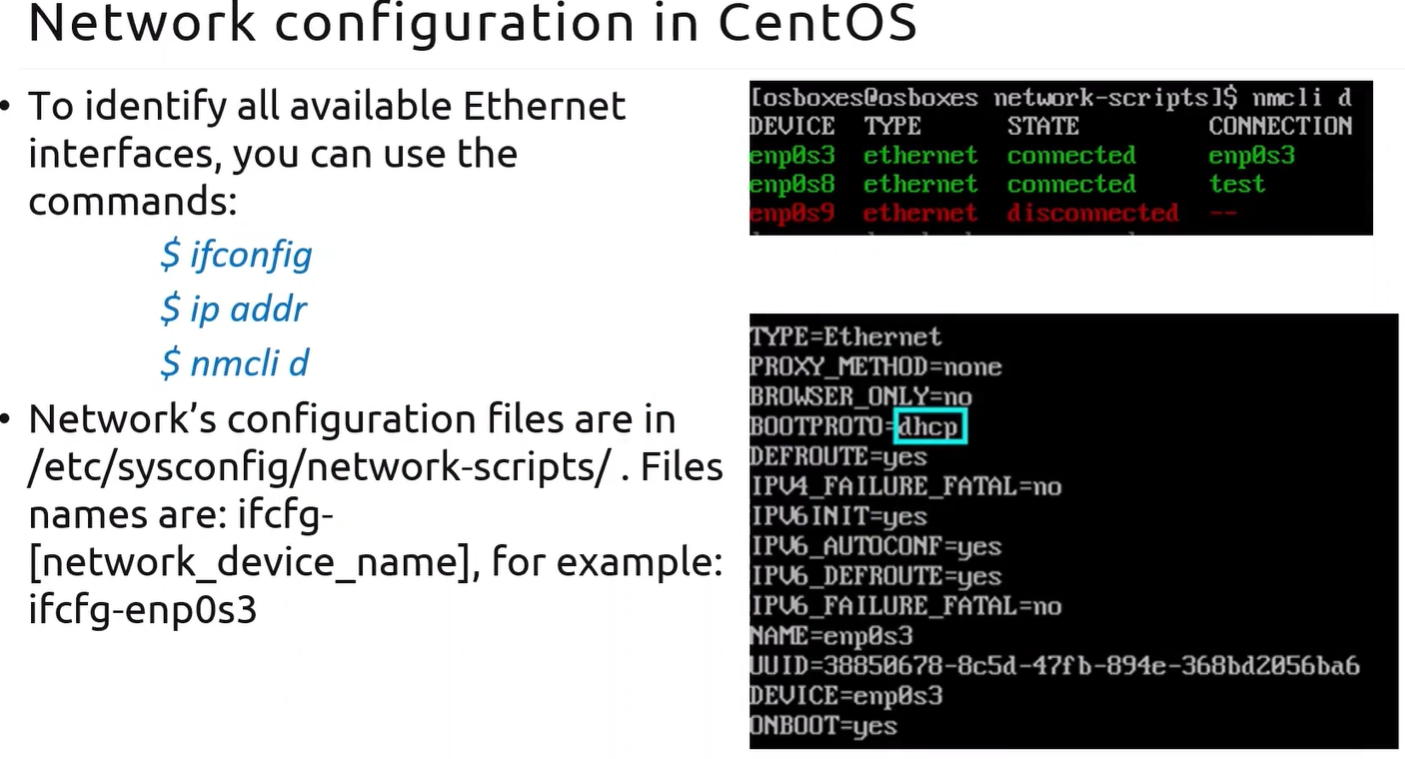
DNS & Hostnames
Section titled “DNS & Hostnames”- Hostname: Use
hostnamectl set-hostname [name]. - DNS (Manual/Temporary): Edit
/etc/resolv.confand addnameserver 8.8.8.8. - DNS (Ubuntu/Modern): Configured via the
nameserverssection in your Netplan YAML. - Troubleshooting:
systemd-resolve --statusshows current active DNS servers. - For flushing DNS cash may be used command:
systemd-resolve --flush-caches - For setting DNS server address may be used command:
systemd-resolve --set-dns=SERVER
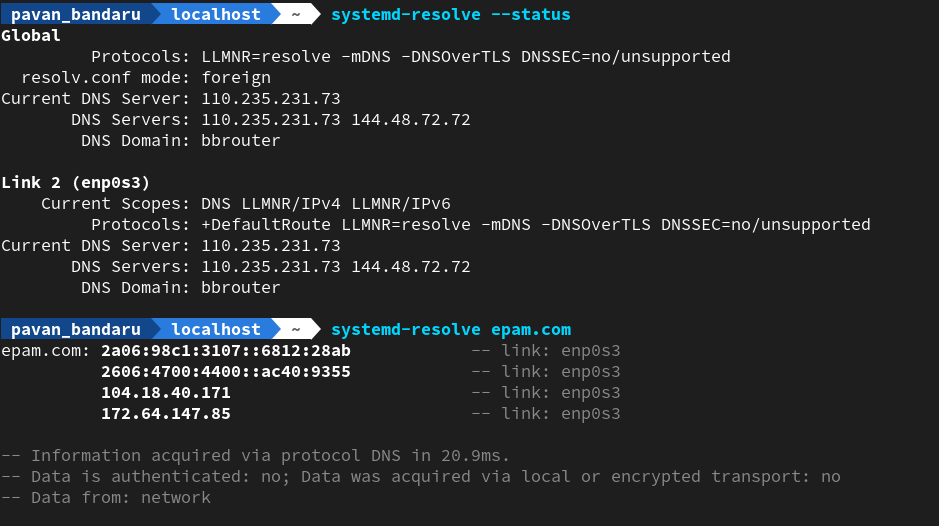
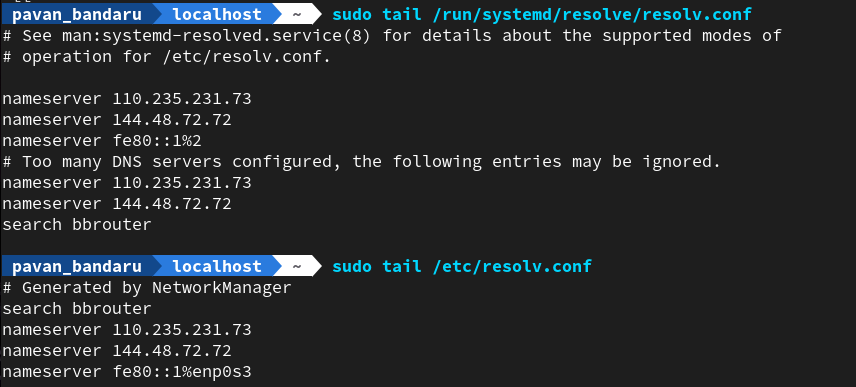
/etc/resolv.conf: This is the legacy standard. Almost every Linux application is hard-coded to look at this specific file to find its DNS instructions./run/systemd/resolve/resolv.conf: This is the modern dynamic file. It is generated automatically by thesystemd-resolvedservice and contains the “real” DNS servers your network is currently using.
| Feature | ip Command | nmcli (NetworkManager) |
|---|---|---|
| Persistence | Temporary. Changes take effect immediately but are lost after a reboot.+1 | Permanent. Changes are saved to configuration files and survive a reboot.+1 |
| Object Type | Works with low-level system objects like address, link, and route.+2 | Works with high-level connections and devices.+1 |
| Usage | Ideal for quick testing or one-time troubleshooting. | Ideal for servers and persistent network setups.+1 |
| Syntax | ip [options] object command [parameters]. | `nmcli [options] OBJECT { COMMAND |
-
lshw→ for in-depth details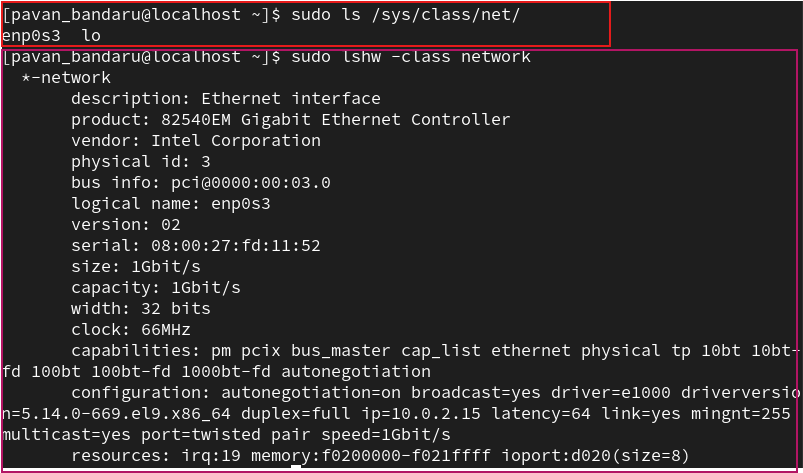
-
to change any of the above details… we can use
ethtool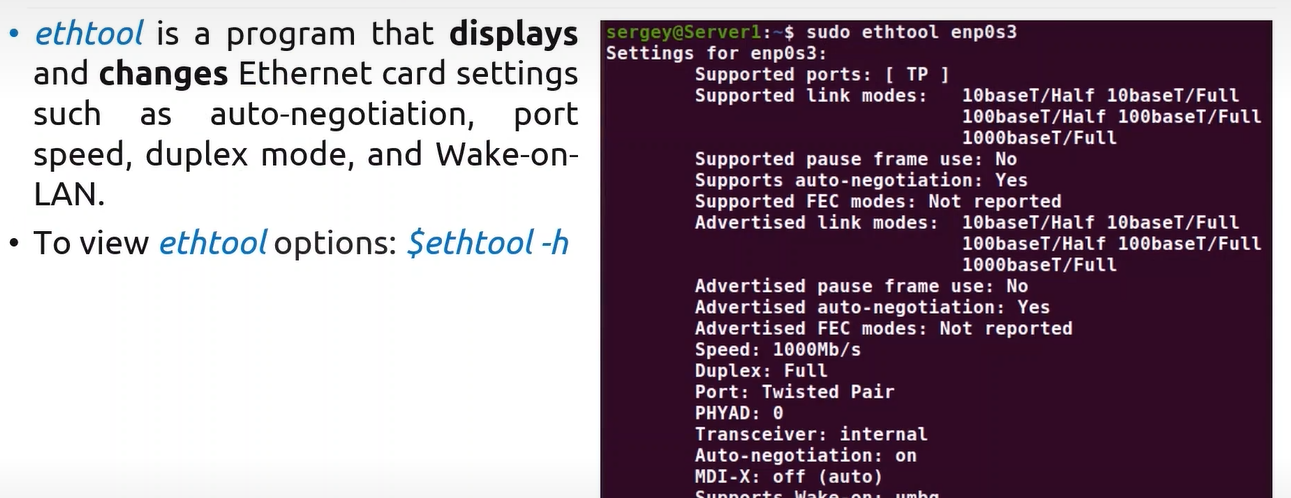
-
sudo hostname <NEW NAME>ORhostname