

CI & CD
The CI/CD Methodology: Integration, Delivery, and Deployment
Section titled “The CI/CD Methodology: Integration, Delivery, and Deployment”The continuous method of software development revolves around actively building, evaluating, and deploying iterative code changes. This approach minimizes human interference from the moment code is written until it reaches production, thereby decreasing the probability of releasing buggy software. The methodology is broken down into three primary stages.
Continuous Integration (CI)
Section titled “Continuous Integration (CI)”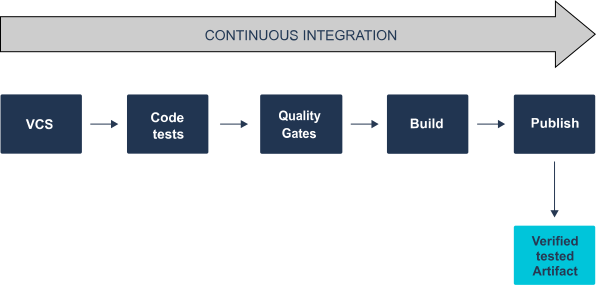
Continuous Integration is the practice of developers regularly merging small code changes into a central repository, which automatically triggers a build and testing process.
- Primary Goals: To find and fix bugs as early as possible, improve overall product quality, and drastically reduce validation time before a release. Automated testing is heavily implicit in this stage.
- Key Principles:
- Maintain a single, managed repository of code.
- Integrate changes frequently and build every single commit.
- Make builds self-testing to catch errors immediately.
- Archive and store a history of every build.
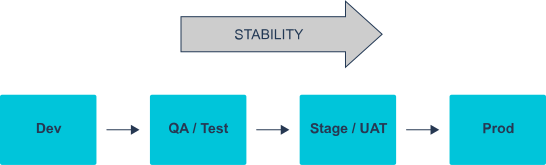
- Utilize multiple environments sorted by the stability of the code running on them.
Continuous Delivery (CD)
Section titled “Continuous Delivery (CD)”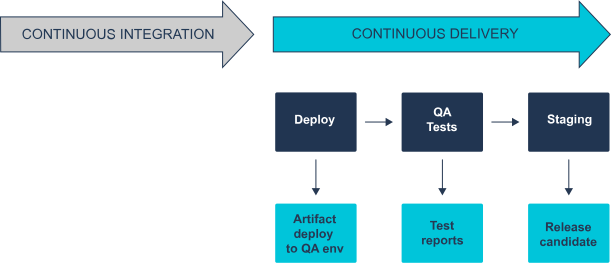
Continuous Delivery picks up where CI leaves off. It automatically collects the successful builds, tests them extensively in staging environments, and prepares them for production release. The final outcome is a production-ready artifact.
-
Primary Difference: In Continuous Delivery, the deployment to the live production environment requires a manual trigger (human approval).
-
Key Principles:
- Every successful change is theoretically ready to go to production.
- All steps leading up to production are fully automated.
- Test coverage is exhaustive (including unit, acceptance, performance, and stability tests).
-
Standard Environment Flow: Dev (Local) → QA/Testing → Stage/UAT (Identical to production to catch environment bugs) → Production.
Continuous Deployment
Section titled “Continuous Deployment”Continuous Deployment represents the ultimate automation of the pipeline. It shares all the rigorous testing and staging of Continuous Delivery, but removes the manual trigger. If a build passes all automated quality gates and tests, it is deployed directly to the live end-user environment automatically.
Anatomy of a CI/CD Pipeline
Section titled “Anatomy of a CI/CD Pipeline”A CI/CD pipeline is the sequence of automated steps required to deliver a new version of software. A properly configured pipeline provides rapid Mean Time to Resolution (MTTR), faster release speeds, high transparency, and rapid fault isolation.
The standard sequential flow of a pipeline typically follows this path: Commit & Push → Unit Tests → Integrate & Build → Acceptance Tests → Deploy
Core Pipeline Elements
Section titled “Core Pipeline Elements”- Build Elements: The stage where source code is compiled and packaged into deployable units. This relies on language-specific tools (like Maven or Gradle for Java) or containerization tools (like building a Docker Image). Build-centric tests, such as unit tests and dependency security scans, are executed here.
- Test Elements: The quality gates designed to instill confidence in the software. This involves deploying the complete application to run deep integration, immersion, load, and regression tests. Modern pipelines may also include chaos engineering at the infrastructure level.
- Release Elements: Focuses on generating stable revision markers and versioning. This ensures unambiguous communication among teams (“Version 2.4” rather than “the one with the registration fix”), allows for accurate changelogs, and guarantees a safe rollback point if a critical bug hits production.
- Deployment Elements: The final delivery and uploading of files to the hosting environment (e.g., AWS S3, CloudFront, Heroku, or a VPS).
The Jenkins Pipeline & Pipeline-as-Code
Section titled “The Jenkins Pipeline & Pipeline-as-Code”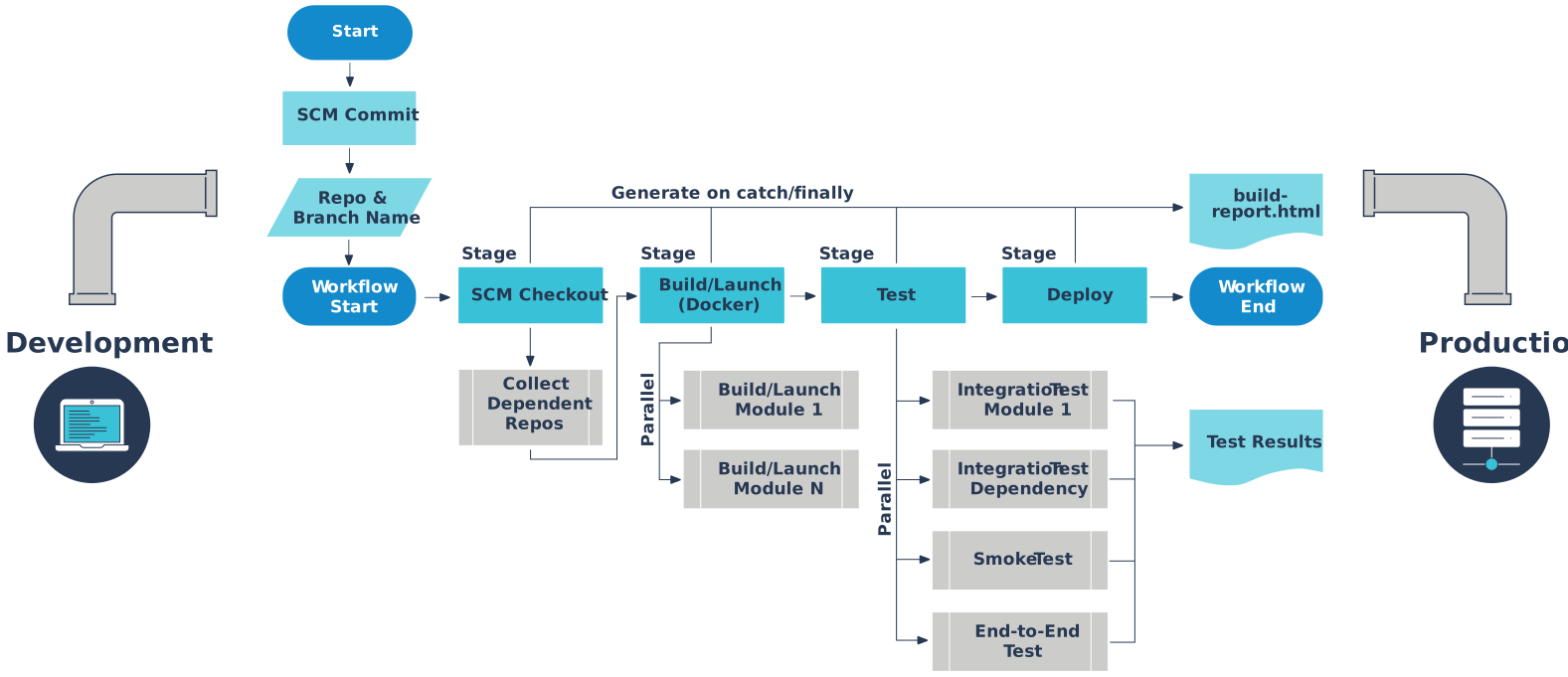
The Jenkins Pipeline is a powerful suite of plugins that supports the implementation of continuous delivery pipelines directly into Jenkins using a Domain Specific Language (DSL).
It promotes the philosophy of “Pipeline-as-Code”, meaning the deployment pipeline is treated as a part of the application itself. It is versioned, reviewed, and stored alongside the source code in a text file known as a Jenkinsfile.
Benefits of using a Jenkinsfile:
- Automatically creates pipeline build processes for all new branches and pull requests.
- Allows teams to perform code reviews and iterate on the pipeline infrastructure.
- Provides a strict audit trail of how the pipeline has changed over time.
- Establishes a single source of truth that multiple project members can view and edit.
Jenkins Pipeline Syntax: Declarative vs. Scripted
Section titled “Jenkins Pipeline Syntax: Declarative vs. Scripted”The Jenkinsfile is written using a Domain Specific Language (DSL) based on Groovy. However, Jenkins allows you to write this file using two fundamentally different paradigms. Understanding when to use which is critical for pipeline architecture.
1. The Scripted Pipeline
Section titled “1. The Scripted Pipeline”The Scripted Pipeline is the traditional, original method of writing “Pipeline-as-Code” in Jenkins. It is a fully-fledged programming environment that runs directly on the Jenkins master node.
- Characteristics: It is strictly imperative (you tell Jenkins exactly how to do everything). Because it is raw Groovy code, it offers limitless flexibility, allowing you to build highly complex, dynamic pipelines with custom error handling and advanced loop structures.
- The Catch: It requires a deep understanding of Groovy programming. It is harder to read, harder to maintain, and lacks the built-in safety rails of newer methods.
- Syntax Architecture: A scripted pipeline always begins with a
nodeblock, which tells Jenkins to allocate an executor and workspace for the code inside it.
Example Scripted Pipeline:
// The root block allocating the executornode {    stage('Checkout Code') {        // Raw groovy/DSL commands        git '<https://github.com/your-repo/app.git>'    }
    stage('Build Application') {        try {            sh 'make build'        } catch (Exception e) {            echo "Build failed: ${e.message}"            throw e // Manually handling and re-throwing errors        }    }
    stage('Run Tests') {        sh 'make test'    }}
2. The Declarative Pipeline
Section titled “2. The Declarative Pipeline”The Declarative Pipeline is the modern, industry-standard approach recommended by CloudBees (the primary corporate sponsor of Jenkins). It was introduced to make reading and writing pipelines significantly easier for developers who are not Groovy experts.
- Characteristics: It is declarative (you tell Jenkins what you want to happen, and Jenkins handles the execution). It enforces a strict, heavily structured hierarchy. You cannot just write raw code anywhere; everything must be placed in its specific designated block.
- Syntax Architecture: A declarative pipeline always begins with the
pipelineblock. It requires anagentdirective (where to run) and astagesblock containing individualstageandstepsblocks. It also introduces the highly usefulpostblock for automatic cleanup and notifications.
Example Declarative Pipeline:
// The strict root blockpipeline {    // Run this pipeline on any available Jenkins agent    agent any
    stages {        stage('Checkout Code') {            steps {                git '<https://github.com/your-repo/app.git>'            }        }
        stage('Build Application') {            steps {                sh 'make build'            }        }
        stage('Run Tests') {            steps {                sh 'make test'            }        }    }
    // Automatically executes after all stages finish, based on the build status    post {        success {            echo "Pipeline succeeded! Sending Slack notification..."        }        failure {            echo "Pipeline failed! Sending alert to development team..."        }    }}
Visualizing and Building Pipelines: Jenkins Blue Ocean
Section titled “Visualizing and Building Pipelines: Jenkins Blue Ocean”As pipelines grow to include dozens of parallel testing stages, security scans, and multi-environment deployments, reading through thousands of lines of classic Jenkins console text to find a single failure becomes incredibly inefficient.
Blue Ocean is a complete UX/UI overhaul for Jenkins, designed from the ground up to bring Jenkins into the modern DevOps era.
Core Features & Advantages
Section titled “Core Features & Advantages”- Visual Pipeline Editor: You can construct Continuous Delivery pipelines from start to finish using an intuitive, drag-and-drop interface without writing a single line of Groovy code.
- Pinpoint Troubleshooting: When a pipeline fails, Blue Ocean instantly highlights the exact stage and step that broke, filtering out the noise of successful steps so you can diagnose the issue in seconds.
- Personalized Dashboards: Developers only see the pipelines and branches they are actively working on, reducing dashboard clutter.
- Native Git Integration: It seamlessly hooks into GitHub, GitLab, and Bitbucket to automatically discover branches and pull requests, building them automatically.
Setup and Installation Process
Section titled “Setup and Installation Process”Because Blue Ocean is technically a suite of plugins, it must be installed into a classic Jenkins environment.
- Navigate to the Jenkins Classic UI dashboard.
- Click Manage Jenkins in the left sidebar.
- Click Manage Plugins.
- Navigate to the Available tab and type
Blue Oceaninto the search bar. - Check the box next to the main Blue Ocean plugin (this will automatically pull in all required UI dependencies).
- Click Download now and install after restart.
- Once Jenkins reboots, a new “Open Blue Ocean” icon will permanently appear in the classic UI sidebar.
Creating a Pipeline via the Blue Ocean Visual Editor
Section titled “Creating a Pipeline via the Blue Ocean Visual Editor”Instead of manually typing a Jenkinsfile and pushing it to GitHub, you can use Blue Ocean to generate it for you.
- Launch: Click “Open Blue Ocean” from the classic Jenkins dashboard.
- Initialize: Click the New Pipeline button.
- Connect to Source Control: Select your Git provider (e.g., GitHub). Blue Ocean will prompt you to generate and input a Personal Access Token so Jenkins can securely read your repositories.
- Select Repository: Choose the specific organization and repository you want to build a pipeline for. If no
Jenkinsfileexists in that repo, Blue Ocean immediately opens the Visual Editor. - Build the Stages (The Editor):
- Click the + icon to add a new stage and name it (e.g., “Build”).
- Click Add Step inside that stage. A menu appears listing all available Jenkins actions (e.g., Print Message, Run Shell Script, Archive Artifacts).
- Configure the step (e.g., type
npm installinto the shell script box). - Click the + icon to the right to add sequential stages, or the + icon directly beneath a stage to run tasks in parallel (e.g., running Unit Tests and UI Tests at the exact same time).
- Save and Commit: Click Save. Blue Ocean will automatically translate your visual diagram into perfect Declarative Pipeline syntax and commit the new
Jenkinsfiledirectly to your GitHub repository for you.