

Firewalld & Iptables
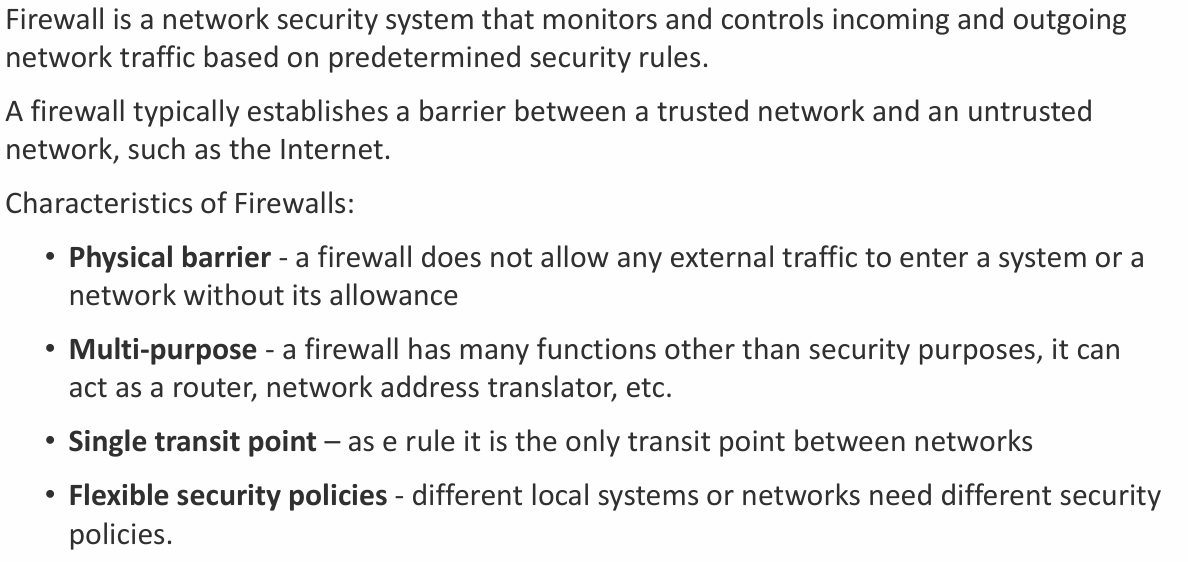
1. The Firewall Concept
Section titled “1. The Firewall Concept”-
Packet Filtering: The guard looks at the incoming envelope (Layer 3 and 4) to check the Source IP, Destination IP, TCP/UDP ports, and ICMP (ping) type.
Main Firewall Types
- Packet-filtering firewall—Usually a router that examines packet contents (layers 3 and sometimes 4) based on pre-established rules.
- Stateful firewall—Tracks connection states: initiation, data transfer, or termination.
- Application gateway firewall (proxy firewall)—Analyzes information at OSI model layers 3, 4, 5, and 7. Usually implemented in software.
- Host-based firewall—A server or workstation running firewall software.
- Transparent firewall—Filters IP traffic between bridged interfaces without modifying IP headers.
-
The DMZ (Demilitarized Zone): A specific network setup where you put public-facing servers (like a web server) in an isolated zone. If a hacker breaches it, they still cannot reach your private internal network because a firewall blocks them.
-
Stateful Filtering: A smart firewall remembers conversations. If Client A initiates a connection to the Server, a stateful firewall automatically allows the Server’s reply back through without needing a specific “allow reply” rule.
2. The Logic of the Rules
Section titled “2. The Logic of the Rules”Firewall rules are analyzed sequentially from top to bottom.
- First Match Wins: The moment the guard finds a rule that matches the packet, it executes the action (Allow or Deny) and immediately stops reading the rest of the list.
- The Best Practice: The most secure way to build a firewall is to define rules for the exact traffic you want to allow, and then set a final rule at the very bottom that drops absolutely everything else.
3. Inside the Linux Brain: iptables
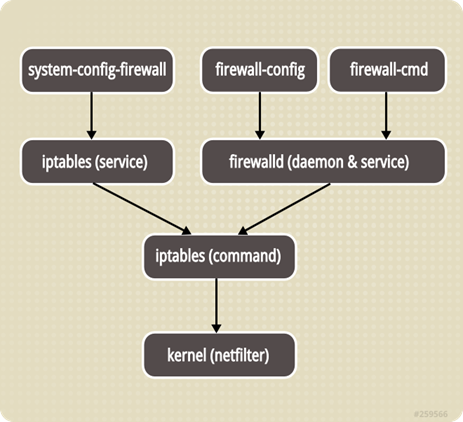
Section titled “3. Inside the Linux Brain: iptables”iptables is the command-line tool used to configure the Linux kernel’s firewall rules. It is organized into Tables (departments) and Chains (checkpoints).
The Tables
Section titled “The Tables”- Filter Table: This is the default table and the one you will use right now. It solely decides whether to ACCEPT or DROP a packet.
- Mangle Table: Used to alter IP headers (like changing a packet’s Time-To-Live).
- Raw Table: Used to mark packets to bypass stateful connection tracking.
The Chains (The Checkpoints)
Section titled “The Chains (The Checkpoints)”Inside the Filter table, there are three main checkpoints where the guard stands.
INPUT: For packets destined to the server itself. (e.g., You SSHing into10.0.1.1).OUTPUT: For packets originating from the server itself. (e.g., The server downloading an update).FORWARD: For packets passing through the server. (e.g., Client B pinging Client A via the server’s routing).
The Targets (The Actions)
Section titled “The Targets (The Actions)”When a packet matches a rule, it hits a target.
ACCEPT: Let it pass.DROP: Silently discard it. (The sender gets no reply; it acts like the server doesn’t exist) .
4. Writing the Rules (The Flags)
Section titled “4. Writing the Rules (The Flags)”Here is your cheat sheet for the flags used to build a rule:
A(Append): Add this rule to the bottom of the list.I(Insert): Put this rule at a specific line number, pushing others down.D(Delete): Remove a rule.p: Protocol (Is ittcp,udp, oricmp?).-dport: Destination Port (e.g., 22 for SSH, 80 for HTTP).s: Source IP Address (Who is sending it?).j: Jump to Target (ACCEPTorDROP).
Viewing the Rules:
sudo iptables -L: Lists the rules in the filter table.sudo iptables -L -v: Adds verbose output (shows packet and byte counters).sudo iptables -L --line-numbers: Shows the sequence numbers, which is critical for editing.
5. Practical Examples
Section titled “5. Practical Examples”Examples of Building a Filter:
- Allow existing conversations (Stateful):
sudo iptables -A INPUT -m state --state ESTABLISHED,RELATED -j ACCEPT. - Allow new SSH traffic:
sudo iptables -A INPUT -p tcp --dport 22 -j ACCEPT. - Insert a rule to allow Ping at line 2:
sudo iptables -I INPUT 2 -p icmp -j ACCEPT. - Drop everything else (Must be the last rule!):
sudo iptables -A INPUT -j DROP. - Block server from Pinging out the traffic..
sudo iptables -A OUTPUT -p icmp -j DROP- this blocks the ping requests of current host
- Allow Cleint B to ping Client A through shortcut route.. while block traffic GOING Through Server..
sudo iptables -A FORWARD -d 10.99.99.1 -p icmp -j DROP- Note: FORWARD is used to block traffic going through the current server or device..
Deleting and Clearing Rules:
- Delete by line number:
sudo iptables -D INPUT/FORWARD/OUPUT 2. - Delete by exact match:
sudo iptables -D INPUT/FORWARD/OUPUT -p icmp -j ACCEPT. - Flush (Delete ALL rules):
sudo iptables -F. - Zero the counters:
sudo iptables -Z.
6. Saving the Configuration
Section titled “6. Saving the Configuration”Just like the ip route commands, iptables writes to the Linux kernel “whiteboard.” If you reboot right now, the firewall vanishes.
To make it permanent:
- Install the persistent package:
sudo apt install iptables-persistent. - Save the current rules:
sudo iptables-save > /etc/iptables/rules.v4. - Restore rules manually (if needed):
sudo iptables-restore /etc/iptables/rules.v4
[server@epam ~]$ sudo iptables-save > ~/Desktop/ip_rules.txt
[server@epam ~]$ cat ~/Desktop/ip_rules.txt# Generated by iptables-save v1.8.10 (nf_tables) on Tue Feb 24 00:45:08 2026*filter:INPUT ACCEPT [35:3752]:FORWARD ACCEPT [31:1950]:OUTPUT ACCEPT [13:2006]-A INPUT -s 10.0.1.10/32 -p tcp -m tcp --dport 22 -j ACCEPT-A INPUT -s 10.0.2.11/32 -p tcp -m tcp --dport 22 -j DROP-A FORWARD -s 10.0.2.11/32 -d 10.99.99.2/32 -p icmp -j DROP-A FORWARD -s 10.0.2.11/32 -d 10.99.99.1/32 -p icmp -j DROPCOMMIT# Completed on Tue Feb 24 00:45:08 2026
[server@epam ~]$ sudo iptables --flush
[server@epam ~]$ sudo iptables -L --line-numbersChain INPUT (policy ACCEPT)num  target     prot opt source               destination
Chain FORWARD (policy ACCEPT)num  target     prot opt source               destination
Chain OUTPUT (policy ACCEPT)num  target     prot opt source               destination
[server@epam ~]$ sudo iptables-restore ~/Desktop/ip_rules.txt
[server@epam ~]$ sudo iptables -L --line-numbersChain INPUT (policy ACCEPT)num  target     prot opt source               destination1    ACCEPT     tcp  --  10.0.1.10            anywhere             tcp dpt:ssh2    DROP       tcp  --  10.0.2.11            anywhere             tcp dpt:ssh
Chain FORWARD (policy ACCEPT)num  target     prot opt source               destination1    DROP       icmp --  10.0.2.11            10.99.99.22    DROP       icmp --  10.0.2.11            10.99.99.1
Chain OUTPUT (policy ACCEPT)num  target     prot opt source               destination
Stateful Firewalls
Section titled “Stateful Firewalls”- A stateful firewall is simply a firewall with a memory. It monitors the state of all traffic to track flows, rather than looking at every single packet in isolation.
- Think of a stateless firewall as a security guard with amnesia. If you (Client A) ask the guard to let you pass to talk to the Server, he checks your ID and lets you in. When the Server tries to reply to you five seconds later, the guard blocks the reply because he forgot who you are and there is no specific rule written to allow the Server to speak. You would have to write two separate rules: one for the request, one for the reply.
- A stateful firewall acts like a guard who stamps your hand. It tracks the connection. If Client A initiates an allowed connection to the Server, the firewall dynamically remembers this. When the Server sends its reply back, the firewall sees the “stamp” (the state) and automatically lets the reply through without needing a second, explicit rule.
The Pure Logic
In networking, connections have phases. iptables categorizes these into “states”:
NEW: A packet trying to start a brand-new conversation (like the initialssh server@10.0.1.1command).ESTABLISHED: Packets that are part of a conversation that has already been approved and is currently ongoing.RELATED: A new connection that is directly tied to an already established one (e.g., you establish an FTP control connection, and it opens a secondary port for the actual data transfer).
The Implementation Because you want your firewall to drop all unauthorized traffic by default, you must explicitly tell it to trust the conversations that are already happening.
This is almost always the very first rule you add to a Linux firewall:
m state: Loads the firewall’s memory module (connection tracking).-state ESTABLISHED,RELATED: Tells it to look for packets belonging to approved or related conversations.j ACCEPT: Lets them pass immediately.
Once this rule is in place, you only ever have to write rules for the NEW incoming connections (like allowing Port 22 for SSH). The firewall’s memory will automatically handle all the complex back-and-forth replies.
Firewalld
Section titled “Firewalld”Firewalld vs. Iptables: The Logic
Section titled “Firewalld vs. Iptables: The Logic”The biggest difference is how they handle changes:
- Iptables (Static): Every time you change a rule, the system “flushes” (deletes) all old rules and re-reads the entire list. This can briefly drop existing connections.
- Firewalld (Dynamic): It only applies the difference. You can add or remove rules without breaking current SSH sessions or downloads. It saves configuration in XML files instead of one long list.
The Concept of “Zones”
Section titled “The Concept of “Zones””Instead of writing rules for every IP address, you assign a Zone to your network interface (like eth0). A zone is a “trust level.”
| Zone | Trust Level | Use Case |
|---|---|---|
| drop | Lowest | Every incoming packet is dropped (no reply). Maximum stealth. |
| block | Low | Similar to drop, but sends an ICMP “Rejected” reply. |
| public | Normal | Default for most Linux servers. Only trust specific services (like SSH). |
| external | Special | Used for NAT Masquerading. Your server acts as a gateway. |
| dmz | Medium | Isolated servers with limited access to the internal network. |
| home/work | High | Trust most local machines; allows more services (like file sharing). |
| trusted | Highest | All incoming traffic is accepted. Use with extreme caution. |
Essential Commands
Section titled “Essential Commands”- Check Services:
firewall-cmd --get-services(Lists names likehttp,ftp,ssh). - Service Info:
firewall-cmd --info-service=ftp(Shows exactly which port/protocol a service uses). - Panic Mode:
firewall-cmd --panic-on(Instantly cuts all incoming/outgoing traffic—useful during an active attack).
Masquerading & Port Forwarding
Section titled “Masquerading & Port Forwarding”These are the most common tasks for a network administrator.
Masquerading (NAT)
Section titled “Masquerading (NAT)”Used when your server is the “front door” for a private network. It hides internal IP addresses.
- Enable:
firewall-cmd --zone=external --add-masquerade - Query:
firewall-cmd --query-masquerade
Port Forwarding
Section titled “Port Forwarding”Redirects traffic from one port to another (or even another IP).
Important Note: You must enable Masquerading for Port Forwarding to work. This is a common point of failure in exams.
-
Example (Forward port 22 to 3753):
firewall-cmd --zone=external --add-forward-port=port=22:proto=tcp:toport=3753
The “Permanent” Rule
Section titled “The “Permanent” Rule”By default, firewall-cmd changes are temporary. If you reboot, they are gone.
- To make it stick: Add the
-permanentflag to your command. - To apply it now: You must run
firewall-cmd --reload.
Daily Life Workflow:
`# 1. Test it temporarily firewall-cmd —add-service=http
2. If it works, make it permanent
Section titled “2. If it works, make it permanent”firewall-cmd —permanent —add-service=http firewall-cmd —reload`
Summary for Daily Life
Section titled “Summary for Daily Life”- Public Server: Use the
publiczone and strictly add only the services you need (ssh,https). - Gateway/Router: Use
externalzone withmasqueradeenabled. - Testing: Use
firewall-cmd --get-active-zonesto see which zone is currently controlling your internet connection.